It can be at times disturbing to get Notifications from your iPhone to your Mac, especially social media ones (like Instagram, WhatsApp, X, etc)
If you have a screen mirrored on your iPhone on your Mac and do not wish to display such notifications on your Mac, follow the below steps.
- Go to Your iPhone, and unlock it.
- Now go to Setting App.
- Go to Notications.
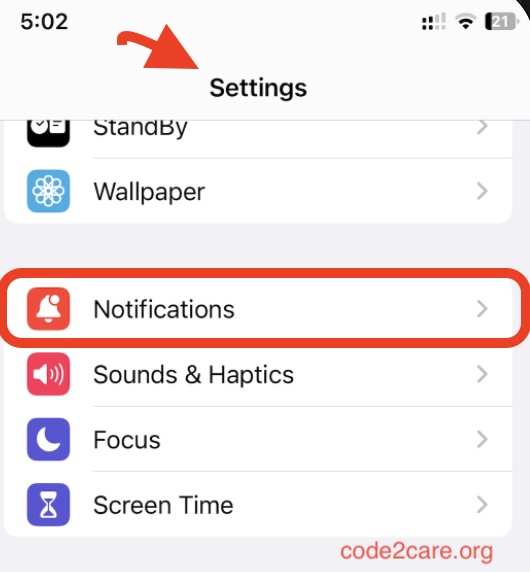
- Now tap on the App name you do not wish to see notifications on Mac.
- Scroll down and turn off - "Show on Mac"
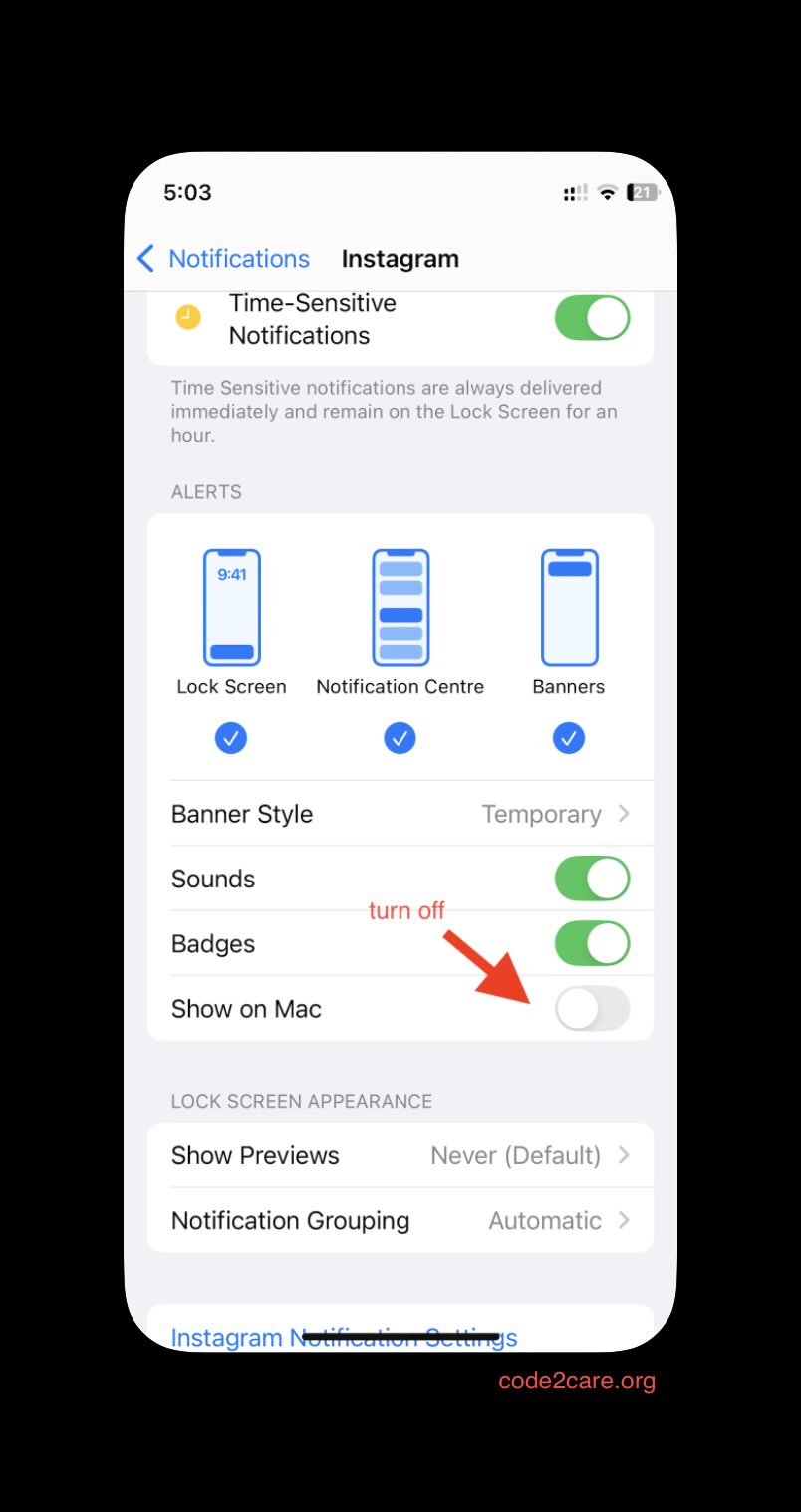
Now you will not see notifications from this app on your Mac, do the same if you wish to enable/disable notifications from other apps.

This is not an AI-generated article but is demonstrated by a human with an iPhone 12 mini (iOS 18) with Macbook Air M1 (macOS 15).
Please support independent contributors like Code2care by donating a coffee.
Buy me a coffee!
Comments & Discussion
Facing issues? Have questions? Post them here! We're happy to help!