
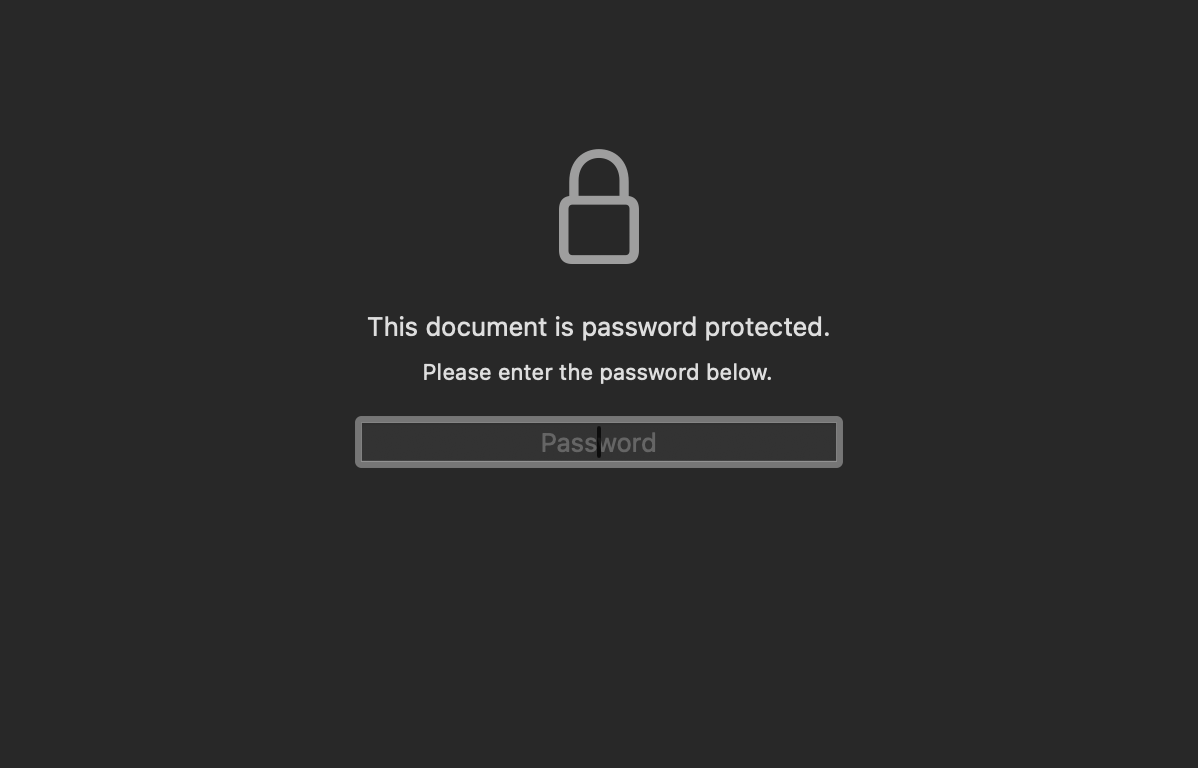
If you need to remove a password from a PDF on a Mac, you can follow these steps to do so easily. We'll provide two methods: one using Firefox and another using Preview.
Steps to Remove Password from PDF on Mac:
Method 1: Using Browser (Safari/Chrome/Firefox)
- Right-click the PDF file.
- Select Open with and choose Firefox (your web browser).
- Once the PDF is open in Browser, click File in the menu bar.
- Select Print... (or use the shortcut Command + P).
- In the print dialog, click on the PDF dropdown menu.
- Choose Save as PDF... from the options.
- Select a location to save the unprotected PDF and click Save.
Method 2: Using Preview
- Open the PDF file using Preview on your Mac.
- Enter the password when prompted to unlock the PDF.
- Once the PDF is open, click on File in the menu bar.
- Select Export from the dropdown menu.
- Choose a location to save the unprotected PDF and click Save.
Provide Feedback For This Article
We take your feedback seriously and use it to improve our content. Thank you for helping us serve you better!
😊 Thanks for your time, your feedback has been registered!
Comments & Discussion
Facing issues? Have questions? Post them here! We're happy to help!