iPhone Mirroring is a powerful and the top feature in macOS Sequoia (15) that allows you to seamlessly display your iPhone's screen on your Mac. This functionality is perfect for presentations, sharing content, or simply enjoying your iPhone apps on a larger display. Follow the steps below to get started with iPhone Mirroring.
- Step 1: Ensure your iPhone is running on iOS 18 and Mac using macOS Sequoia.
- Step 2: Lock your iPhone to begin the mirroring process.
- Step 3: Open Spotlight Search on your Mac by pressing Command-Spacebar.
- Step 4: Type "iPhone Mirroring" in the Spotlight Search bar.
- Step 5: Select the "iPhone Mirroring" option from the search results.
- Step 6: Press "Connect" on your Mac to start mirroring.
- Step 7: An animation will appear as "Connecting to <Your-Phone-Name>" as mirroring process begins.
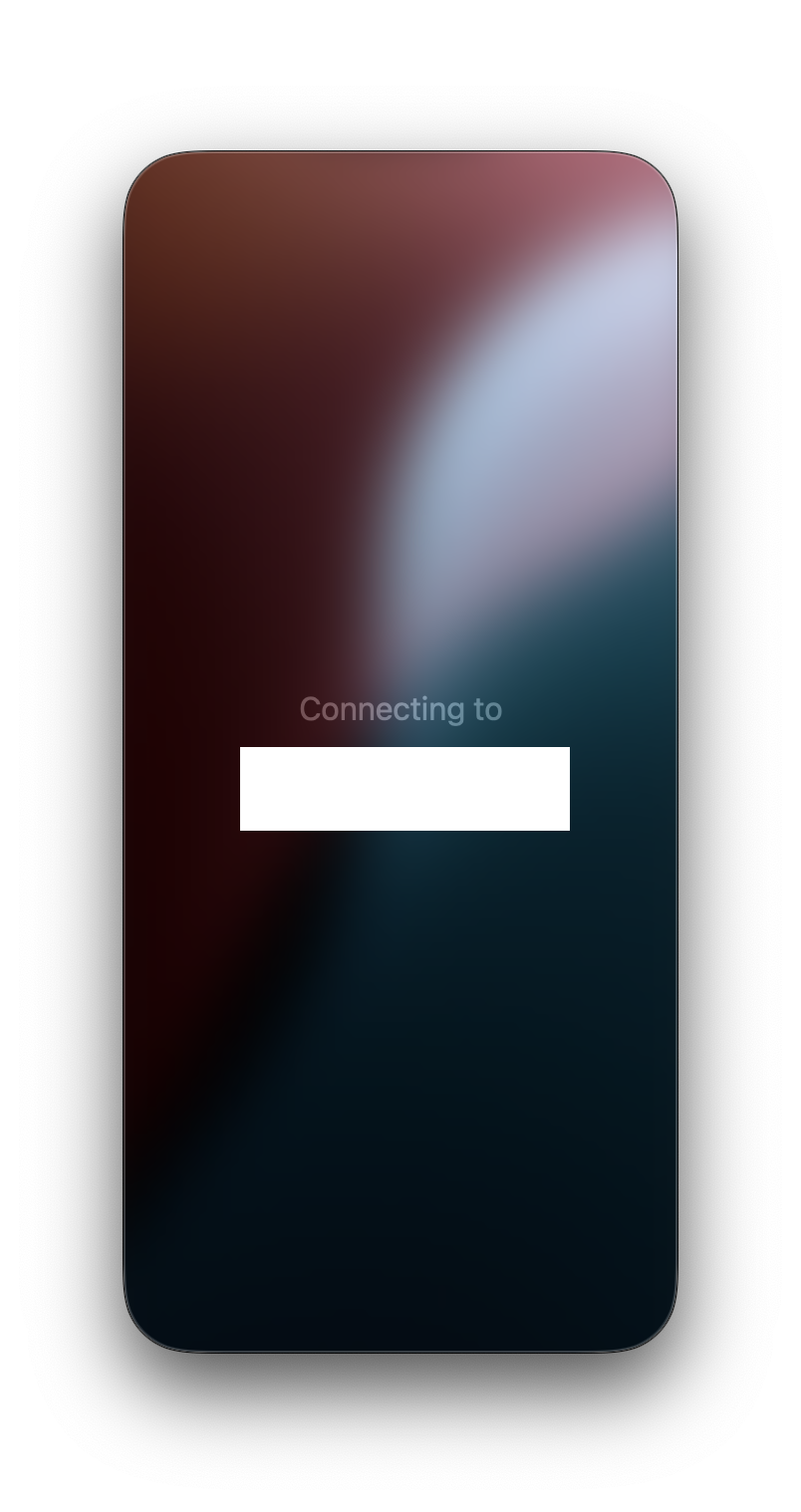
Now you should be able to see your iPhone on your Mac.


This is not an AI-generated article but is demonstrated by a human with an iPhone 12 mini running iOS 18 and a Mac running macOS Sequoia.
Please support independent contributors like Code2care by donating a coffee.
Buy me a coffee!
Comments & Discussion
Facing issues? Have questions? Post them here! We're happy to help!