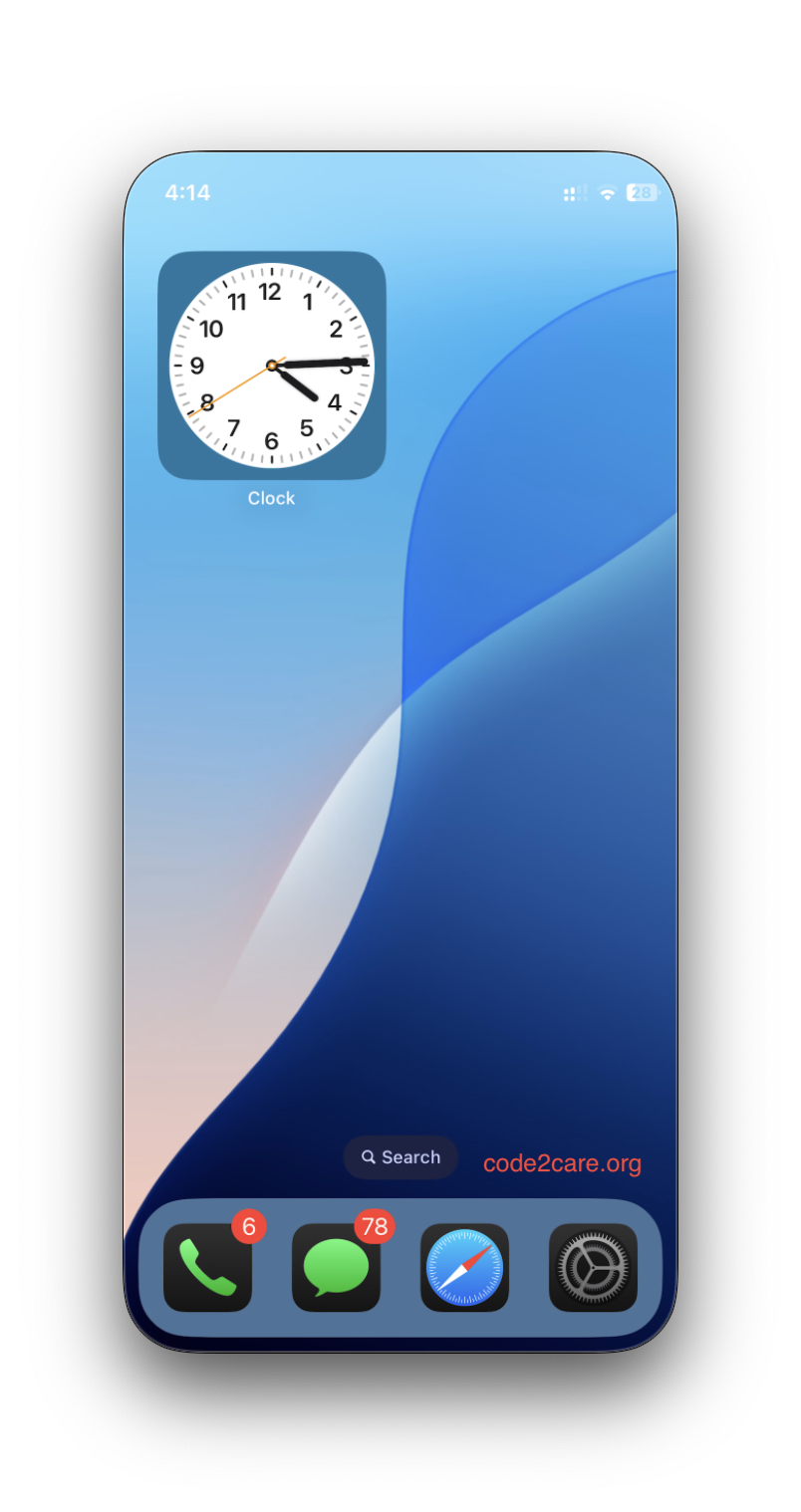
Troubleshooting iPhone Mirroring in macOS Sequoia
- Make sure that iPhone Mirroring is available in your country or region.
- Ensure your Mac and iPhone are near each other and signed in to the same Apple Account.
- Unlock and then lock your iPhone again.
- Quit and reopen the iPhone Mirroring app.
- Install the latest software updates for both devices.
- Restart your Mac and iPhone.
- If either device is using Bluetooth or Wi-Fi for other purposes, stop that use and check for interference.
- Check for VPNs or third-party security software that may block connections. Ensure your Mac's firewall allows incoming connections.
- Reset iPhone access in iPhone Mirroring settings: Quit the app, go to Settings > General > AirPlay & Continuity > iPhone Mirroring on your iPhone, swipe left on your Mac's name, and tap Delete. Restart both devices.
- Sign out of your Apple Account on both devices, restart them, and sign back in.
iPhone Mirroring System Requirements
- iPhone Mirroring can be used with only one Mac and one iPhone at a time.
- Your computer must be a Mac with Apple silicon or the Apple T2 Security Chip, running macOS Sequoia 15 or later.
- Your iPhone must be using iOS 18 or later.
- Both devices must be signed in to the same Apple Account with two-factor authentication enabled.
- Bluetooth and Wi-Fi must be enabled on both devices.
- Your iPhone should be locked and near your Mac; it can also be charging and using StandBy.
- Your iPhone must not be using Personal Hotspot.
- Your Mac must not be sharing its internet connection or using AirPlay or Sidecar.

This is not an AI-generated article but is demonstrated by a human with first-hand experience.
Please support independent contributors like Code2care by donating a coffee.
Buy me a coffee!
Comments & Discussion
Facing issues? Have questions? Post them here! We're happy to help!