
If you own multiple Apple devices such as an iPhone, MacBook, or iPad, then such an ecosystem offers a range of convenient features that simplify your life. One of the standout capabilities is the Universal Clipboard, which allows for seamless copying and pasting of links, text, and images across your devices.
Prerequisite:
- Ensure Wi-Fi, Bluetooth, and Handoff are enabled on both devices.
- Sign in with the same Apple Account on both devices.
- Confirm both devices meet the minimum system requirements.
Copy and Paste on a Mac
- Select the text or image.
- Copy: Press Command-C or choose Edit -> Copy.
- Paste: Move the pointer and press Command-V or choose Edit -> Paste.
Copy and Paste Between Devices
Universal Clipboard allows you to paste copied content on other Apple devices seamlessly.
- On your Mac, copy the text or image.
- On the other device, tap or click where you want to paste, then select Paste.

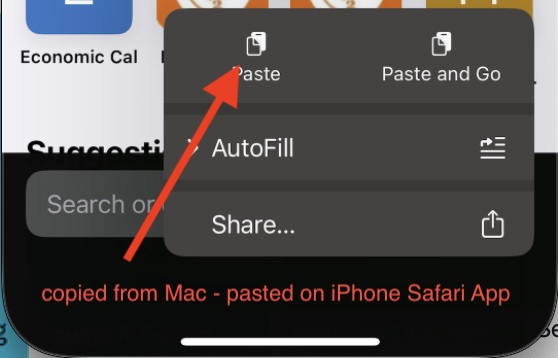
How to Copy and Paste on iPhone or iPad
- To copy text: Double-tap a word or triple-tap a paragraph, then tap Copy.
- To copy an image: Touch and hold the image, then tap Copy.
- To paste: Tap where you want to paste, then tap Paste.
Steps to Troubleshoot Universal Clipboard:
Ensure both devices are signed in with the same Apple Account and have Wi-Fi, Bluetooth, and Handoff enabled. Keep devices within 30 feet (10 meters) of each other. Restart devices if issues persist.
Universal Clipboard is ideal for sharing small text or images.
Provide Feedback For This Article
We take your feedback seriously and use it to improve our content. Thank you for helping us serve you better!
😊 Thanks for your time, your feedback has been registered!
Comments & Discussion
Facing issues? Have questions? Post them here! We're happy to help!