
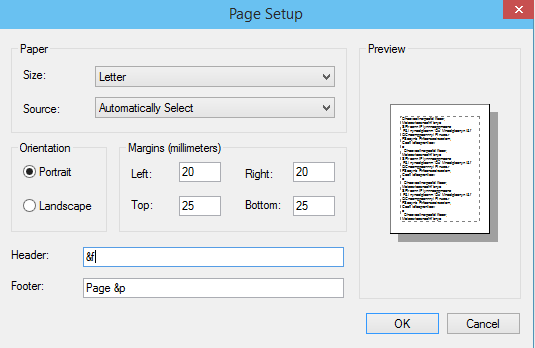
This tutorial will guide you through the process of adding custom headers and footers to your documents in Microsoft Notepad. This feature is particularly useful for printing, as it allows you to include important information such as the date, time, and page numbers directly on your printed pages. Follow the steps below to enhance your Notepad files with personalized headers and footers using the Page Setup feature found in the File menu.
- Open the text file you wish to edit in Microsoft Notepad.
- Navigate to the File menu and select Page Setup.
- You will see text boxes for entering your Header and Footer.
- Input your custom text along with the following keywords to include dynamic information:
- To insert today's date, use: &d
- To insert the current time, use: &t
- To insert the page number, use: &p
- To insert the name of the file, use: &f
- To insert an ampersand (&) symbol, use: &&
- &l => Aligns text to the left
- &r => Aligns text to the right
- &c => Centers the text.
Provide Feedback For This Article
We take your feedback seriously and use it to improve our content. Thank you for helping us serve you better!
😊 Thanks for your time, your feedback has been registered!
Comments & Discussion
Facing issues? Have questions? Post them here! We're happy to help!