
Windows Notepad is a simple yet powerful text editor for quick viewing and editing of text, HTML, or other programming language files. While it may lack advanced features, it offers some basic functionalities that can be very helpful.
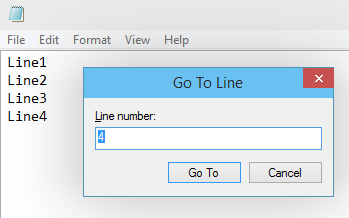
When working with a large file, you may want to jump to a specific line number. Follow the steps below to do so:
Menu: Edit -> Go to
This will open a dialog box with a text field. Enter the line number you want to jump to, and the cursor will move to the start of that line.
Frequently Asked Questions
How do I open the Go to Line dialog in Notepad?
You can open the Go to Line dialog by navigating to Menu: Edit -> Go to, or by using the keyboard shortcut Ctrl + G.
Can I jump to a specific line number in Notepad?
Yes, you can jump to a specific line number in Notepad by using the Go to Line dialog. Open it by selecting Menu: Edit ? Go to, or by pressing Ctrl + G, then enter the desired line number.
Is there a way to find and replace text in Notepad?
Yes, you can find and replace text in Notepad by navigating to Menu: Edit ? Replace, or by using the keyboard shortcut Ctrl + H.
How can I save a file in Notepad?
You can save a file in Notepad by navigating to Menu: File ? Save, or by using the keyboard shortcut Ctrl + S.
Can I change the font in Notepad?
Yes, you can change the font in Notepad by navigating to Menu: Format ? Font, and then selecting your desired font, style, and size.
Provide Feedback For This Article
We take your feedback seriously and use it to improve our content. Thank you for helping us serve you better!
😊 Thanks for your time, your feedback has been registered!
Comments & Discussion
Facing issues? Have questions? Post them here! We're happy to help!