
macOS Ventura version 13 is now available for all Mac devices that are eligible for the update.
List of Supported Mac Devices for macOS Ventura
If you are on macOS Monterey and want to update to macOS Ventura, here is how you can do that,
- Make sure you are connected to the internet.
- Also, plugin your Macbook laptop to power before you start,
- Optional: Its always better to backup your Mac using Time Machine.
- Click on the Apple Logo on the Menu on the top right of your screen.
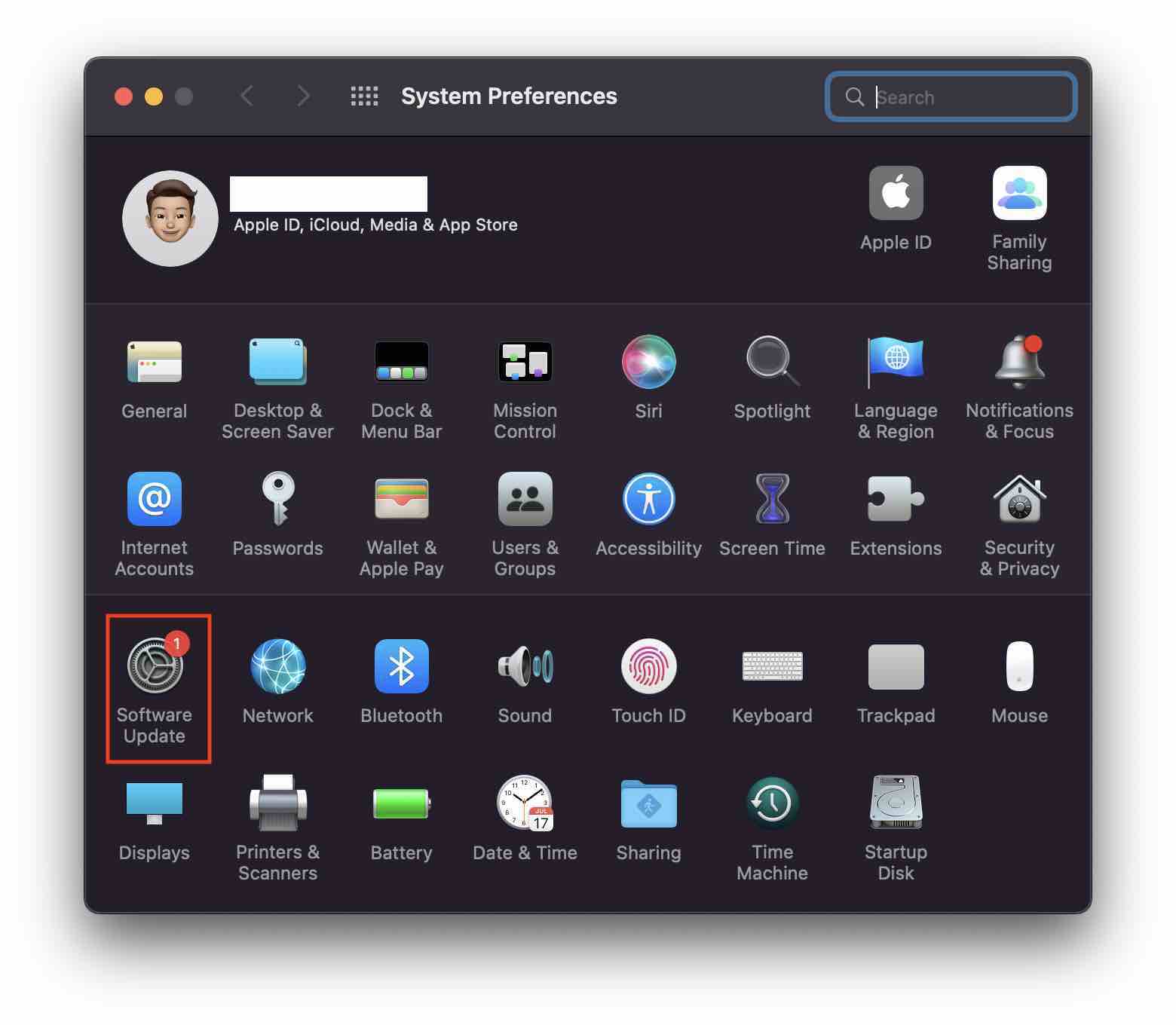
- Click on System Preferences...
- Click on Software Update where you should see a notification of an update available,
- You would see macOS Ventura, click on update now icon,
- Agree on the terms, and add your system password if prompted,
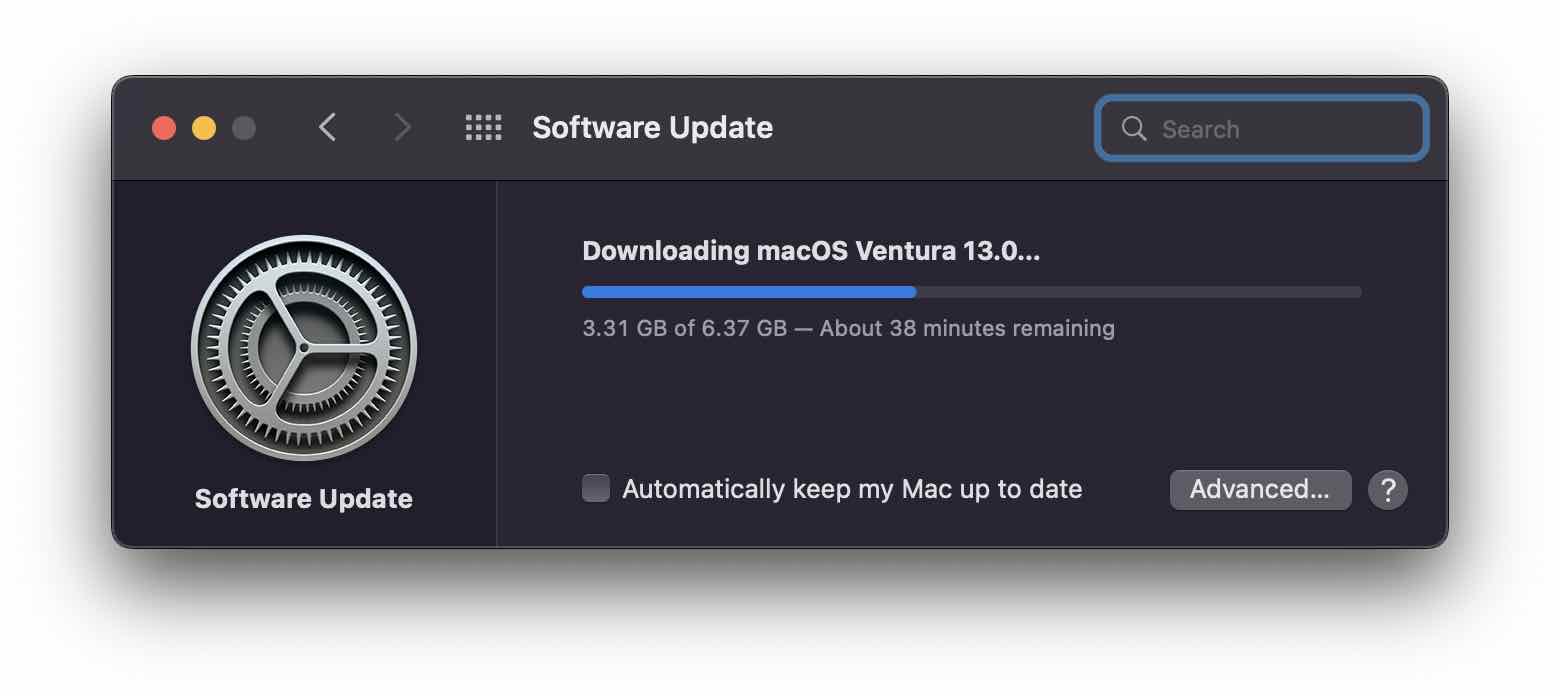
- Download will take some time to complete and you can follow the progress bar,
- Your Mac will get restarted a couple of times and you will see a white Apple logo with a progress bar,
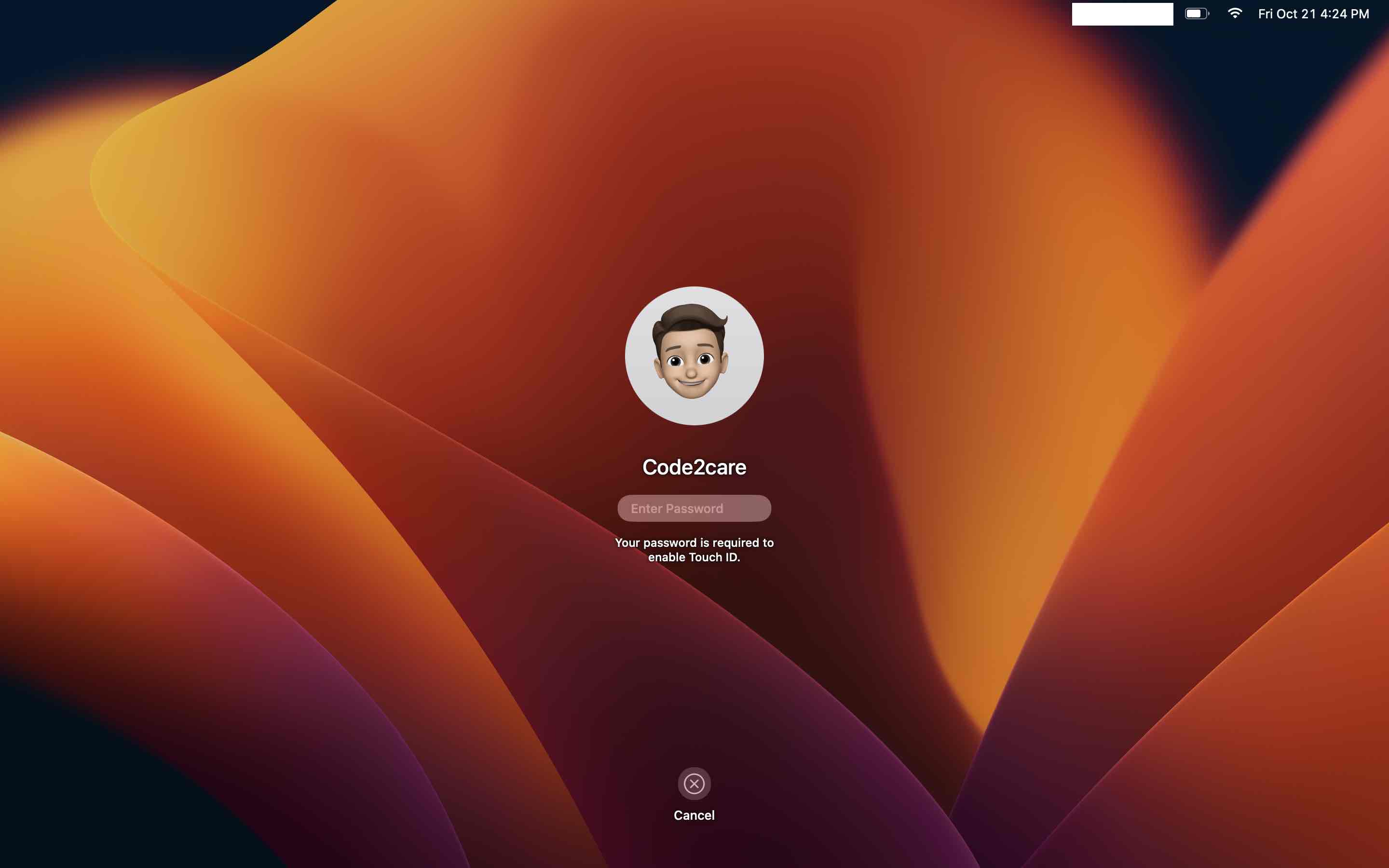
- Once the upgrade is complete you will see the login screen of macOS Ventura
- Congratulations! You are now on macOS Ventura!
Note: For the first login, your password is required to enable Touch ID.
Provide Feedback For This Article
We take your feedback seriously and use it to improve our content. Thank you for helping us serve you better!
😊 Thanks for your time, your feedback has been registered!
Comments & Discussion
Facing issues? Have questions? Post them here! We're happy to help!