To change the Eclipse theme on macOS, open Eclipse, go to Preferences, expand General, select Appearance, choose Dark from the Theme dropdown, and click Apply and OK.
Let's take a look at it step-by-step with the help of screenshots.
Steps to Change Eclipse to Theme on macOS
- Open Eclipse.
- Go to the "Eclipse" menu in the top left corner.
- Select "Preferences" (Settings... if on macOS Ventura or later) from the dropdown menu.
- In the Preferences window, expand the "General" section.
- Click on "Appearance".
- Choose "Dark" from the "Theme" dropdown menu.
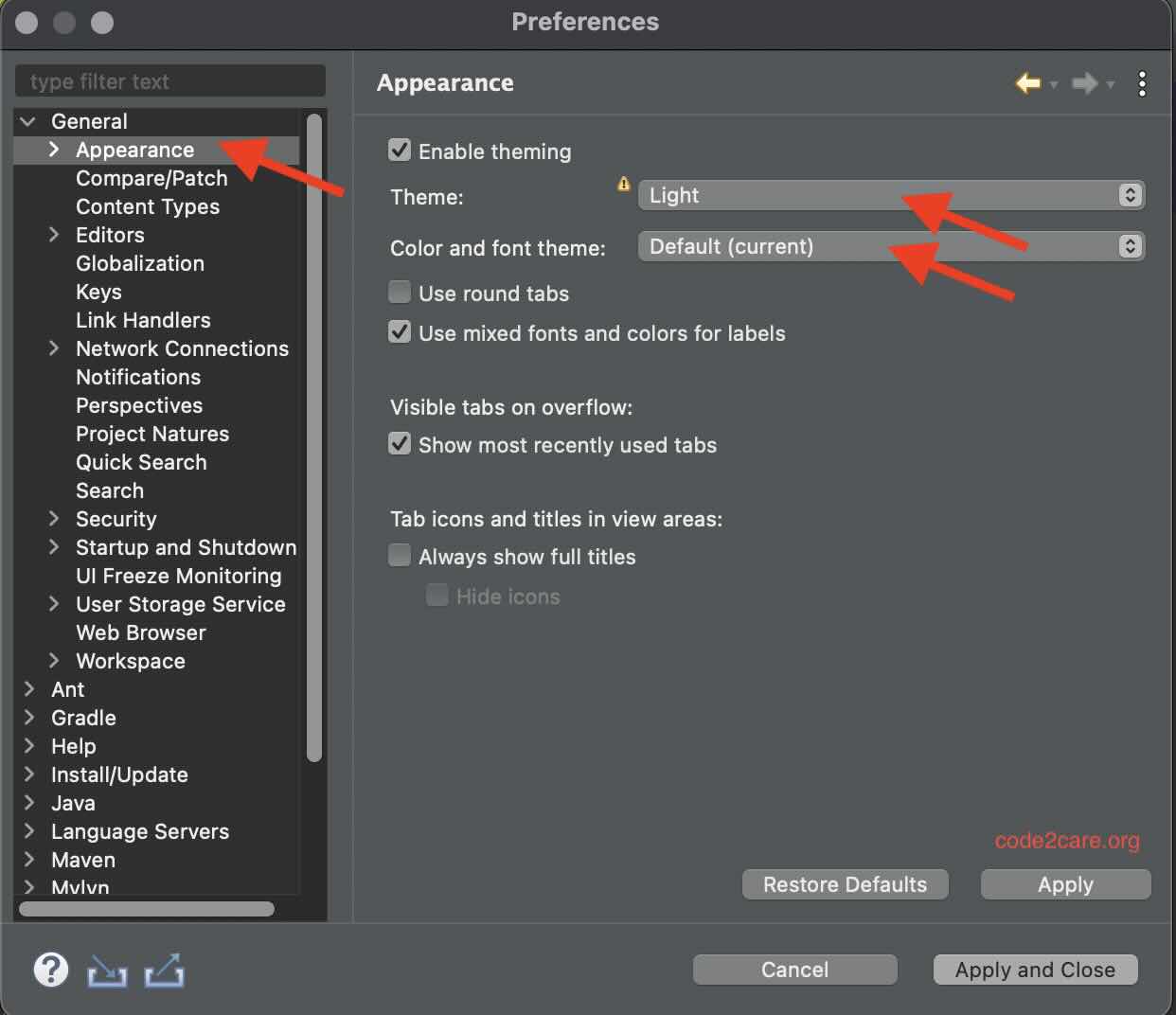
- Click "Apply" and then "OK" to save your changes.
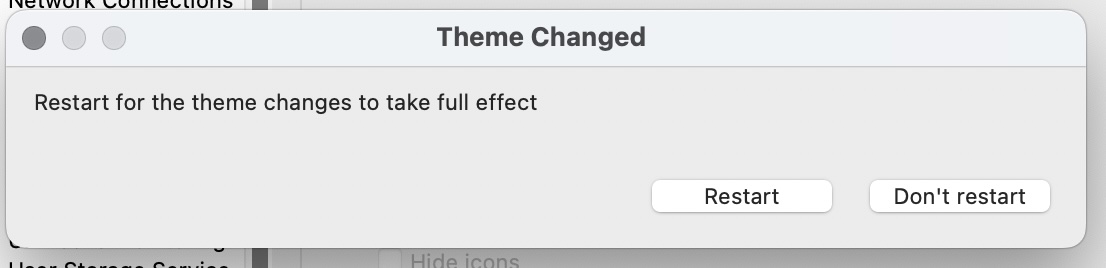
You will need to restart Eclipse for the theme changes to take full effect.

This is not an AI-generated article but is demonstrated by a human on an M1 Mac running macOS Sonoma 14.0.
Please support independent contributors like Code2care by donating a coffee.
Buy me a coffee!
Comments & Discussion
Facing issues? Have questions? Post them here! We're happy to help!