
In order to remove an image or multiple images on your local Docker Desktop, you can make use of the Command Line (or Terminal on macOS) and make use of the docker rm command,
Example:First let us do a docker images -a to see all the images that we have locally,
% docker images -a
REPOSITORY   TAG       IMAGE ID       CREATED        SIZE
alpine       latest    a6215f271958   2 months ago   5.29MB
alpine       edge      578ac1b1a970   3 months ago   5.27MB
As you can see I have two Linux Alpine images with tag latest and edge.
Docker remove image command
To docker remove an image, make use of the command, docker images rm <Image ID>
% docker image rm a6215f271958

Untagged: alpine:latest
Untagged: alpine@sha256:bc41182...95ee852a8d9730fc2ad
Deleted: sha256:a6215f271958c...8a6a26b4f6
Deleted: sha256:5d3e3...99f06a9772
Docker remove multiple images at once command
To remove multiple images at once, you can pass multiple Image IDs separated by a space along with the docker image rm command.
Example:% docker image rm a6215f271958 578ac1b1a970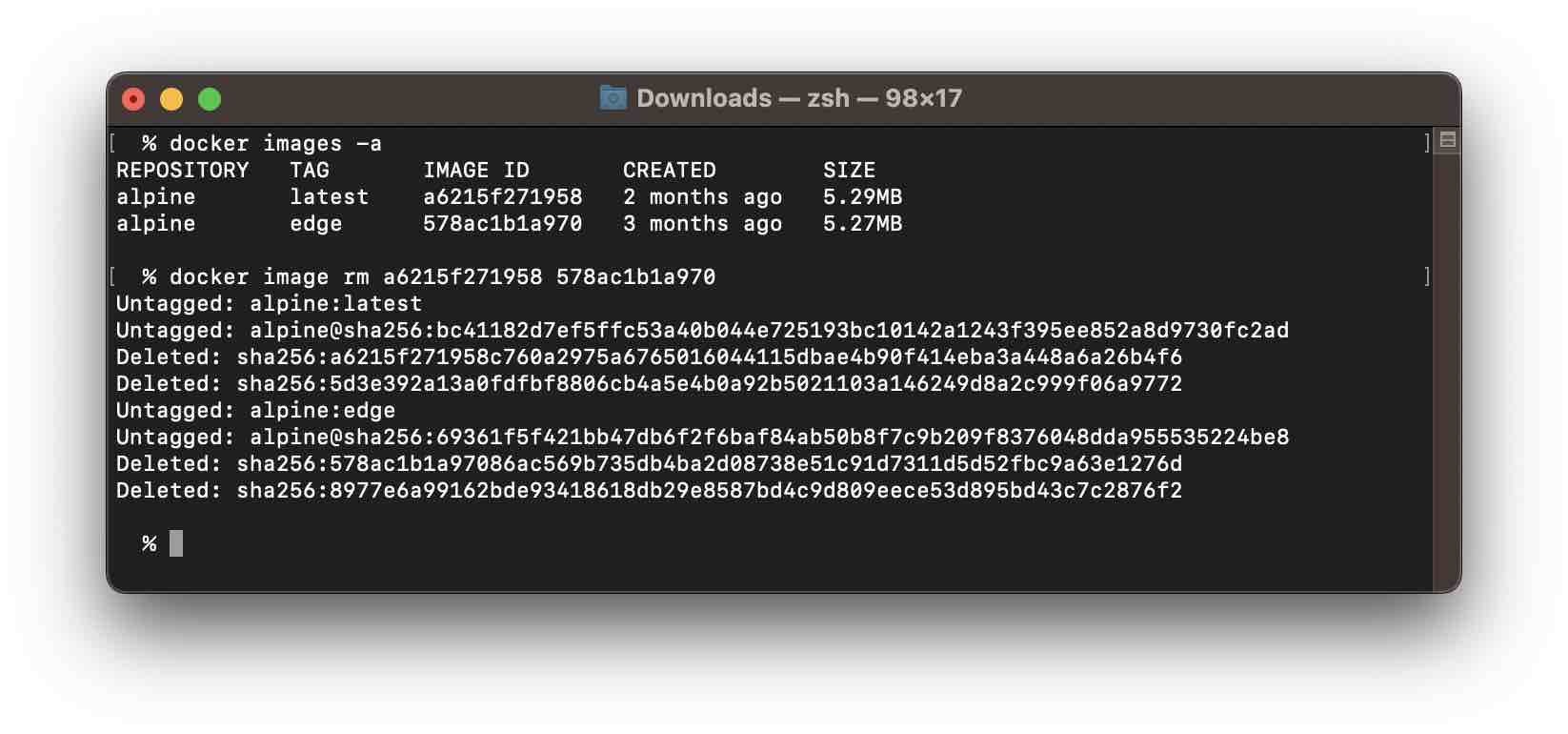
Read more: https://docs.docker.com/engine/reference/commandline/image_rm/
Provide Feedback For This Article
We take your feedback seriously and use it to improve our content. Thank you for helping us serve you better!
😊 Thanks for your time, your feedback has been registered!
Comments & Discussion
Facing issues? Have questions? Post them here! We're happy to help!