Over the course of its development, the Windows Operating System has undergone substantial modifications to its bundled applications and also added a few new ones like the Snipping Tool and Terminal App.
We all are used to "CMD - Command Prompt" the command-line interpreter application for Windows. It was first introduced with the release of Windows NT in the year 1993.
In the year 2019 at Microsoft's Build developer conference Microsoft announced the Terminal app as an alternative to Windows Console and later replaced Windows Console (from Windows 11 22H2 and Windows Terminal 1.15 is the default console)
Windows Terminal vs Command Prompt
| Windows Terminal | CMD (Command Prompt) | |
|---|---|---|
| User Interface | Modern and customizable | Basic text-based |
| Multiple Tabs and Panes | Supported | Not supported |
| Multiple Shells | Supports various shells | Primarily Command Prompt |
| Customization | Highly customizable | Limited customization |
| Unicode and Emojis | Wide character support | May have limitations |
| Performance | Better performance | Basic performance |
| Integration with WSL (Linux) | Seamless integration | Limited or none |
| GPU Acceleration | Supports GPU acceleration | Does not support |
| Release Date | 2019 (Windows 10) | 1985 (MS-DOS) |
| Associated OS | Windows 10 and later | All Major Windows Releases |
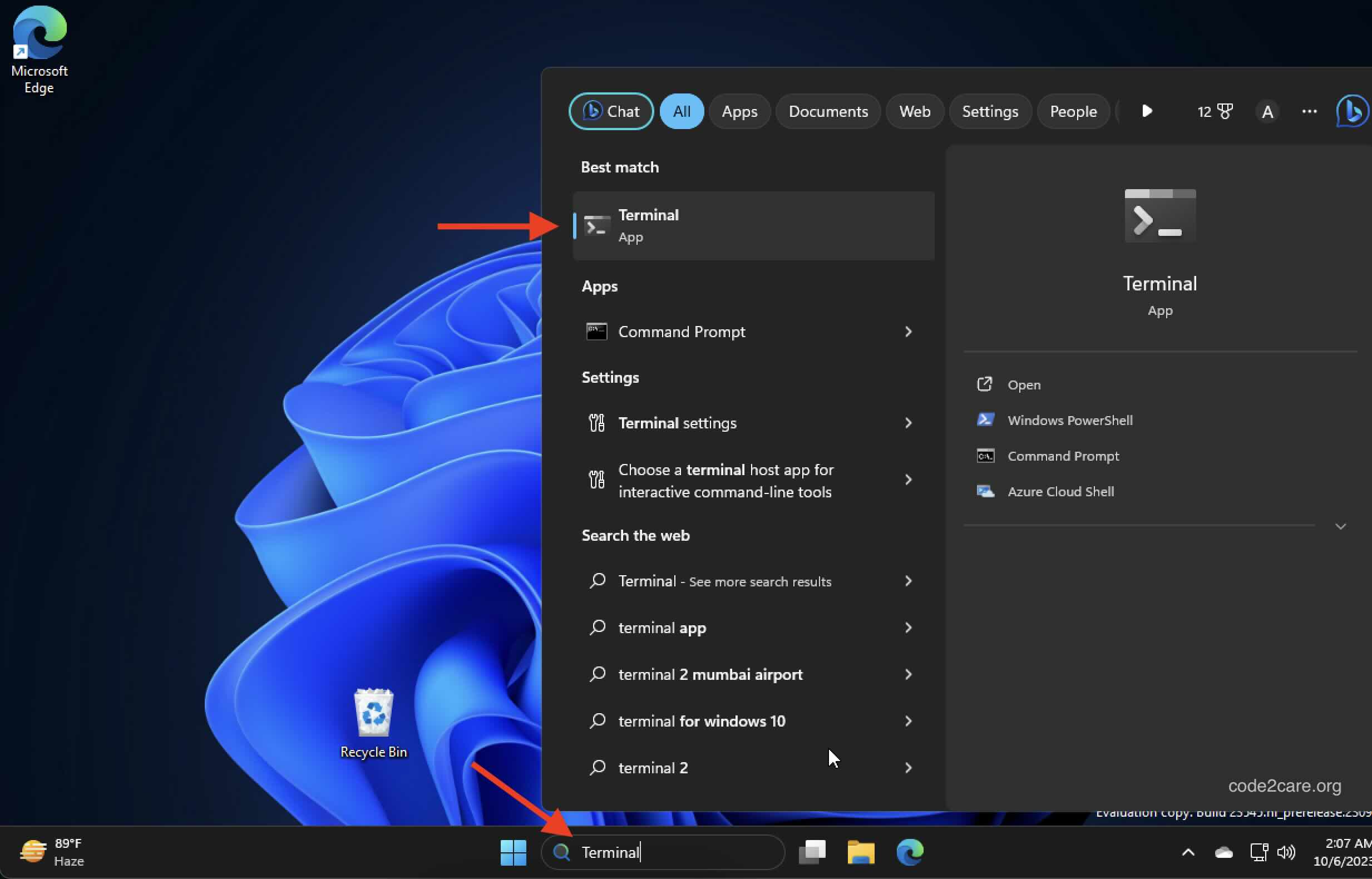
How to Open Windows Terminal
- Make sure you are on Windows 10 or above.
- Open the Terminal App.
- You can add tabs and choose from PowerShell, CMD, Azure Cloud Shell, or Bash Shell.


This is not an AI-generated article but is demonstrated by a human on a Windows PC running Windows 11 Enterprise.
Please support independent contributors like Code2care by donating a coffee.
Buy me a coffee!
Comments & Discussion
Facing issues? Have questions? Post them here! We're happy to help!