
- Step 1: Login to Windows 365 Online Business/School Account on a web browser: https://office.com
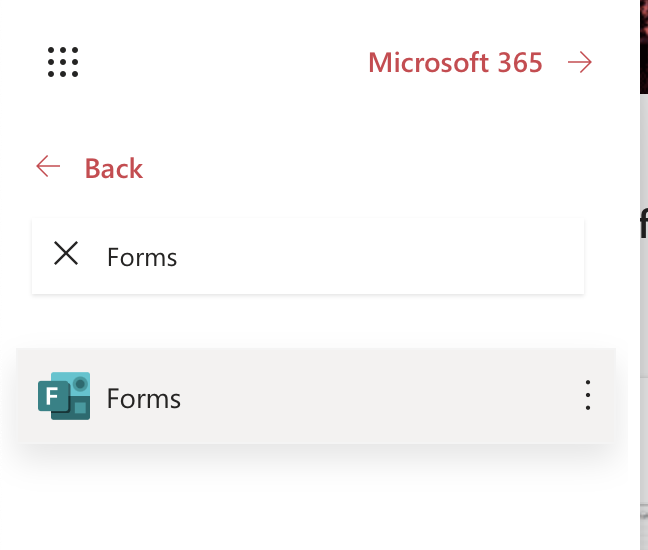
- Step 2: Now click on the App Launcher icon at the top right corner of the page and click on All Apps (may have to scroll)
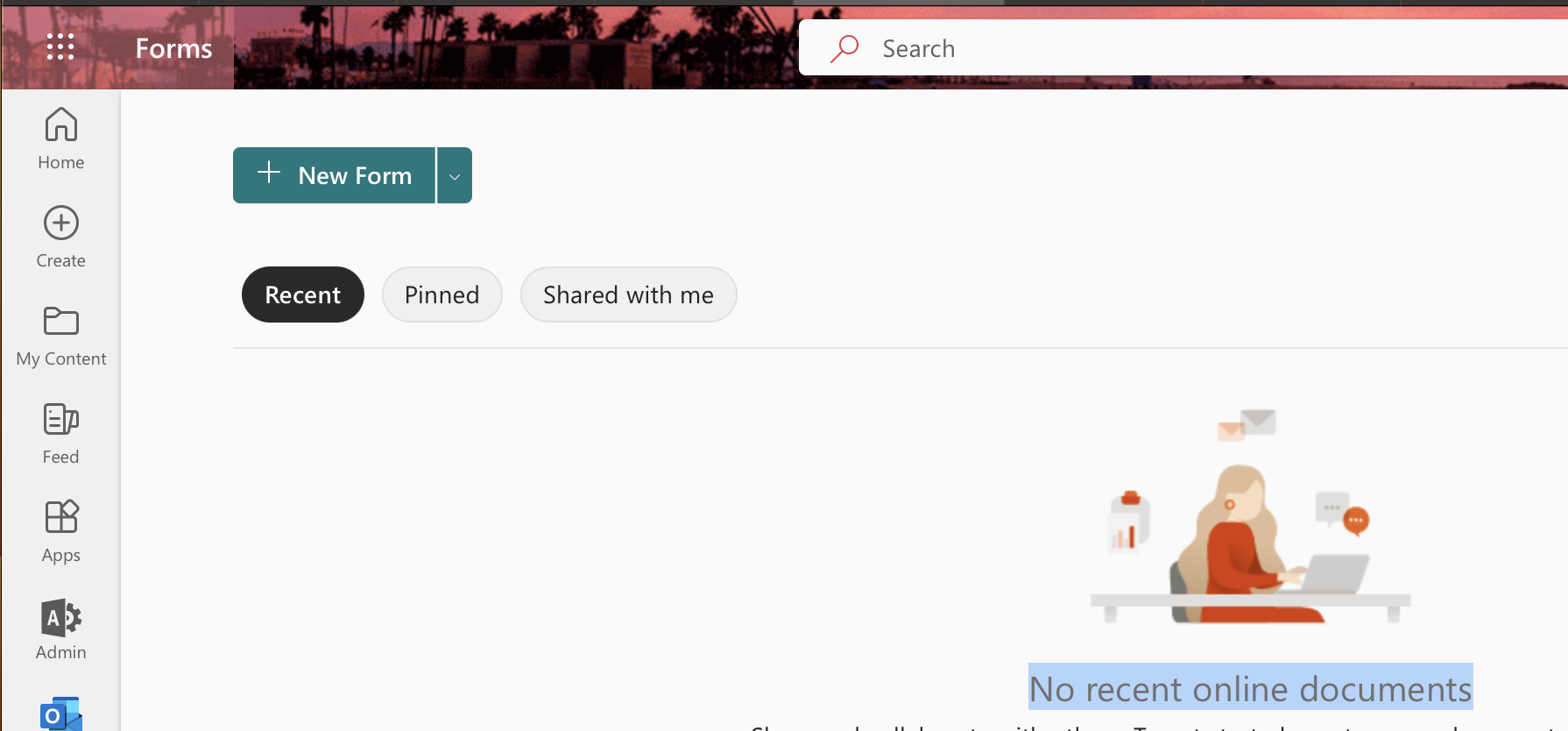
- Step 3: Now search for Forms and click on it, it should open Forms on a new Tab. You would see "No recent online documents" if you are seeing it for the first time.
- Step 4: Now click on the New Form button, you would see it at the top left.
- Step 5: Click on the Untitled form text and you should be able to edit the form name and description.
- Step 6: Click on Add New and you should get an option of what kind of question you want to enter,
- Choice
- Text
- Rating
- Date
- Ranking
- Likert
- Upload File
- Net Promoter Score ®
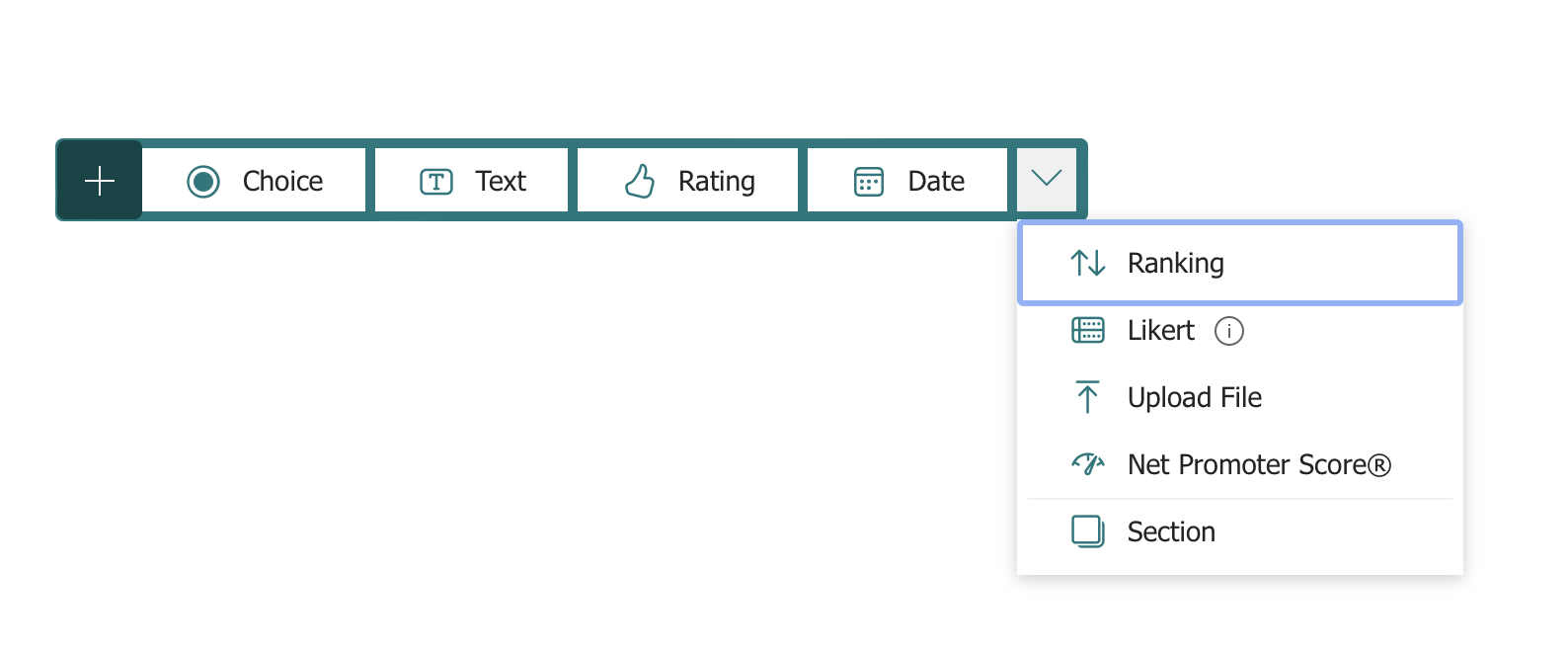
To keep this example simple we will go with Text.
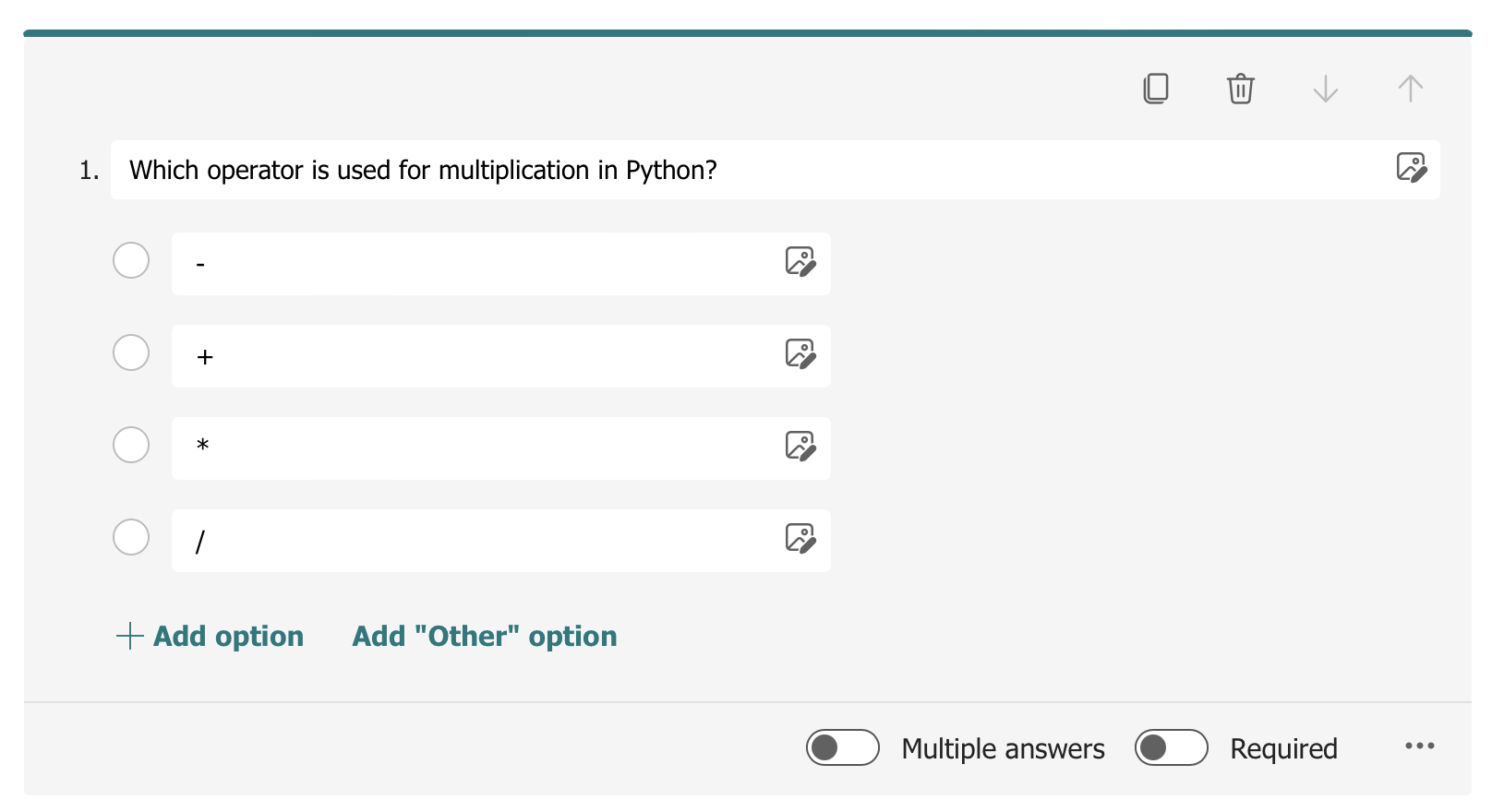
- Step 7: Now click on the Question and you will get a Form in which you can edit and add the quiz question and choices. You can add options, make the question multiple chose and required. You can even upload an image for the options.
Below is a simple example of how my question looks like
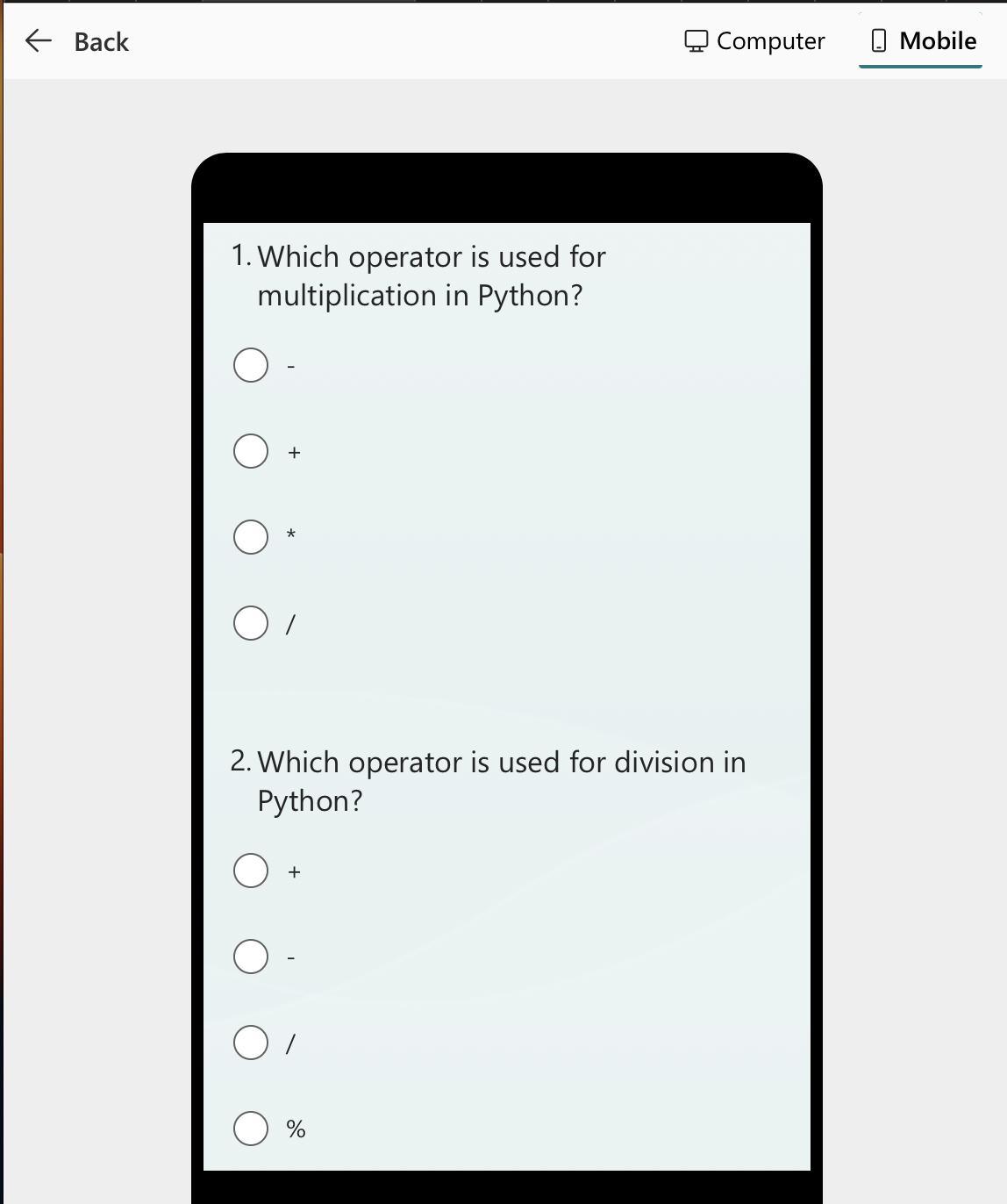
- Step 8: Once you are done, setting up the form you can check out a preview of it by clicking the Preview button. You can even apply themes and see how it looks on a Computer or a Mobile screen. There is an option to add background music as well to make the quiz more fun based on the context.
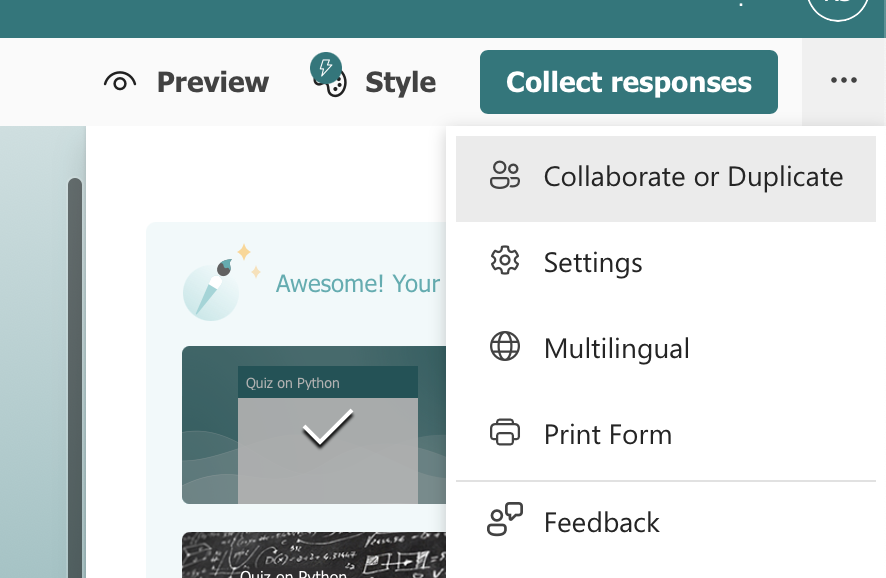
- Step 9: Once you are good with the Quiz content, you can share the quick by clicking on the 3 dots on the right top side and choosing "Collaborate or Duplicate", this should give you the option to get a link. Click on Share the link to collaborate and view result and copy the link that is provided.
- Step 10: That's it! You are ready with the quiz, you can monitor the responses by clicking on the responses tab.
Provide Feedback For This Article
We take your feedback seriously and use it to improve our content. Thank you for helping us serve you better!
😊 Thanks for your time, your feedback has been registered!
Comments & Discussion
Facing issues? Have questions? Post them here! We're happy to help!