In this tutorial, we take a look at how to create a simple webpage that you can write in HTML (HTML5) in the Windows Notepad application.
- Step 1: Open Notepad app.
- Step 2: Now let's create a simple webpage for your Website.
<!DOCTYPE html> <html> <head> <title>My Simple Website</title> </head> <body> <h1> Welcome to My Website!</h1> <p>Hello! This is a simple webpage created with HTML in Notepad!</p> </body> </html> - Step 3: Now go to File > Save as
- Step 4: Save the file as "index.html".

- Click Save.
- Step 5: Now double-click on the file you saved to open it in your web browser.

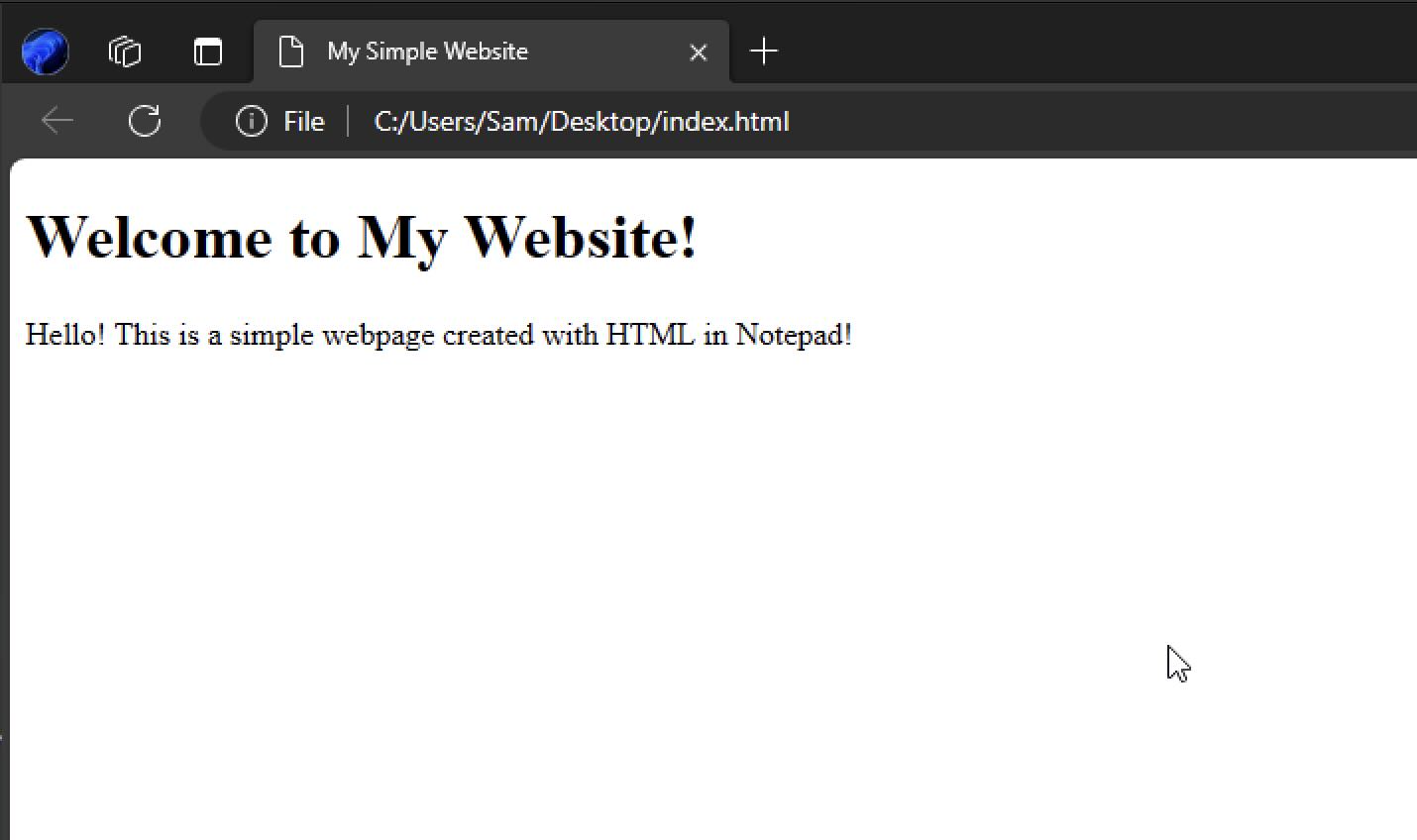
In the above example, we create a very basic homepage for our website that is running locally on your Windows PC. This is just a very basic demonstration of how to get started with HTML using Notepad.
You can take it a step ahead and host it on a web server or a cloud provider like Microsoft Azure, AWS, or Google Cloud Platform (GCP).

This is not an AI-generated article but is demonstrated by a human on a Windows 11 PC with Notepad and Microsoft Edge Browser.
Please support independent contributors like Code2care by donating a coffee.
Buy me a coffee!
Comments & Discussion
Facing issues? Have questions? Post them here! We're happy to help!