
macOS 13 Ventura has a lot of new features introduced to the Mac, one of them is called the Stage Manager
How to enable Stage Manager on macOS
- Step 1: Click on the Control Center Icon on the Apple Menu bar,
- Step 2: Click on the Stage Manager icon,
- Step 3: You will see all your open windows on the left side of your screen, click on them to bring them in front.

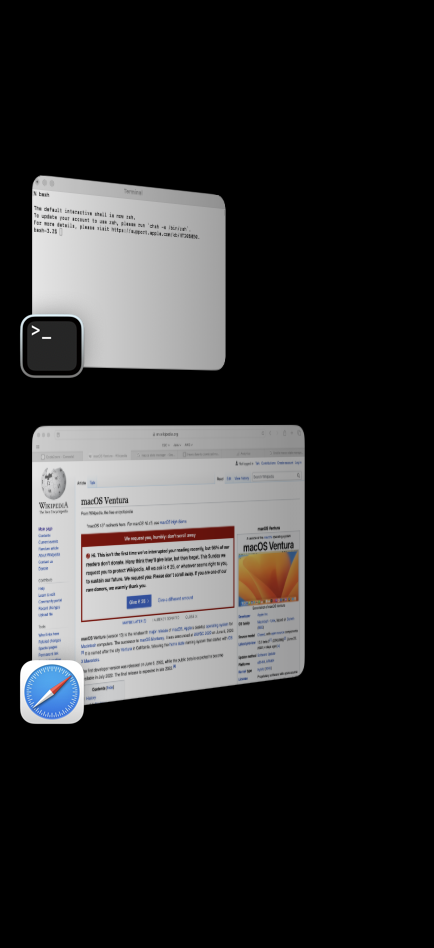
⚡️Tips:
If you want to see the desktop, just click on the bottom left just below where you see the Stage Manager windows and icons, all windows will be hidden and you will only see the desktop.
You can also make use of the Command + Tab button to toggle windows you see in Stage Manager.
To disable Stage Manager just go to Control Center and click on the "Stage Manager" icon.
Provide Feedback For This Article
We take your feedback seriously and use it to improve our content. Thank you for helping us serve you better!
😊 Thanks for your time, your feedback has been registered!
Comments & Discussion
Facing issues? Have questions? Post them here! We're happy to help!