Adding Widgets to Mac Desktop Screen on macOS Sonoma 14
Created: 15th Sep 23
1 Views
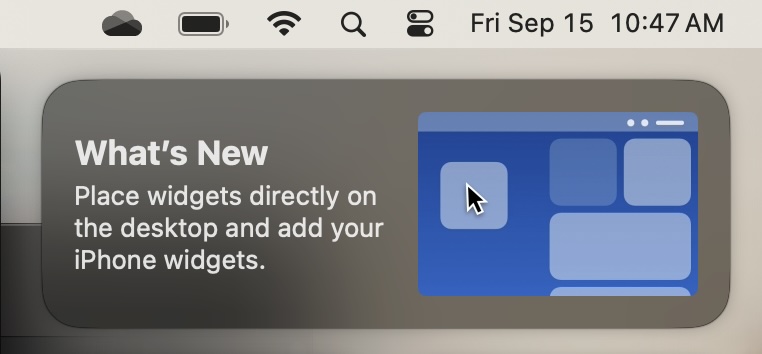
The macOS Sonoma 14 version has a new feature that lets you add Widgets to your Mac/Macbook Desktop just like the way you can on iPhone.
We take a look at how to add Widgets to the Mac Desktop screen.

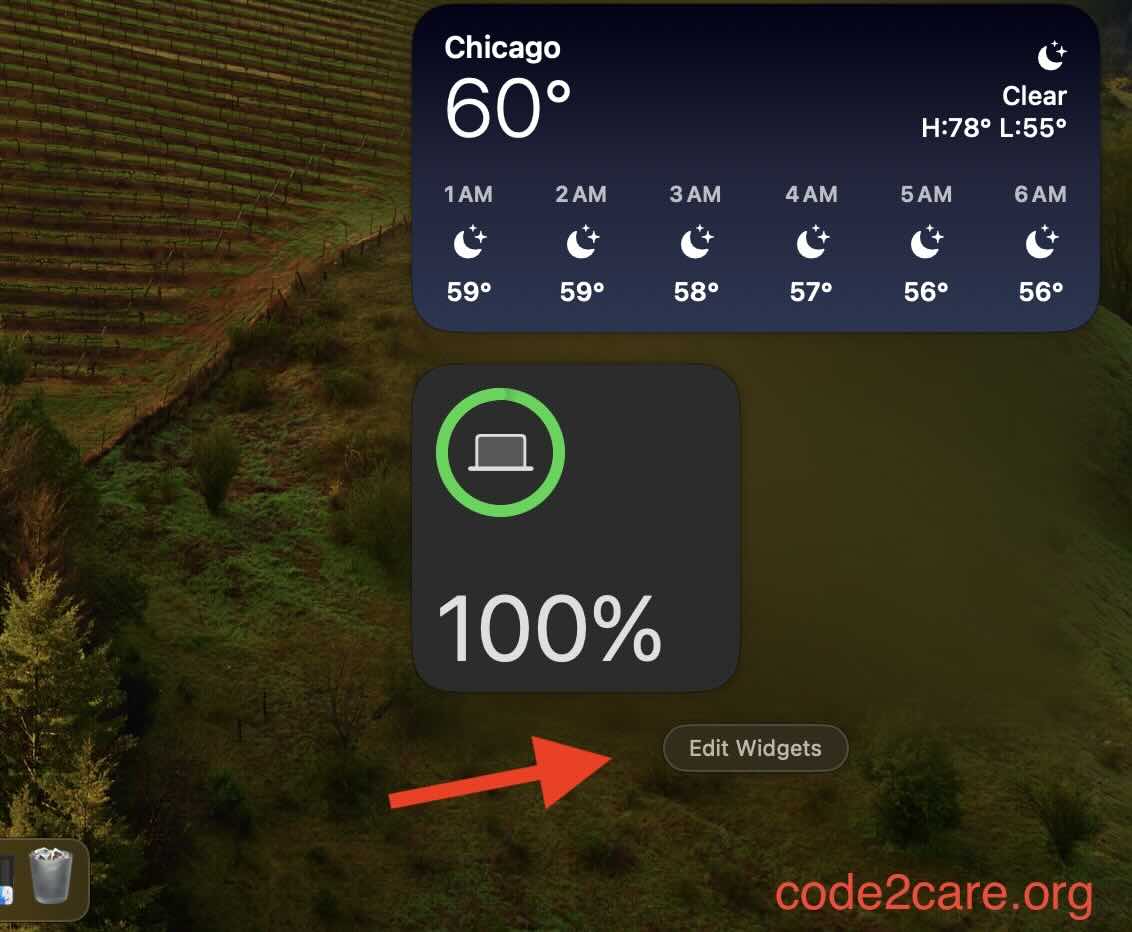
If you do not see it, scroll down and click on "Edit Widget" button.
 Step 3: Now you can simply drag a widget to place it on the Desktop.
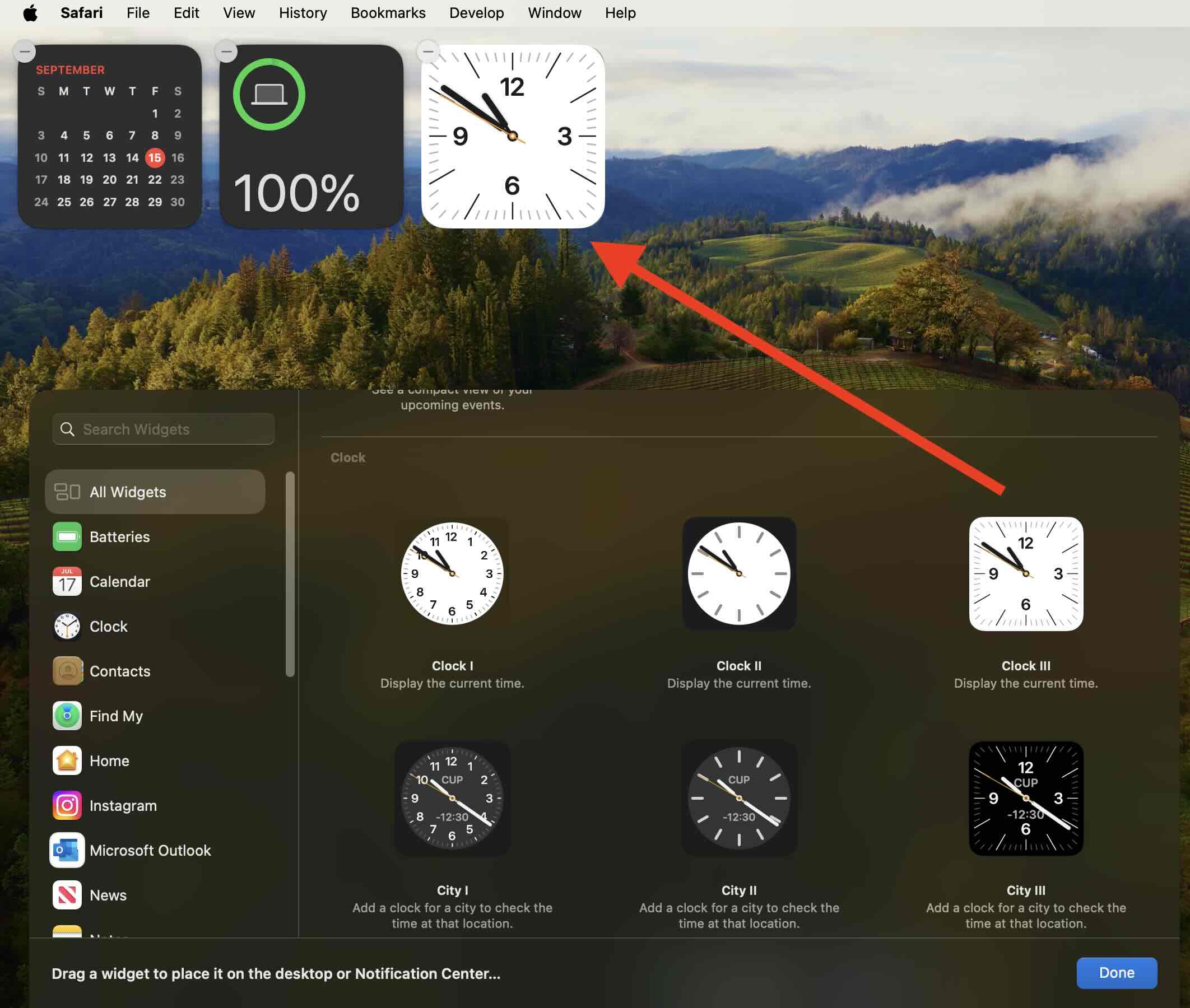
You can drag and drop as many widgets as you want - Batteries, Calendars, Clocks, Weather, News, Stocks and so much more.
This is not an AI-generated article but is demonstrated by a human on an M1 Mac running macOS Sonoma 14.0.
Please support independent contributors like Code2care by donating a coffee.
Buy me a coffee!

Provide Feedback For This Article
We take your feedback seriously and use it to improve our content. Thank you for helping us serve you better!
Thanks for your feedback! If you have time, please provide details by selecting options below.
😊 Thanks for your time, your feedback has been registered!
Comments & Discussion
Facing issues? Have questions? Post them here! We're happy to help!