
macOS 13 Ventura is the latest 2022 release of the Mac Operating System, if you have got a new Mac or just upgraded to Ventura and looking for ways to set Background Wallpaper here are some ways to achieve it,
Example 1: Secondary Click (right-click) on the Desktop
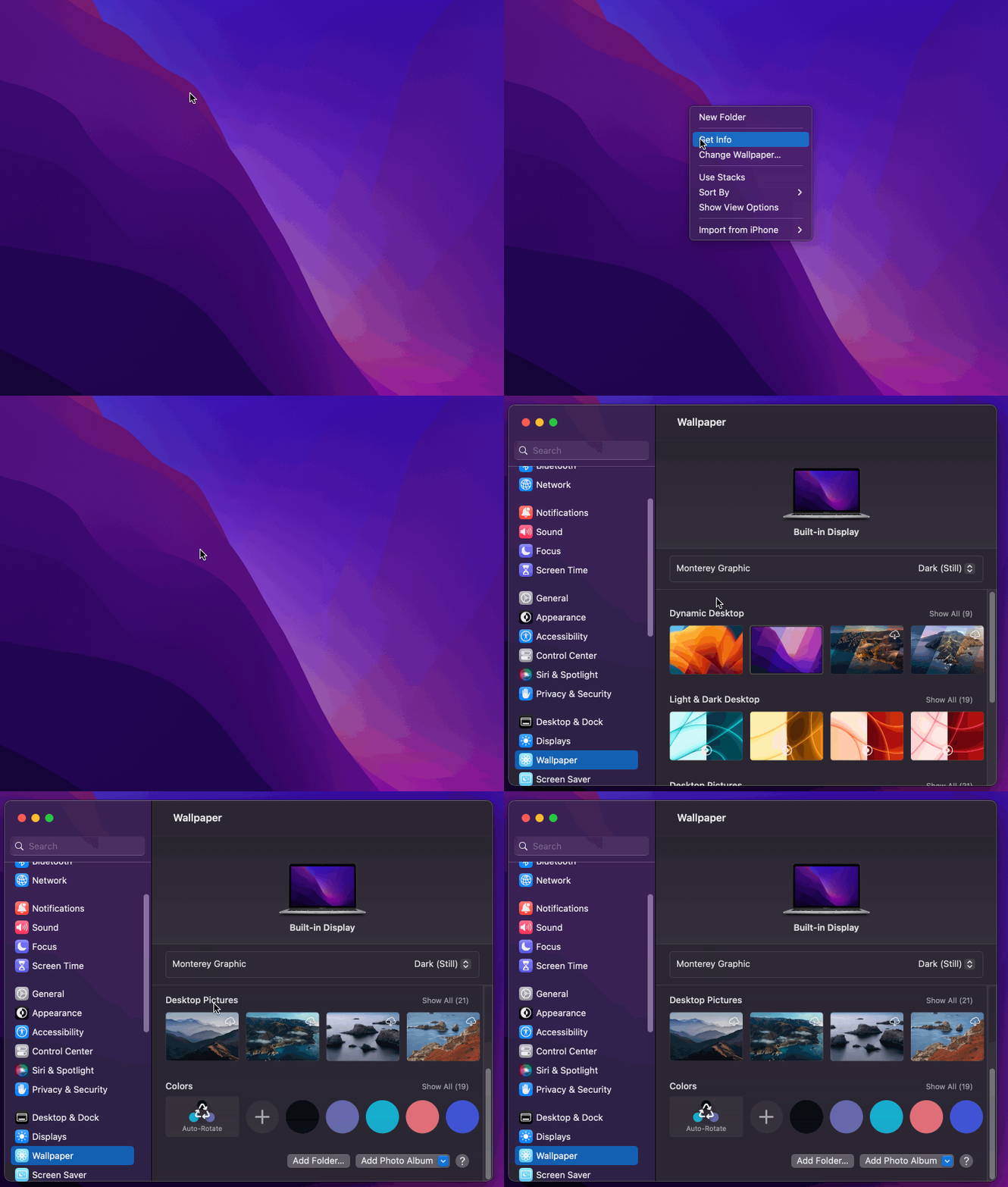
As shown in the above Gif demo, simply Secondary Click on your Macbook trackpad, or right-click using your Mouse and select "Choose Wallpaper..." option,
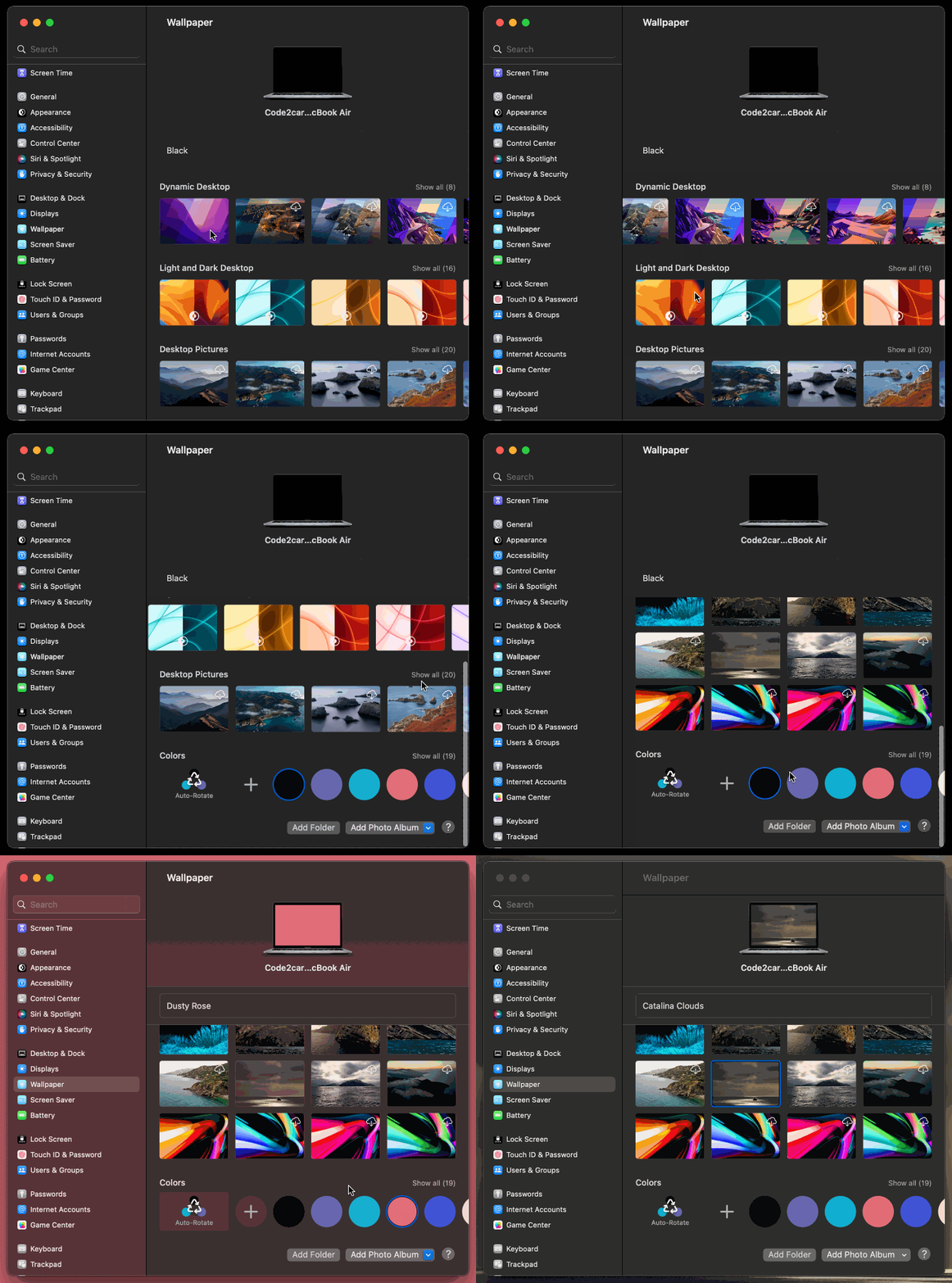
Now on the Wallpaper Window you can choose from the four options available as shown in the above gif demo,
- Dynamic Desktop: These backgrounds dynamically change throughout the day based on the time.
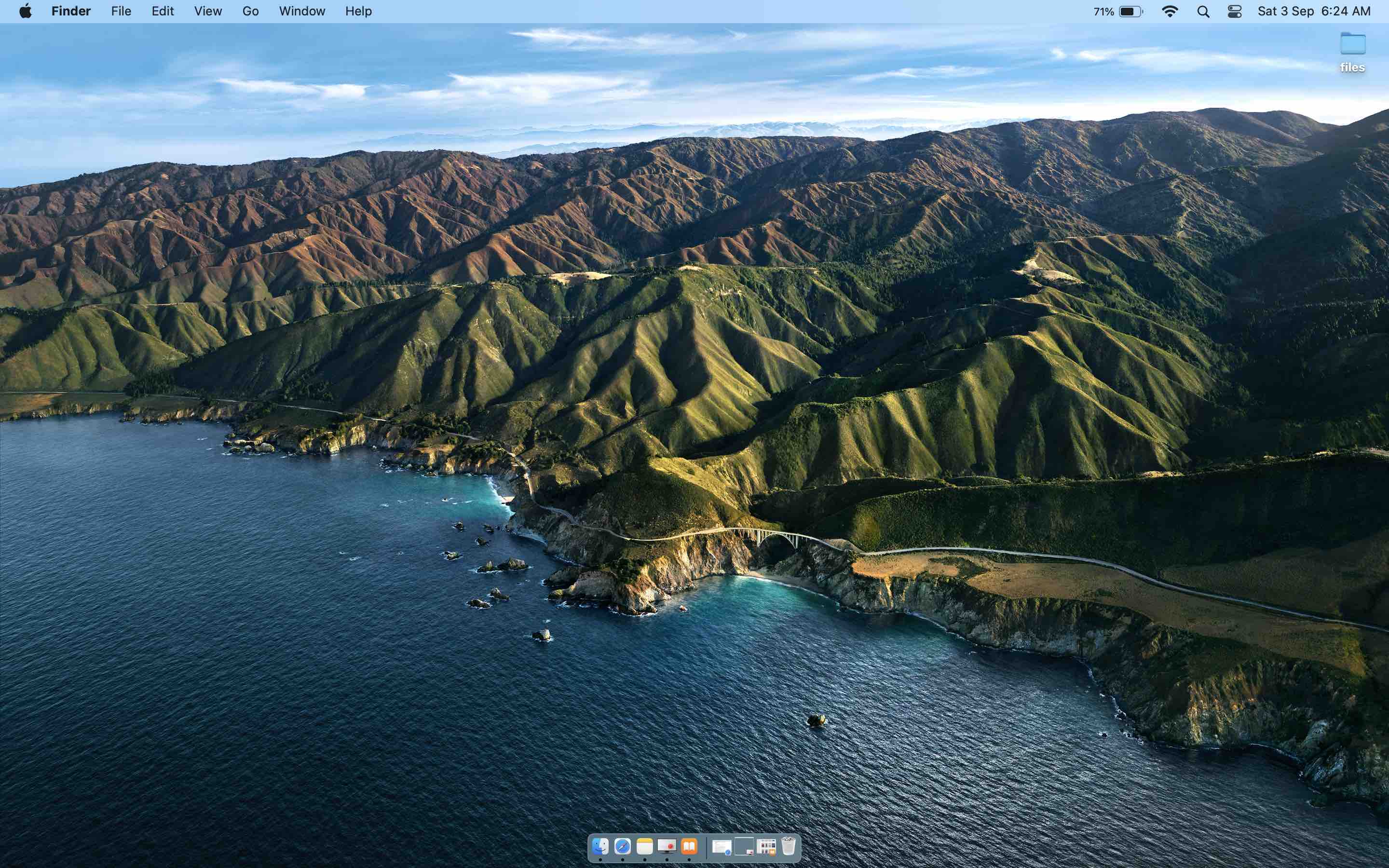
6 AM Morning, Dynamic Desktop Wallpaper 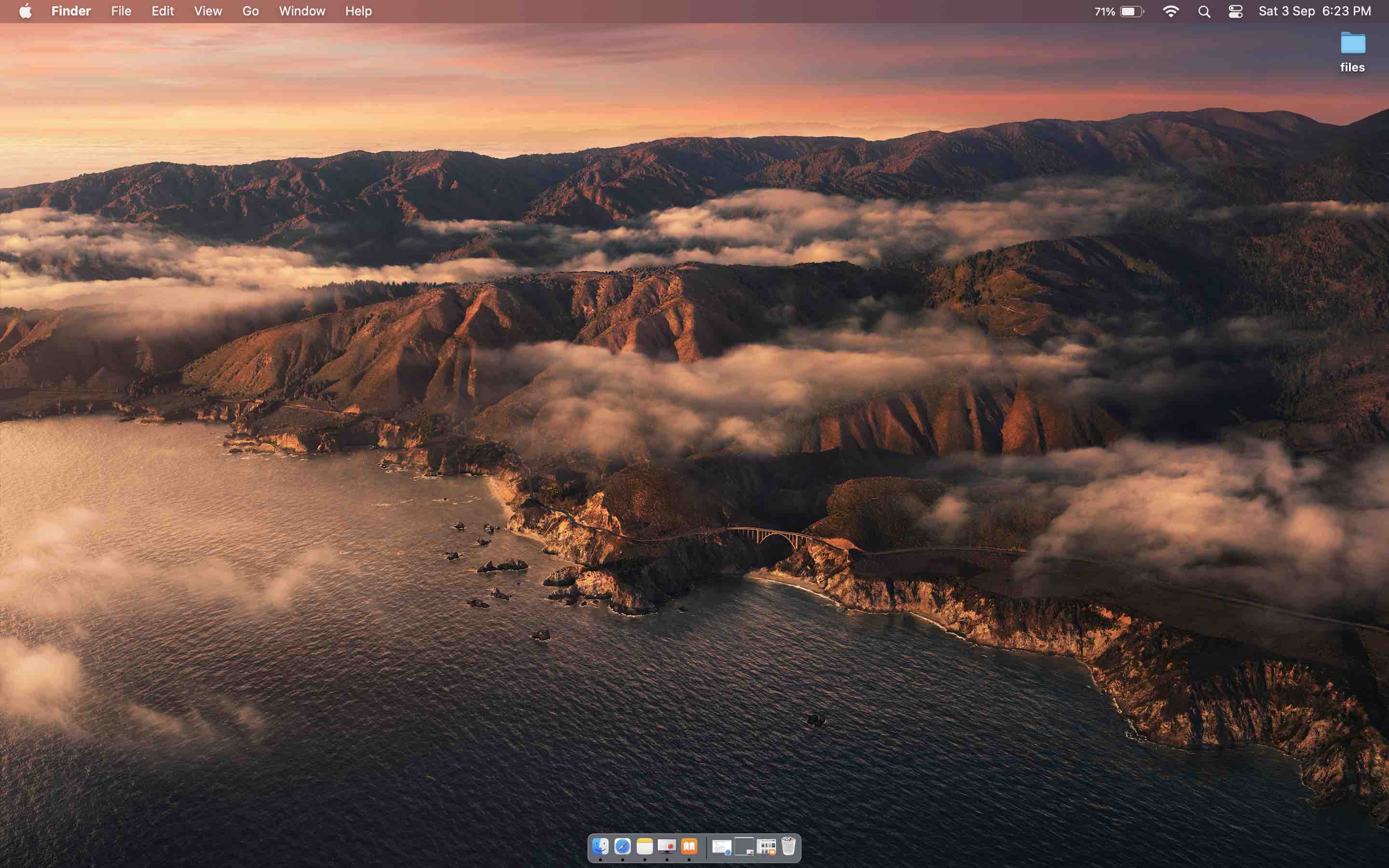
6 PM - Evening, Dynamic Desktop Wallpaper 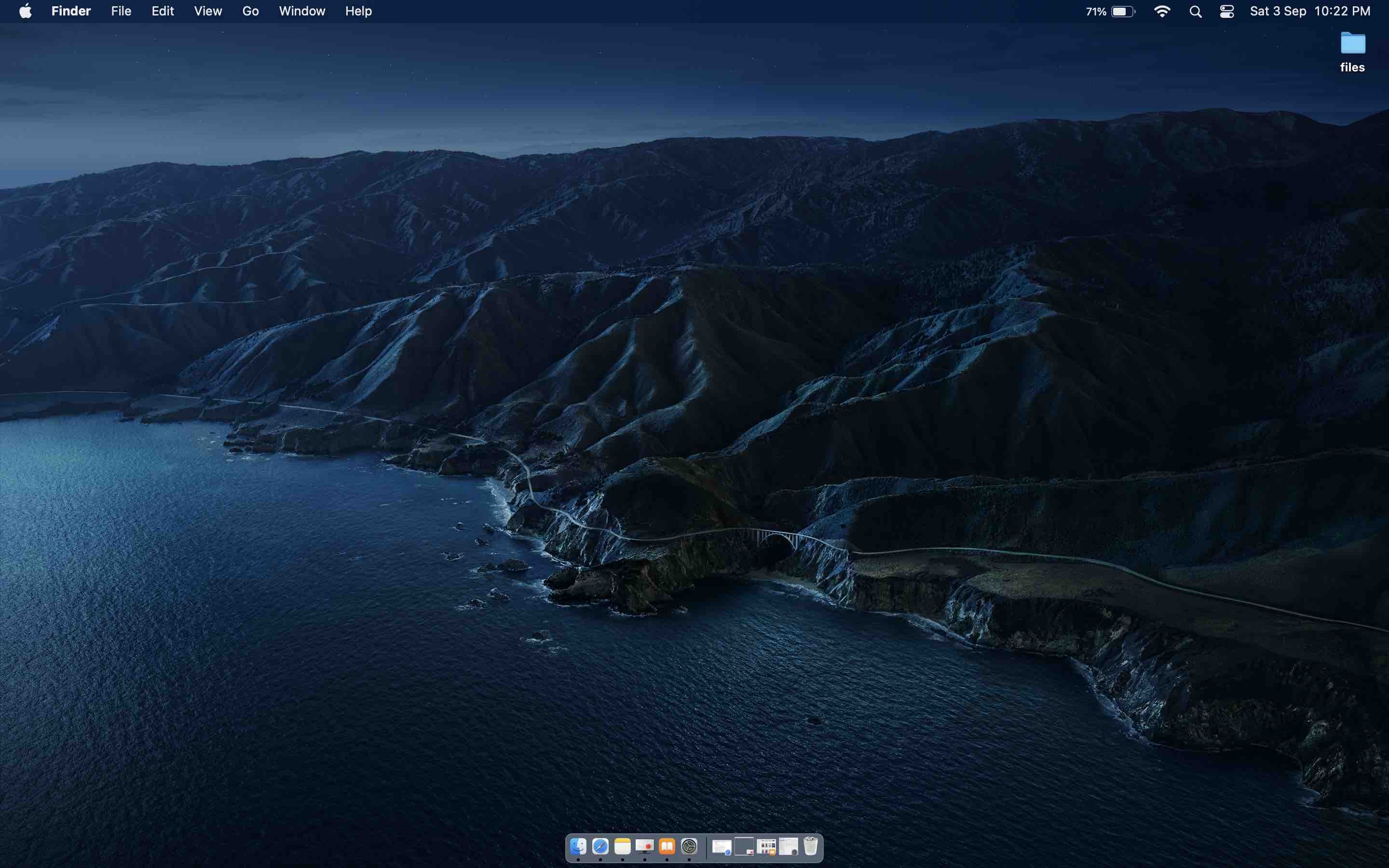
10 PM Night, Dynamic Desktop Wallpaper - Light and Dark Desktop: These backgrounds changes based on the dark/light theme that you are using.

Dark Mode Background macOS Ventura 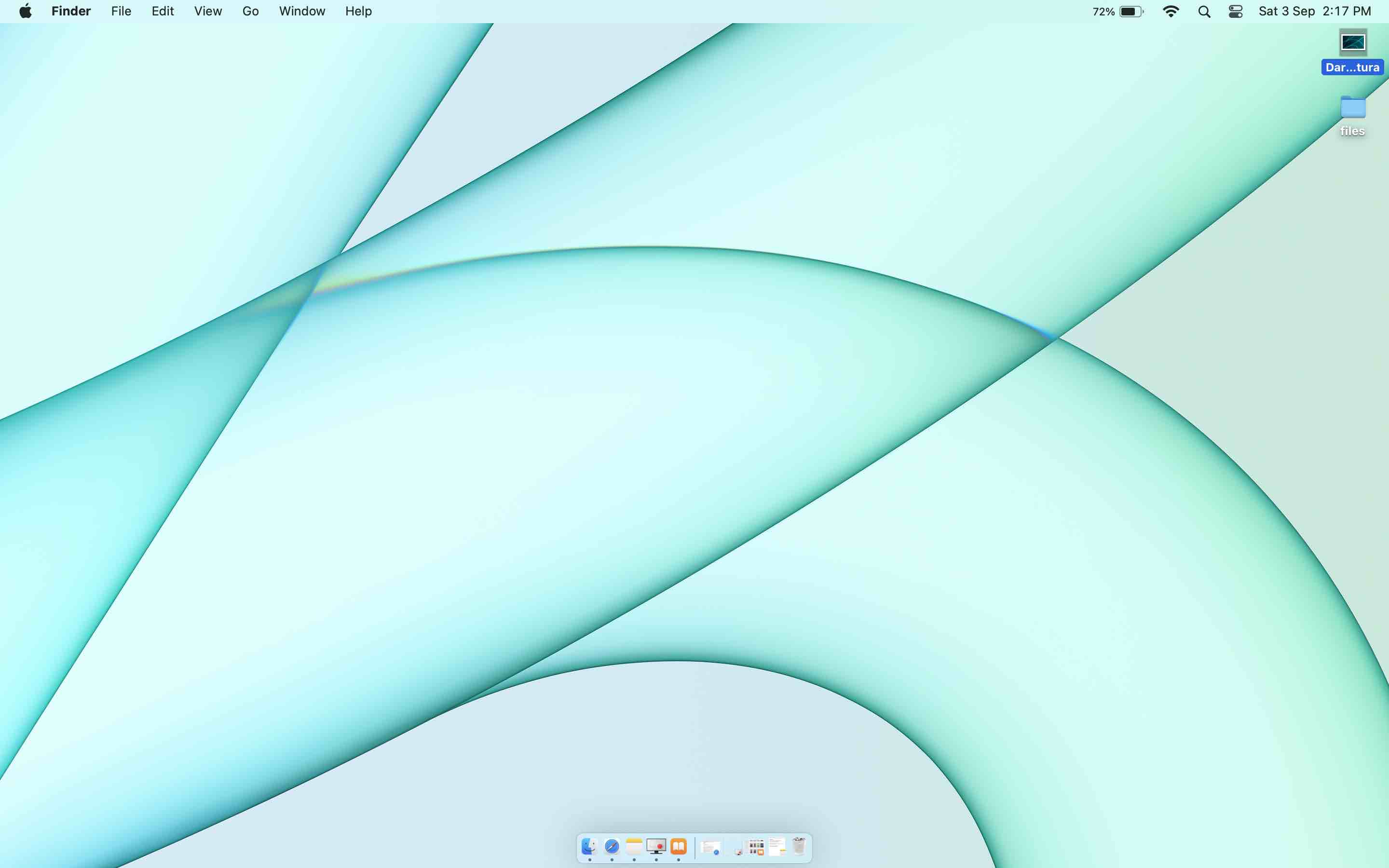
Light Mode Background macOS Ventura - Desktop Pictures: This has around 20 wallpapers based on the theme of the new macOS.
- Colors: You can choose from a variety of color options and even set an auto-rotation policy.
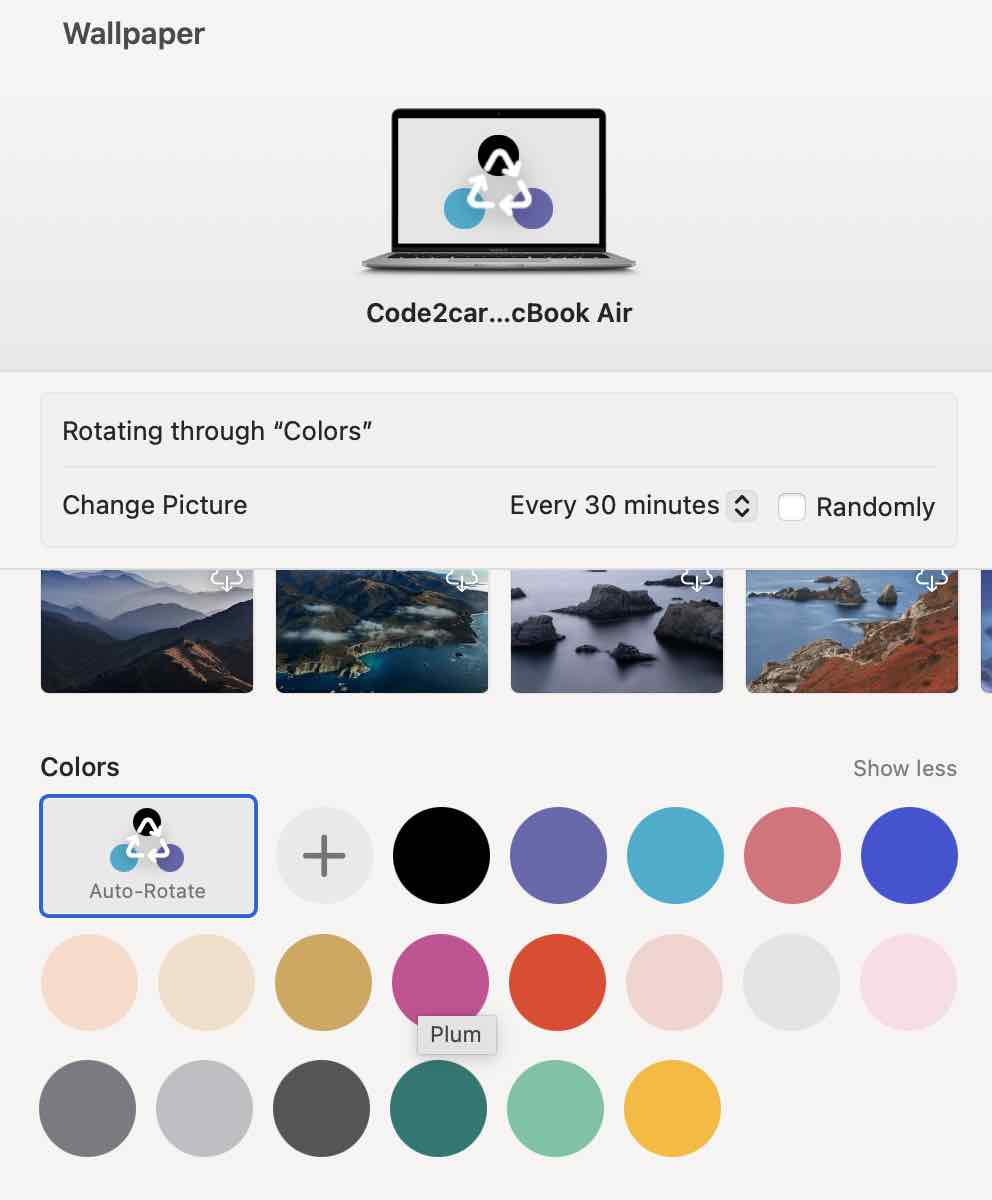
macOS Ventura Auto Rotate Wallpapers You can choose your colors, and rotate them in sequence or randomly based on the duration that you can set (30 minutes by default)
Example 2: Set Custom Wallpaper of your Choice
Setting the wallpaper of your choice, the ones that you clicked of your friends, family, or pet dogs, or cats is very easy, simply right-click on your Image icon and select "Set Desktop Picture"

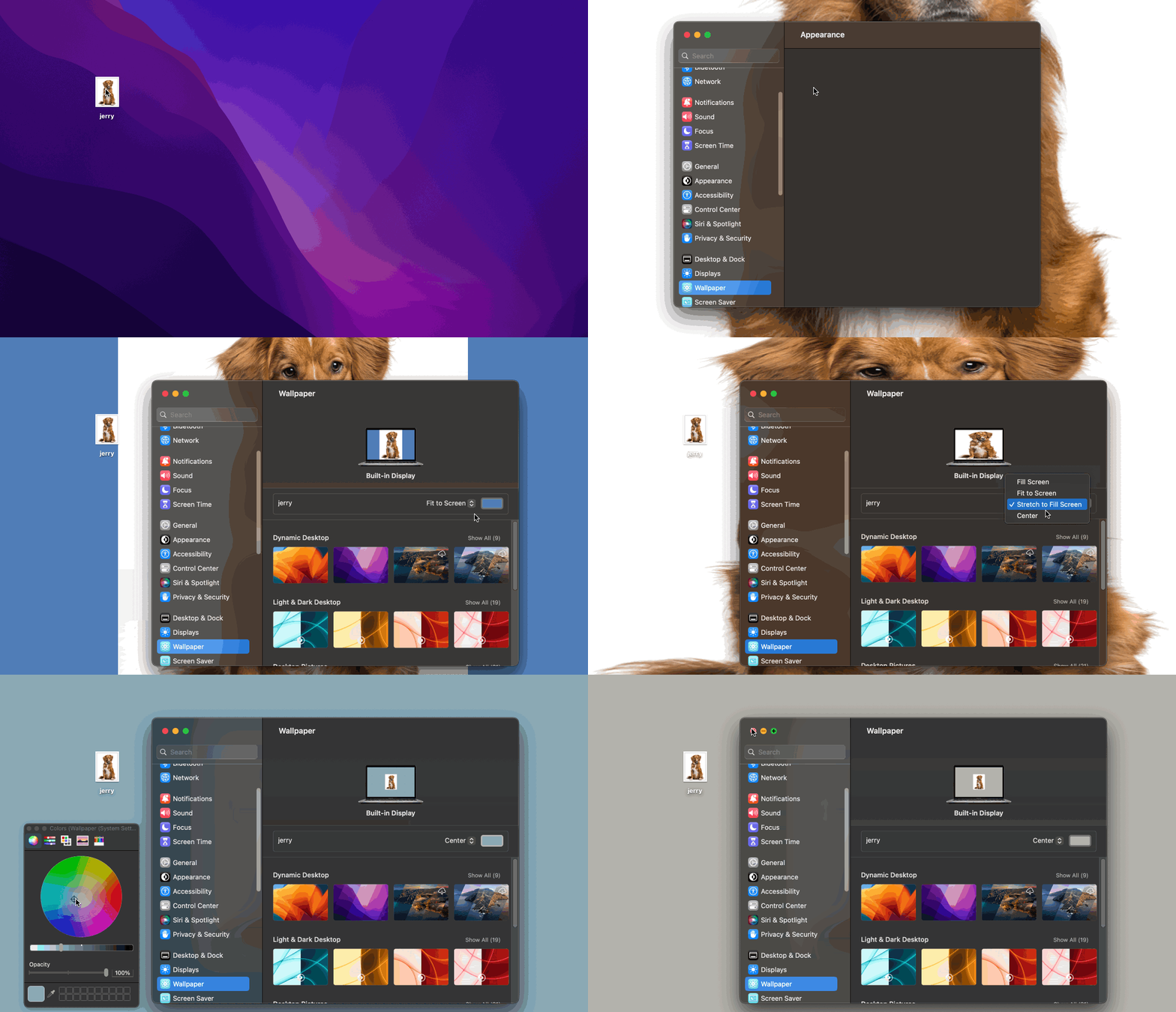
Note: Not all pictures that you may set as background wallpaper will fit exactly the way you want, based on how it was clicked - horizontally or vertically, in such a case you can follow the below steps to adjust the wallpaper,
- Right Click on the Desktop and select "Change Wallpaper..." after you have set the custom image of your choice.
- Now you will see at the top "Change Wallpaper macOS Ventura Option" from the drop-down, you can select either of,
- Fill Screen - Fit to Screen - Stretch to Fill Screen - Center - If you choose options like "Fit to Screen" or "Center" you can also choose a color of your choice to fill in the vacant space.
- Once you select your option and it looks good you may close the Wallpaper window.
I am sure there are more fun ways to set Wallpapers, do share if you know some tips, I will surely add them here :)
Provide Feedback For This Article
We take your feedback seriously and use it to improve our content. Thank you for helping us serve you better!
😊 Thanks for your time, your feedback has been registered!
Comments & Discussion
Facing issues? Have questions? Post them here! We're happy to help!