
It's the year 2023 and most of the details on how to Configure GitHub with Eclipse IDE are outdated. This article is to demonstrate how to setup GitHub with Eclipse.
Prerequisite
- Have the latest version go Eclipse IDE installed (latest ver 2012-12) on your Windows/Mac/Linux.
- A active GitHub Account with a repository.
- You should have an active GitHub token generated: Steps to Generate Tocken
Steps to Configure GitHub with Eclipse
- Open Eclipse,
- Right click inside Package Explorer -> Import...
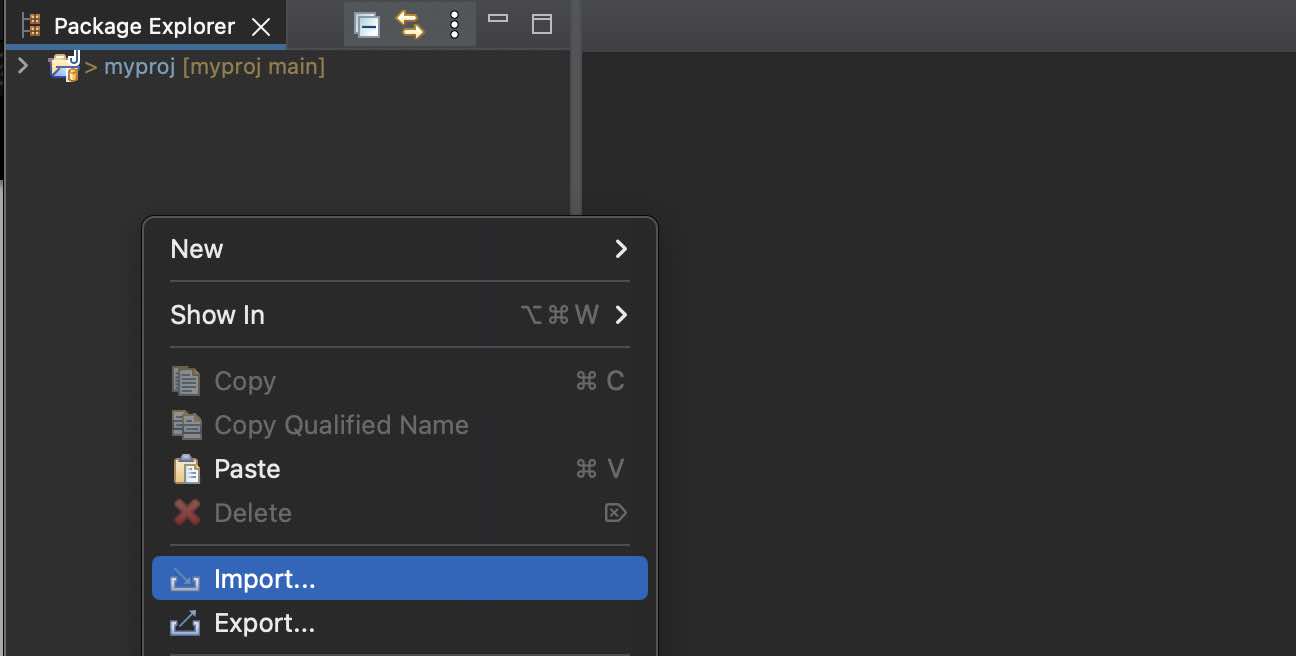
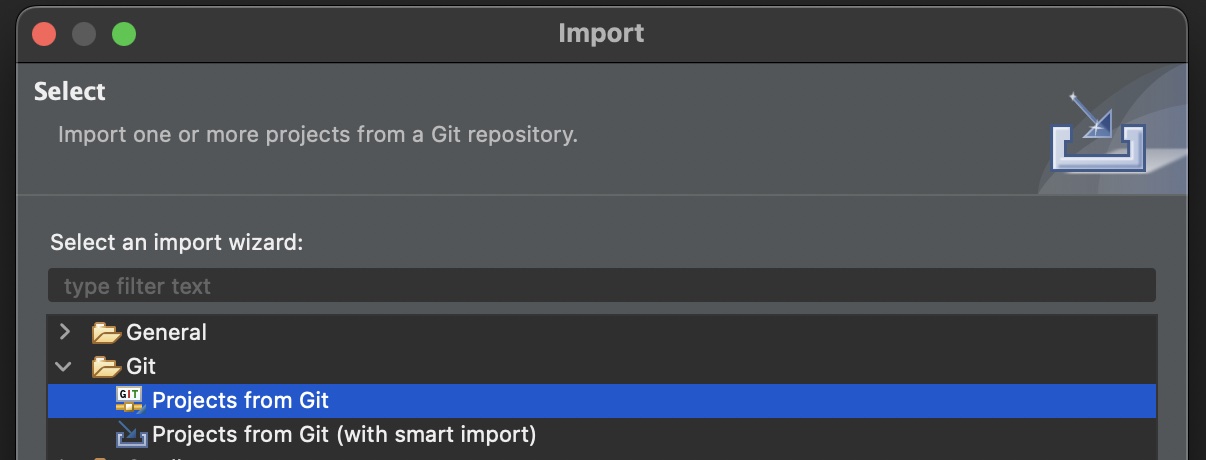
- Expand Git -> Project from Git...
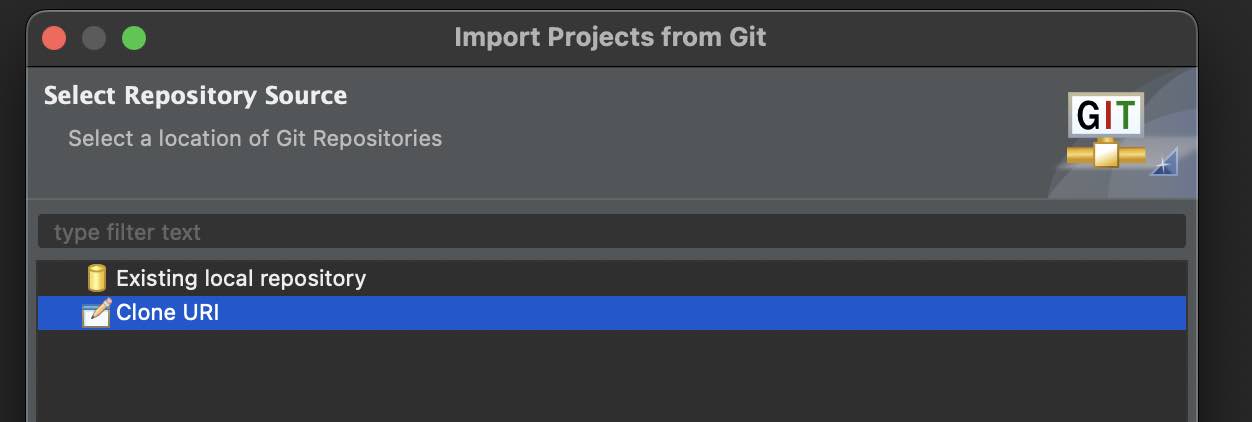
- Select a location of Git Repositories -> Clone URI
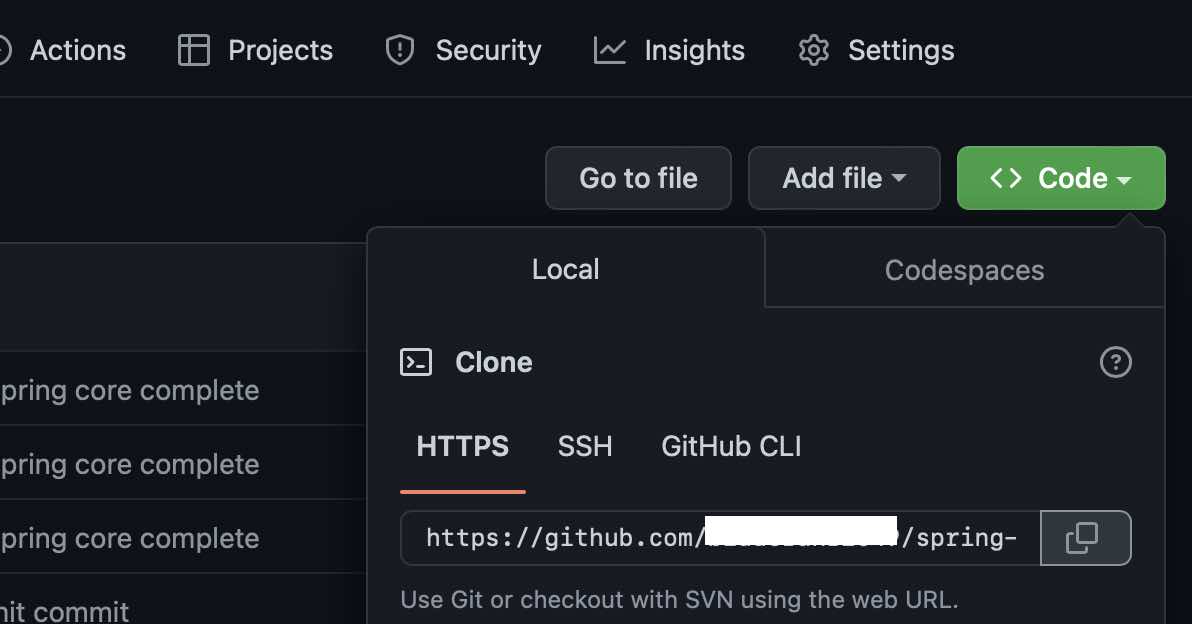
- Copy the Project you want to Clone from GitHub Website.
- Now paste the URI on the "Import Projects from Git" Window.
- Under Authentication add your GitHub username and your Access Token, Click Next
- On the Branch Selection window, select the branch you want to clone from the remote repository.
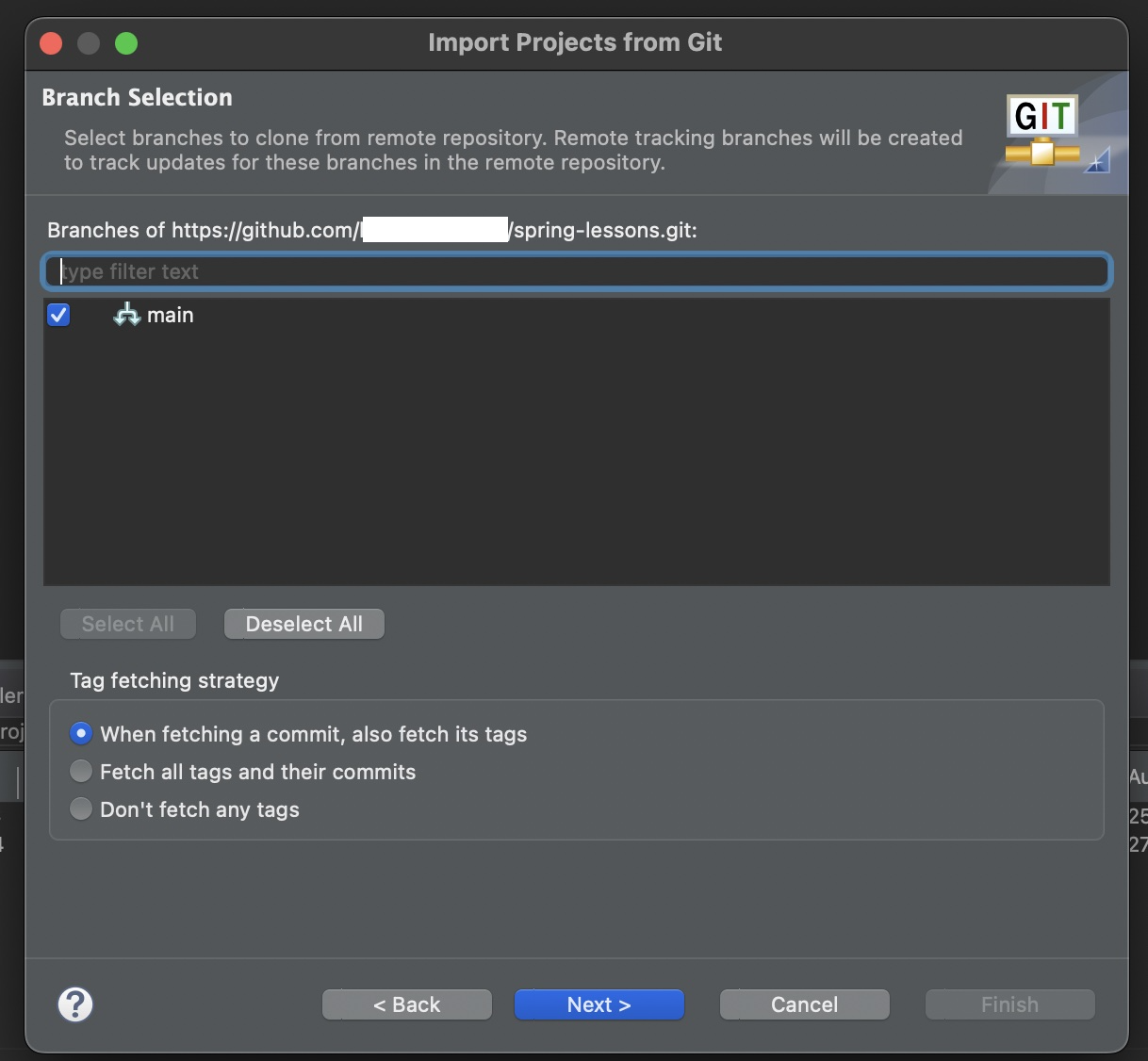
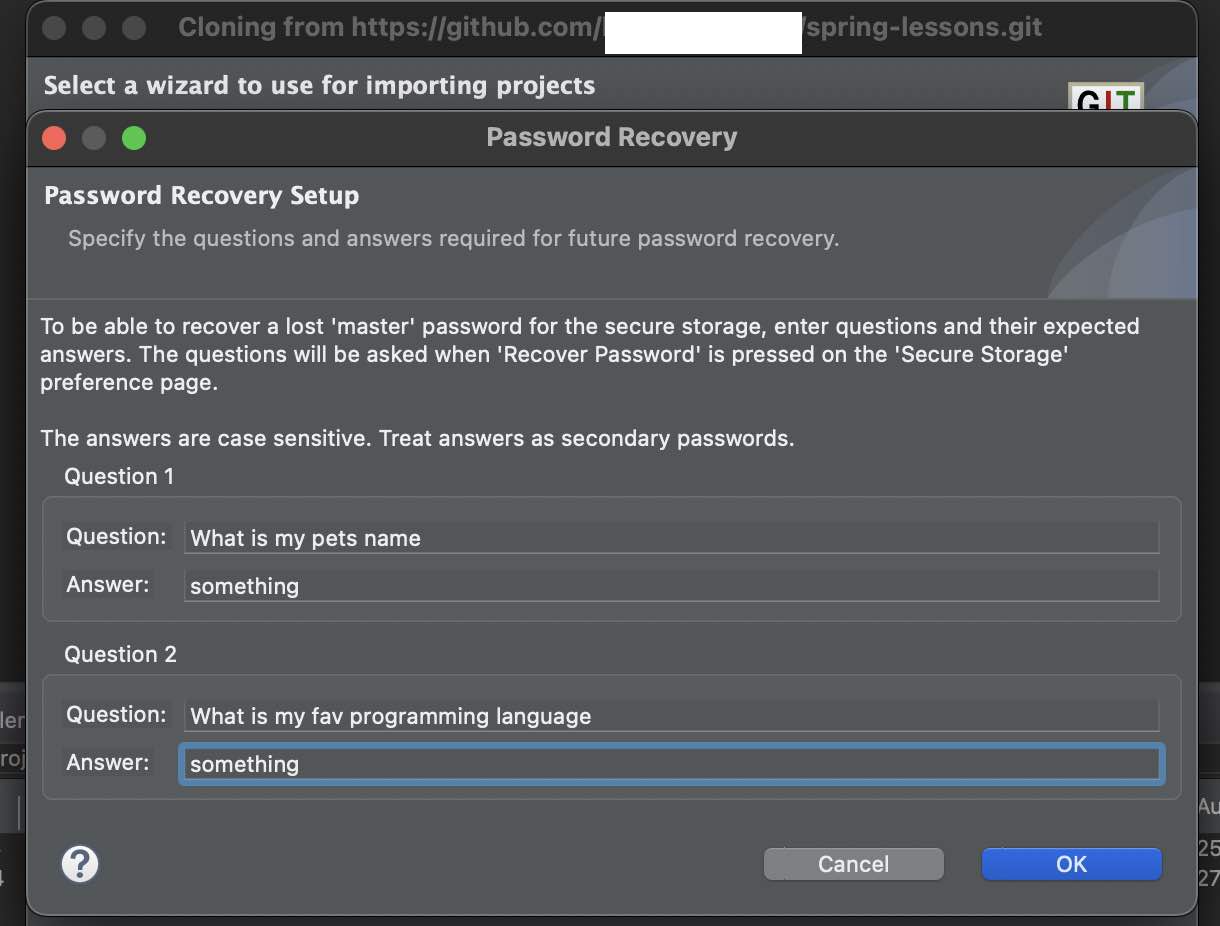
- You will get a window "Secure Storage - Password Hint Needed" A master password was created in Eclipse Secure Storage. If you ever need to recover your password, you need a password hint. Do you want to provide a password hint? Add details for a password hint.
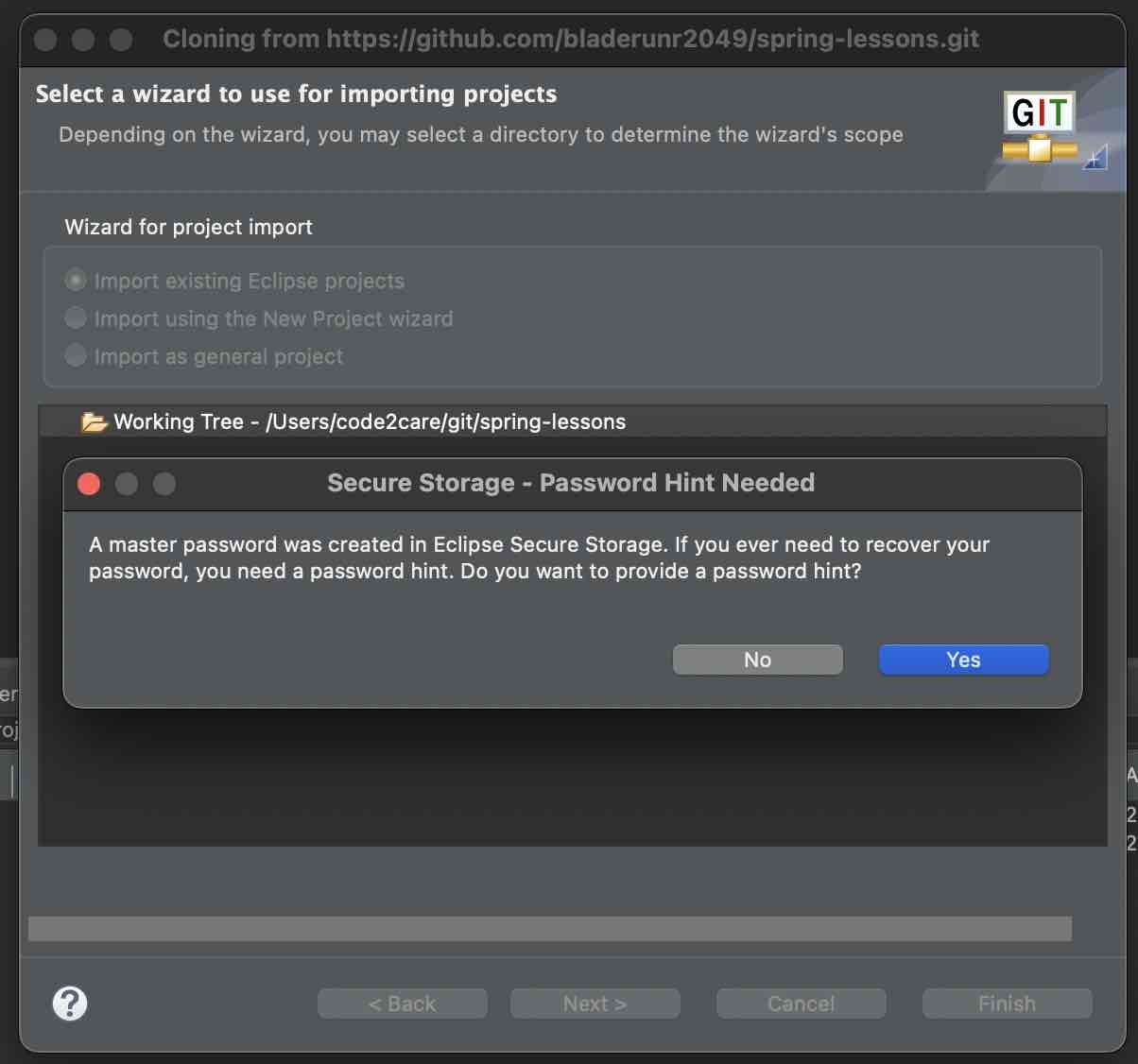
- On Select a wizard to use for importing projects screen: Select the wizard as per your project type,
- Import existing Eclipse projects
- Import using the New Project wizard (for Maven/Gradle Projects)
- Import as general project

Finally, you should see your project in Eclipse and should able to Push code to origin without any issues.

Provide Feedback For This Article
We take your feedback seriously and use it to improve our content. Thank you for helping us serve you better!
😊 Thanks for your time, your feedback has been registered!
Comments & Discussion
Facing issues? Have questions? Post them here! We're happy to help!