
You can check what eclipse version is being installed on your macOS Operating System by going to the eclipse directory and look for the eclipse icon,
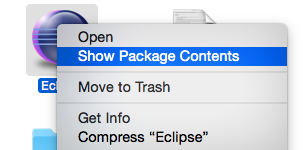
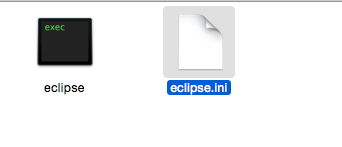
Right Click on the icon and select "Show Package Contents" now go to Content/MacOS/, here you would see eclipse.ini file, let's see what details this file contains,
eclipse ini file macOS
-startup
../../../plugins/org.eclipse.equinox.launcher_1.1.0.v20100507.jar
--launcher.library
../../../plugins/org.eclipse.equinox.launcher.cocoa.macosx.x86_64_1.1.0.v20100503
-product
org.eclipse.epp.package.php.product
--launcher.defaultAction
openFile
-showsplash
org.eclipse.platform
--launcher.XXMaxPermSize
256m
--launcher.defaultAction
openFile
-vmargs
-Dosgi.requiredJavaVersion=1.5
-XstartOnFirstThread
-Dorg.eclipse.swt.internal.carbon.smallFonts
-XX:MaxPermSize=256m
-Xms40m
-Xmx384m
-Xdock:icon=../Resources/Eclipse.icns
-XstartOnFirstThread
-Dorg.eclipse.swt.internal.carbon.smallFonts
Check the 4th line,
../../../plugins/org.eclipse.equinox.launcher.cocoa.macosx.x86_64_1.1.0.v20100503
If it contains x86_64 then your eclipse is 64-bit or else if it contains just x86 then it is a 32-bit setup.
Comments:
- Or the simplest way is to go to the Eclipse About menu option?
jak1e193 14 Nov 2020 13:20:51 GMT
- Does this works on macOS Catalina as well?
userAnon 21 Jul 2020 11:01:15 GMT
- Further comments disabled!
Comments & Discussion
Facing issues? Have questions? Post them here! We're happy to help!
Provide Feedback For This Article
We take your feedback seriously and use it to improve our content. Thank you for helping us serve you better!
😊 Thanks for your time, your feedback has been registered!