
To find which version of macOS is running on your Mac Device (Macbook, iMac or Mac mini) you can try the following options,
1. Using About Option on Menu
- Click on the Apple icon on the menu bar,
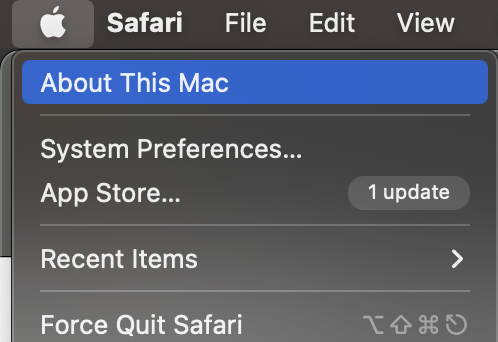
- Select About this Mac option,
- You should see details about the installed macOS on your Apple device,
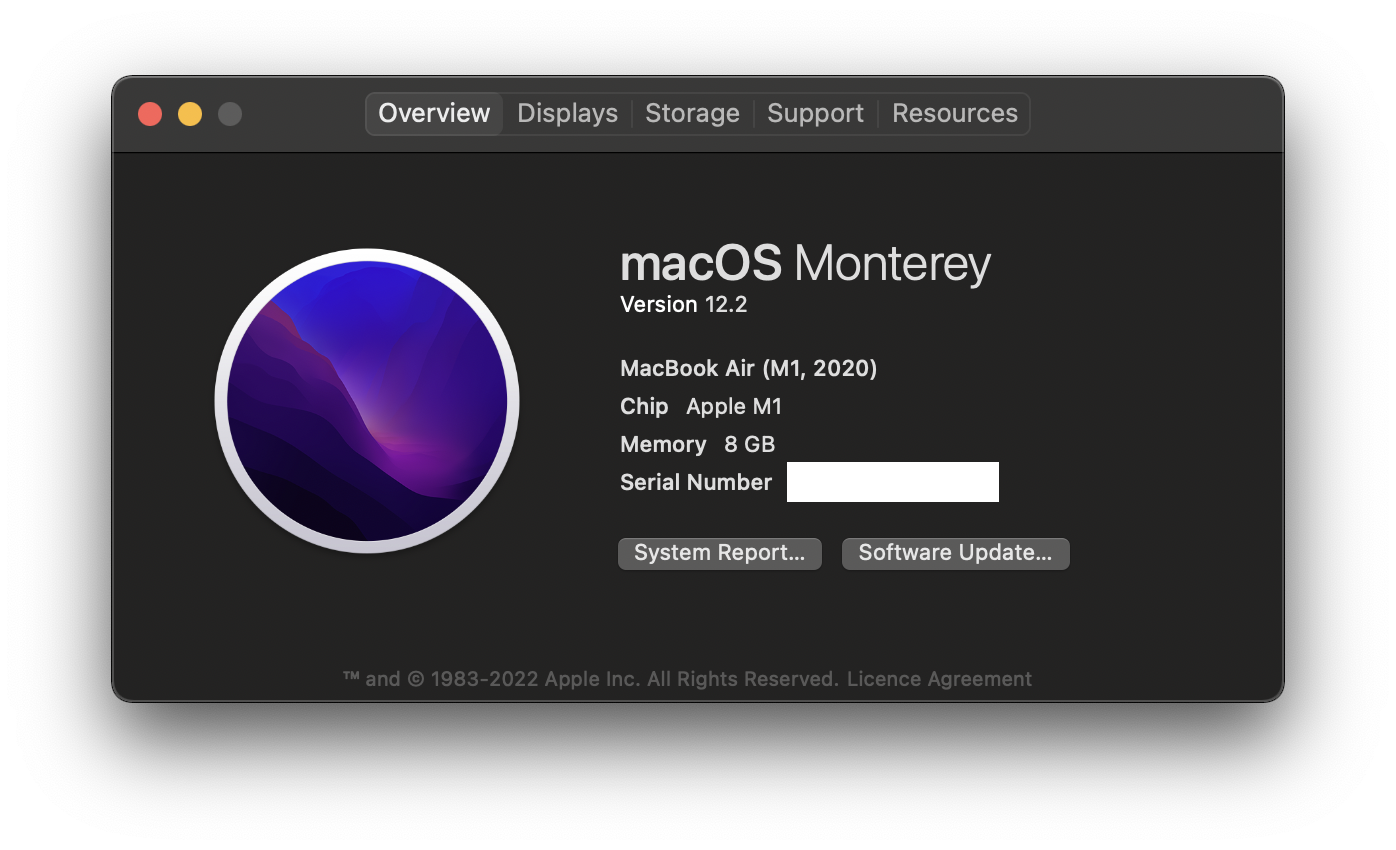
macOS Monterey
Version 12.2
MacBook Air (M1, 2020)
Chip Apple M1
Memory 16 GB
2. Using Terminal command
You can type command sw_vers to find out about your macOS version,

% sw_vers
ProductName:	macOS
ProductVersion:	13.0
BuildVersion:	22A5286j
List of all macOS versions (updated June-2022)
macOS Ventura (in Beta) 13.0
macOS Monterey : 12.2.1
macOS Big Sur: 11.6.4
macOS Catalina: 10.15.7
macOS Mojave: 10.14.6
macOS High Sierra: 10.13.6
macOS Sierra: 10.12.6
OS X El Capitan: 10.11.6
OS X Yosemite: 10.10.5
OS X Mavericks: 10.9.5
OS X Mountain Lion: 10.8.5
OS X Lion: 10.7.5
Mac OS X Snow Leopard: 10.6.8
Mac OS X Leopard: 10.5.8
Mac OS X Tiger: 10.4.11
Mac OS X Panther: 10.3.9
Mac OS X Jaguar: 10.2.8
Mac OS X Puma: 10.1.5
Mac OS X Cheetah: 10.0.4
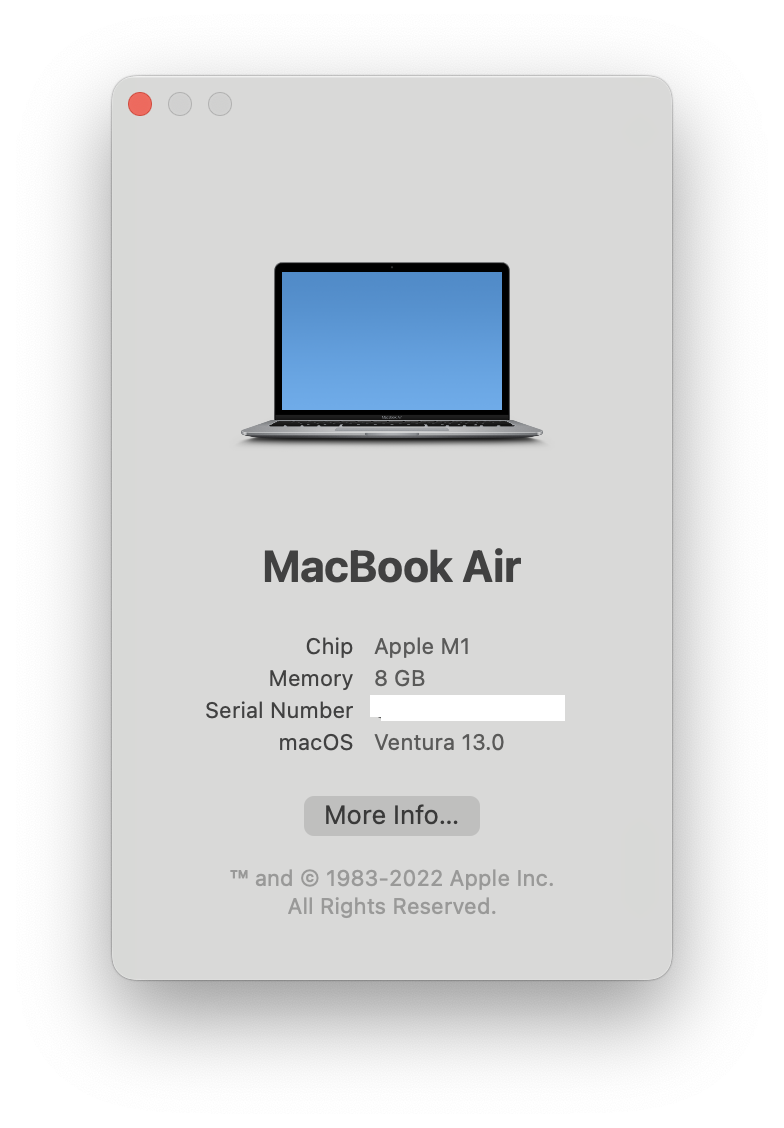
Update for macOS 13 Ventura
For the latest version of macOS 13 Ventura, the steps on UI are just the same but the window look and feel has changed a bit, when you click on the macOS name you will see more information like the version eg. 13.0 Beta (22A5286j)
Comments:
- Further comments disabled!
Comments & Discussion
Facing issues? Have questions? Post them here! We're happy to help!
Provide Feedback For This Article
We take your feedback seriously and use it to improve our content. Thank you for helping us serve you better!
😊 Thanks for your time, your feedback has been registered!