
Alias comes very handy to create shortcuts for complex or large commands you use in Terminal, it can help you improve your productivity (and do not need to remember that complex command you always forget :D)
- Open Terminal (this article is based on Zsh shell as being default one for macOS as of 2021),
- Now type ~/ to go to your user directory
- Do a ls -a and check if you have the .zshrc file, if not we will create it,
- run command: nano ~/.zshrc
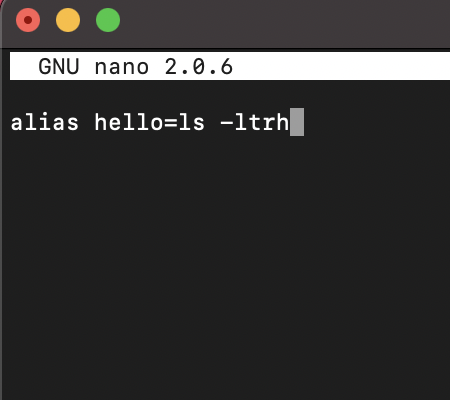
- Now add your alias in this file one per line, example:
- Now press Command + X to quite nano and click Y to save the file.
- To apply the changes type command: source ~/.zshrc
- Now try the command from any location in your terminal, they should work!
alias hello=ls
alias allfiles='ls -a ltrh'
✏️ Note that if there is a space in the the command, you should surround it with single quotes. There should be no space between the alias name and equals sign and its value.
⭐ Check out some examples aliases that you can create to improve your productivity!: Zsh Shell: Custom alias that you may find useful
Provide Feedback For This Article
We take your feedback seriously and use it to improve our content. Thank you for helping us serve you better!
😊 Thanks for your time, your feedback has been registered!
Comments & Discussion
Facing issues? Have questions? Post them here! We're happy to help!