
In order to create a Task List in SharePoint Online App (Windows 365) follow the below steps,
- Step 1: Login to your Windows 365 Online Account.
- Step 2: Navigate to your SharePoint Site: https://<your-tenent>.sharepoint.com/
- Step 3: Open the site where you want to create the task list.
- Step 4: Click on Site Content from the Left Quick Launch Menu
- Step 5: Note click on + New on the menu bar and select App

- Step 6: Click on the classic experience link in under "Apps you can add".
- Step 7: Click on the "Task" (you shall find it under Noteworthy, or simply search it)

- Step 8: Add a name and click create button.

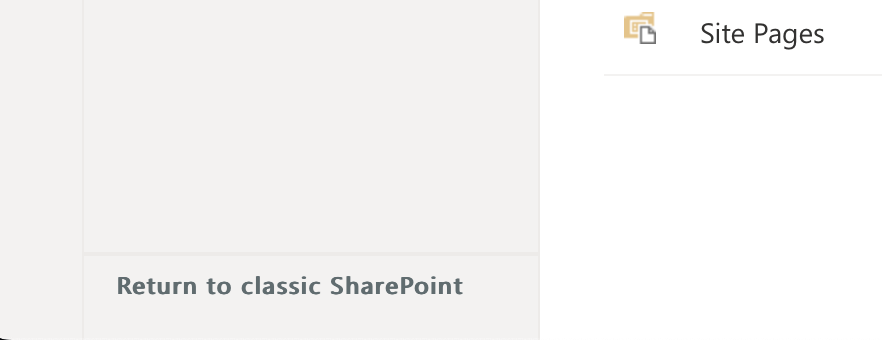
- Step 9: Now click on "Return to classic SharePoint" at the bottom left of your page, you should be able to see the list you just created there.
- Step 10: Click on "New Task" button to add a task to the list.

- You can fill in all details, such as Task Name, Start Date, Due Date, Assigned To, % Complete, Description, Predecessors, Priority - High, Low, Medium, Task Status - Not Started, In Progress, Completed, Deferred or Waiting on someone else.
How to Add the Task to Quick Launch Menu
To add the task you created in the Quick Launch Menu, go to the Site Content and click on the 3 dots next to your Task List, and select Settings,

Select yes, to display the list on the Quick launch under Navigation.

Finally you should be able to see your list like this:

Provide Feedback For This Article
We take your feedback seriously and use it to improve our content. Thank you for helping us serve you better!
😊 Thanks for your time, your feedback has been registered!
Comments & Discussion
Facing issues? Have questions? Post them here! We're happy to help!