
If you are a developer and you like to make use of vertical rulers to make sure your code is readable - you can make use of the Sublime Text ruler option.
Enabling Ruler in a tab is pretty easy - just go to View -> Ruler and select among the options - 70, 72, 78, 80, 100, 120. Once you select from any of the available options, you would see a horizontal line on the right side of the window - the distance will vary based on what size you select from range 70-120.
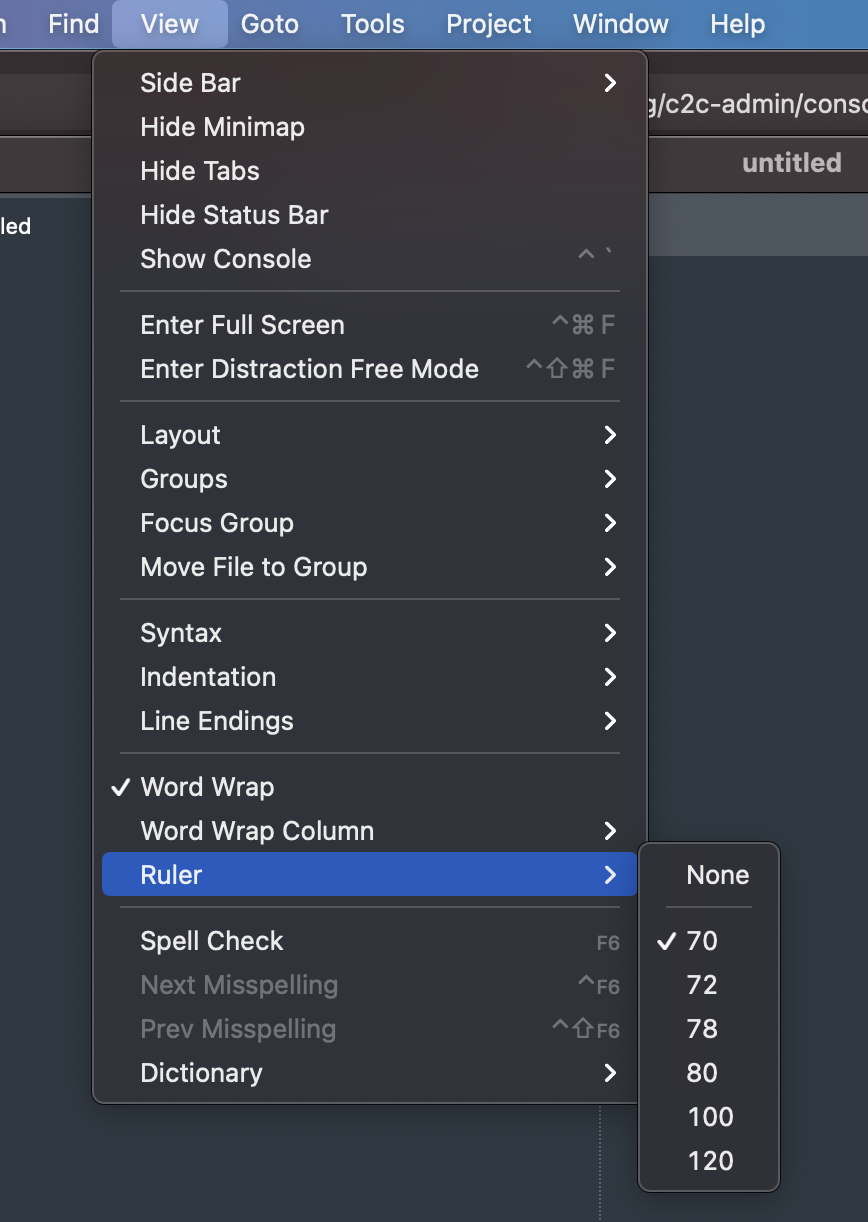
You can disable the ruler by selecting None by going to View -> Ruler.

How to enable ruler in Sublime Text Editor?
- Go to Menu option View,
- Go to Ruler,
- Select the ruler option from 70-120.
- Ruler should be visible.
✌️If you are an advanced user and want to permanently add a ruler to each tab you open - you can follow this tutorial.
Have Questions? Post them here!
Provide Feedback For This Article
We take your feedback seriously and use it to improve our content. Thank you for helping us serve you better!
😊 Thanks for your time, your feedback has been registered!
Comments & Discussion
Facing issues? Have questions? Post them here! We're happy to help!