If you have created an AWS EC2 Windows instance using your AWS Console and wondering how to connect to it using your Mac? Here are the steps to quickly connect to it using Microsft Remote Desktop App (RDP Client),
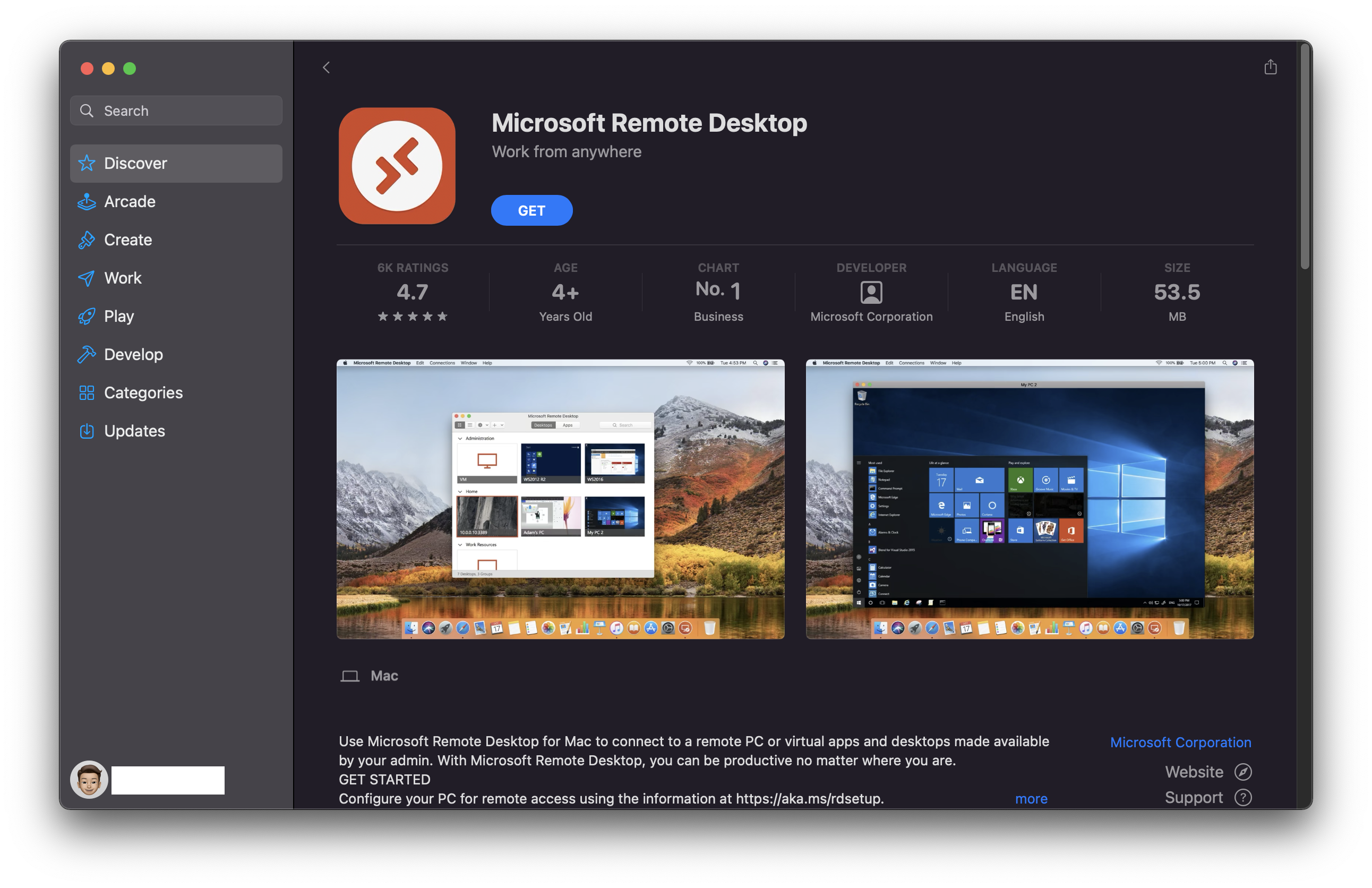
Microsoft Remote Desktop for Mac lets you access a remote PC or Virtual Machine Desktop (like AWS EC2), and you can securely connect to all kinds of Windows OS - Windows Professional or Enterprise and Windows Server.
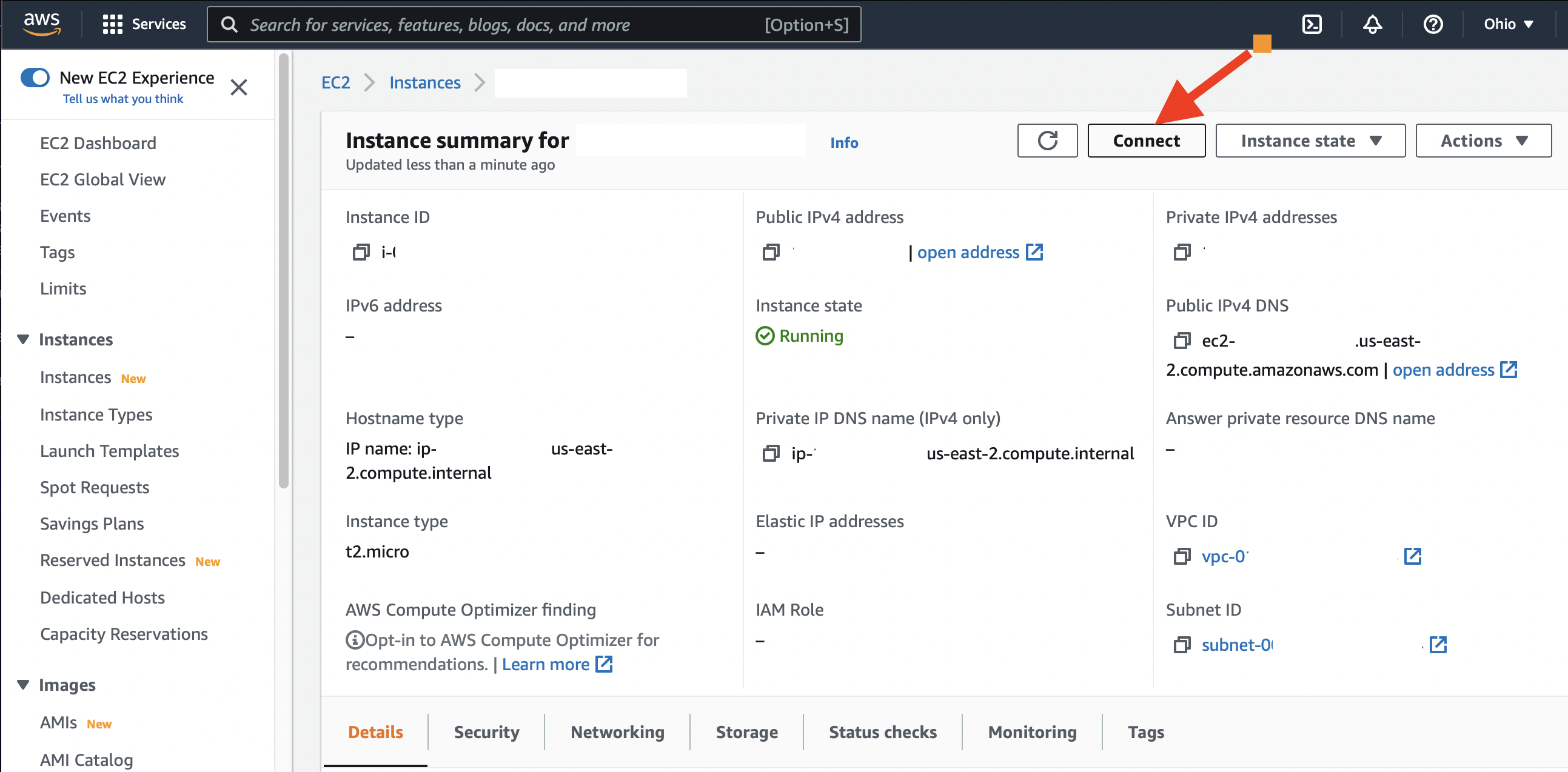
Step 2: On your AWS Console, go to your Windows instance page and make sure it is launched - now click on Connect button.
AWS Console - Windows EC2 Connect Button
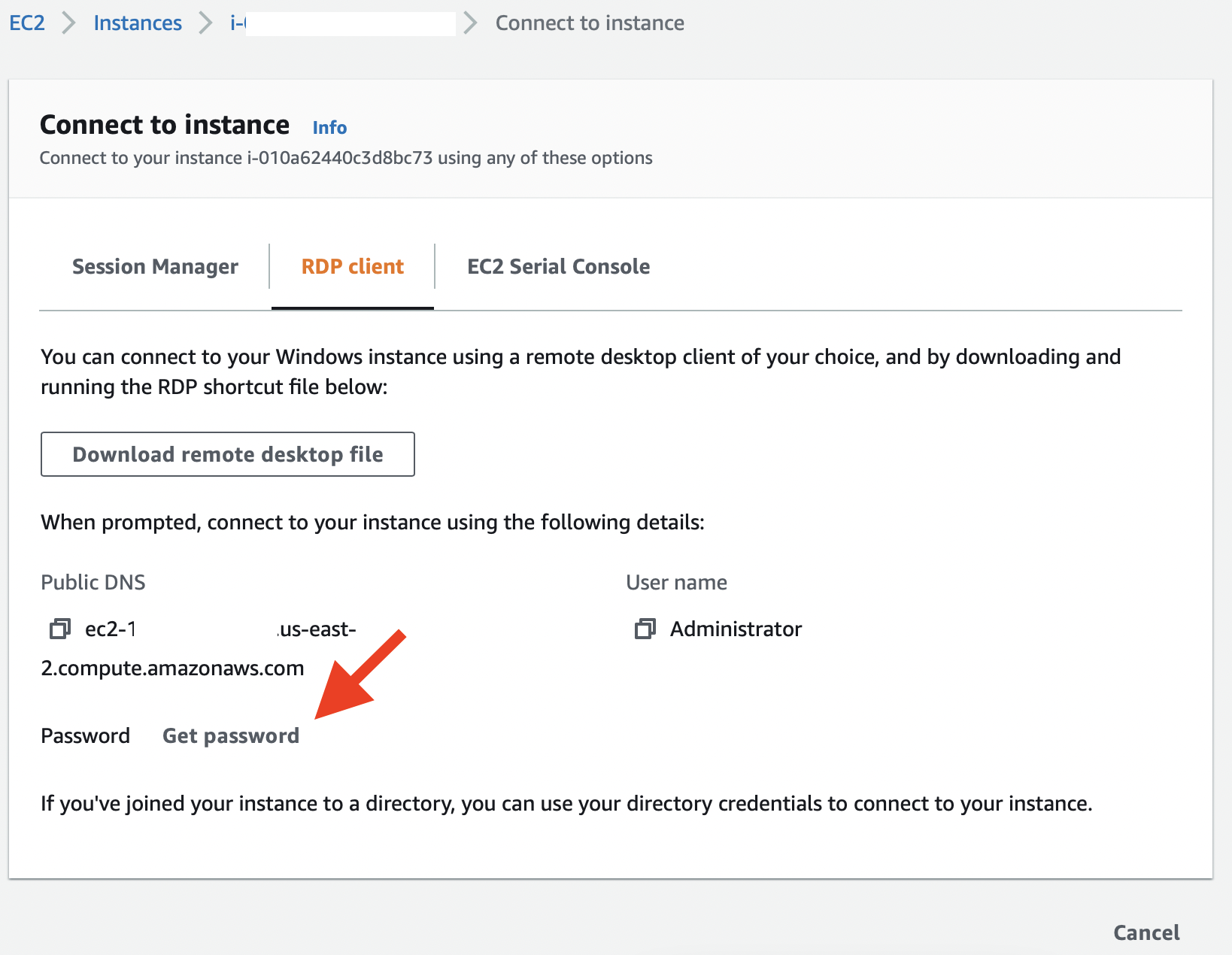
Step 3: Now click on the RDP Client Tab, and copy the Public DNS you will need this to connect to your instance. Now click on the Password button.
Click on Get Password under RDP Client
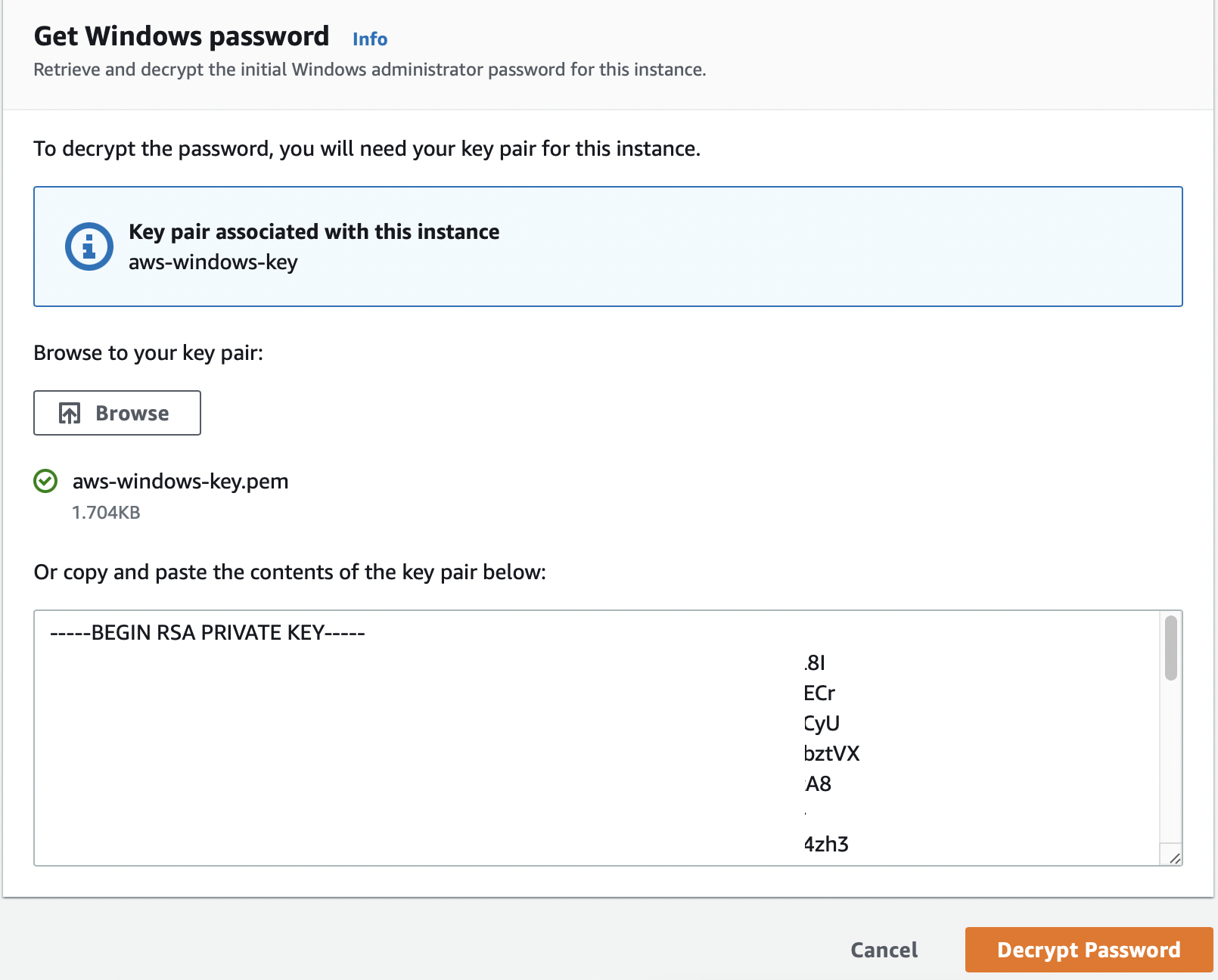
Browse your .pem file associated with the instance and decrypt the password.
Copy the decrypted plain text password.
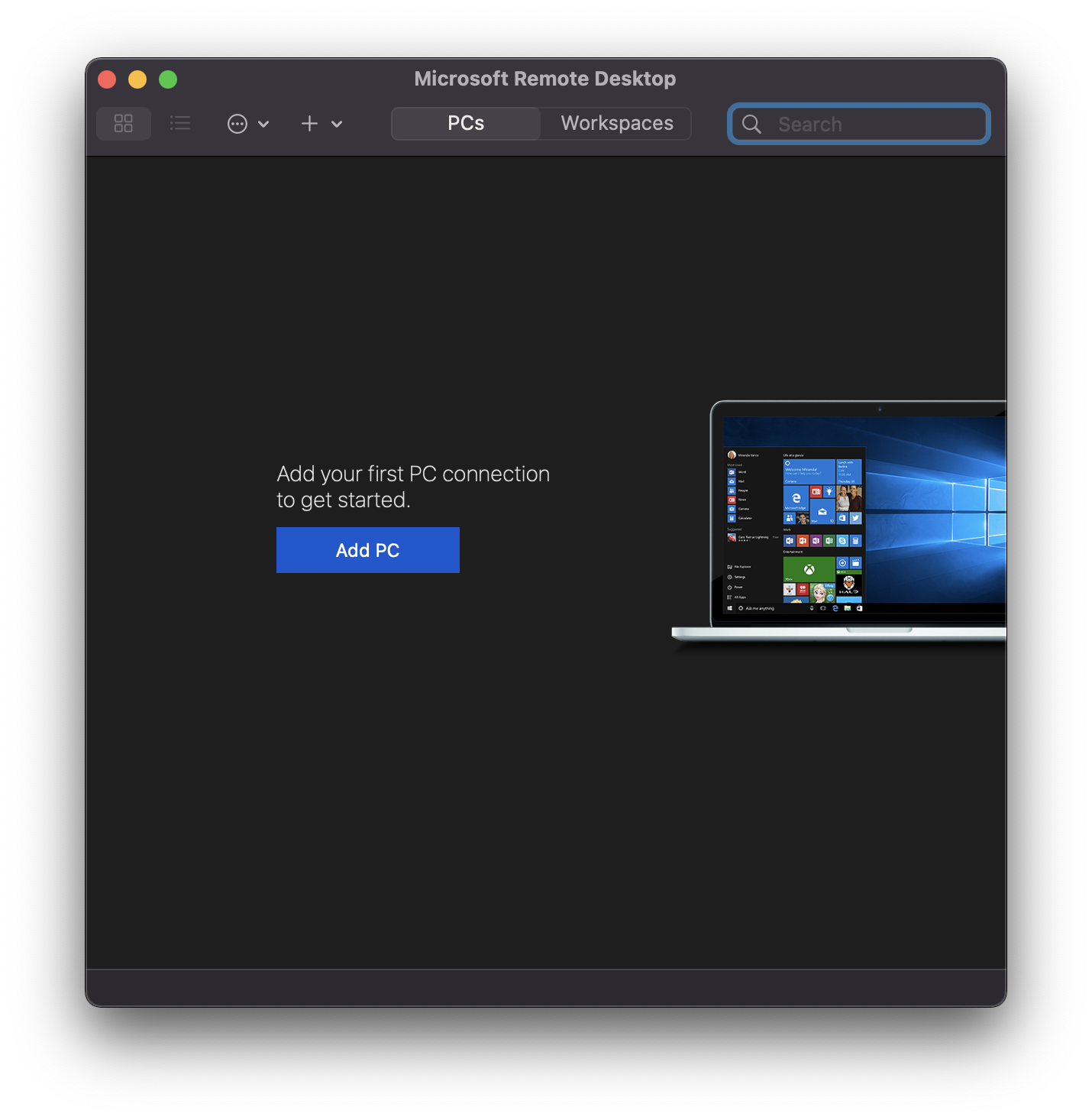
Step 4: Now launch the download - Windows Remote Desktop (RDP) Application and click on Add PC
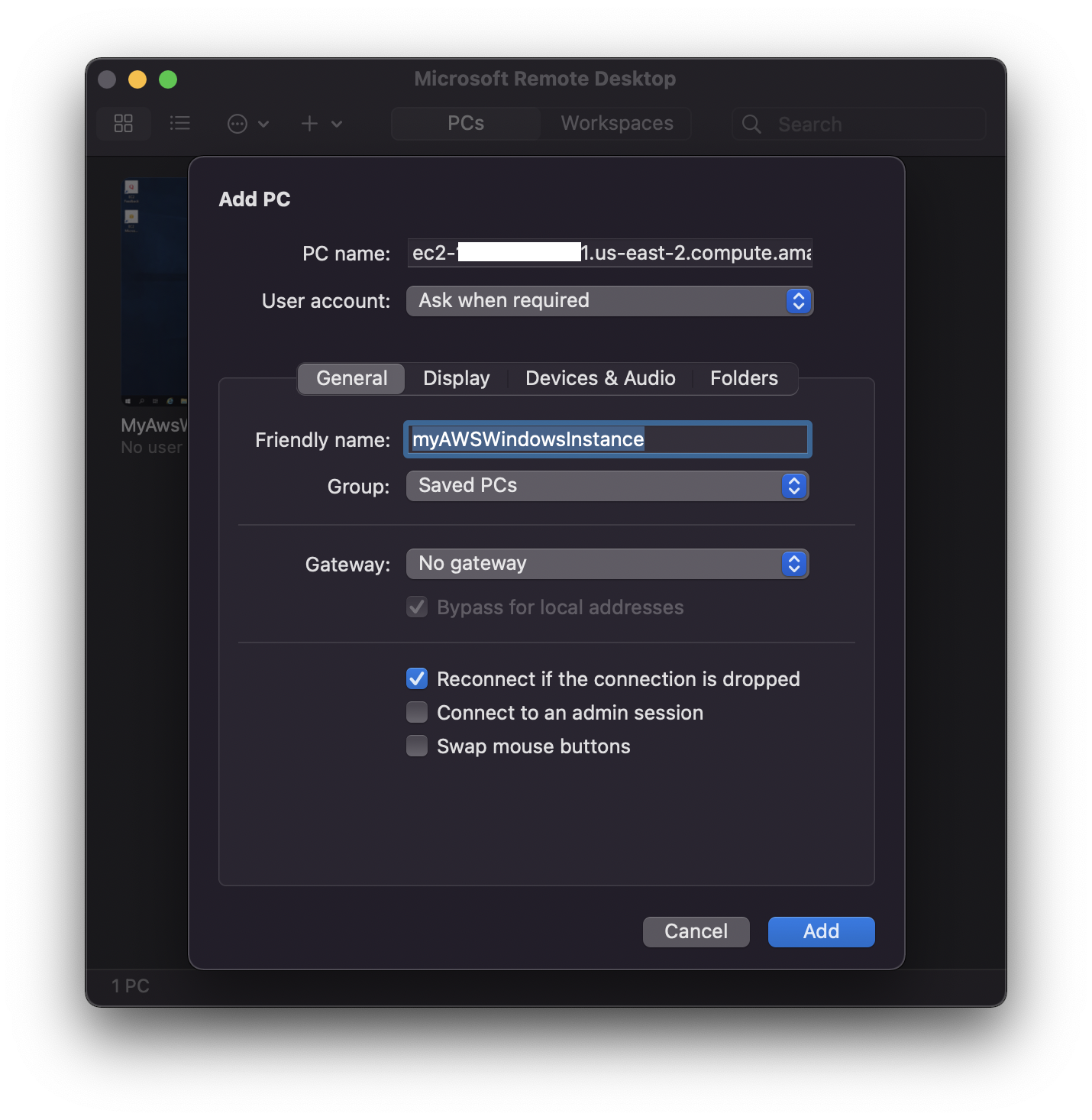
Under PC name add the Public DNS that we just copied at Step 3, you can add a friendly name as well - MyAWSWindowsInstance is what I have added in my case. Click on Add.
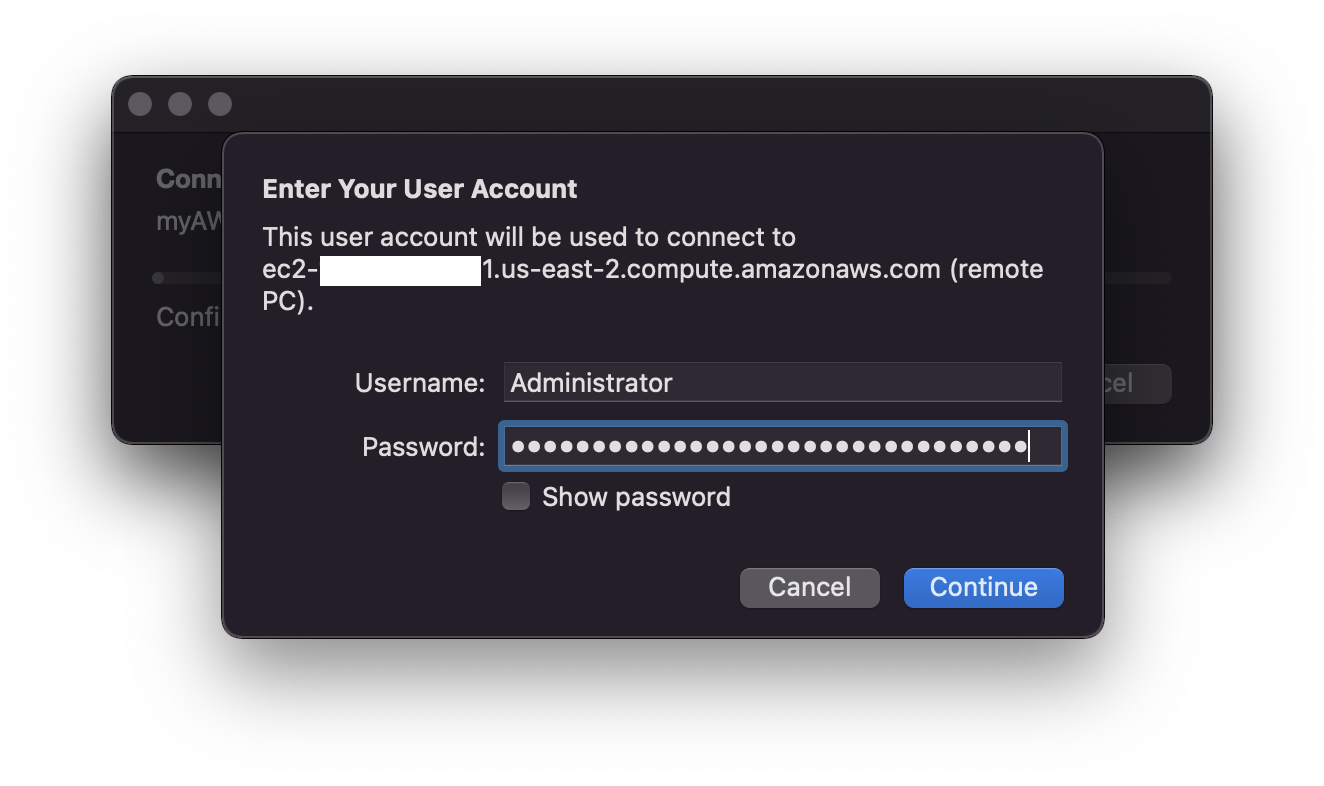
Now, enter your user User name as "Administrator" and the password that we copied using the .pem file in Step 3.
You are connecting to the RDP host "ec2-xx-xxx-xxx-xx.us- east-2.compute.amazonaws.com". The certificate couldn't be verified back to a root certificate. Your connection may not be secure. Do you want to continue?
You will see a message as above, click on continue.
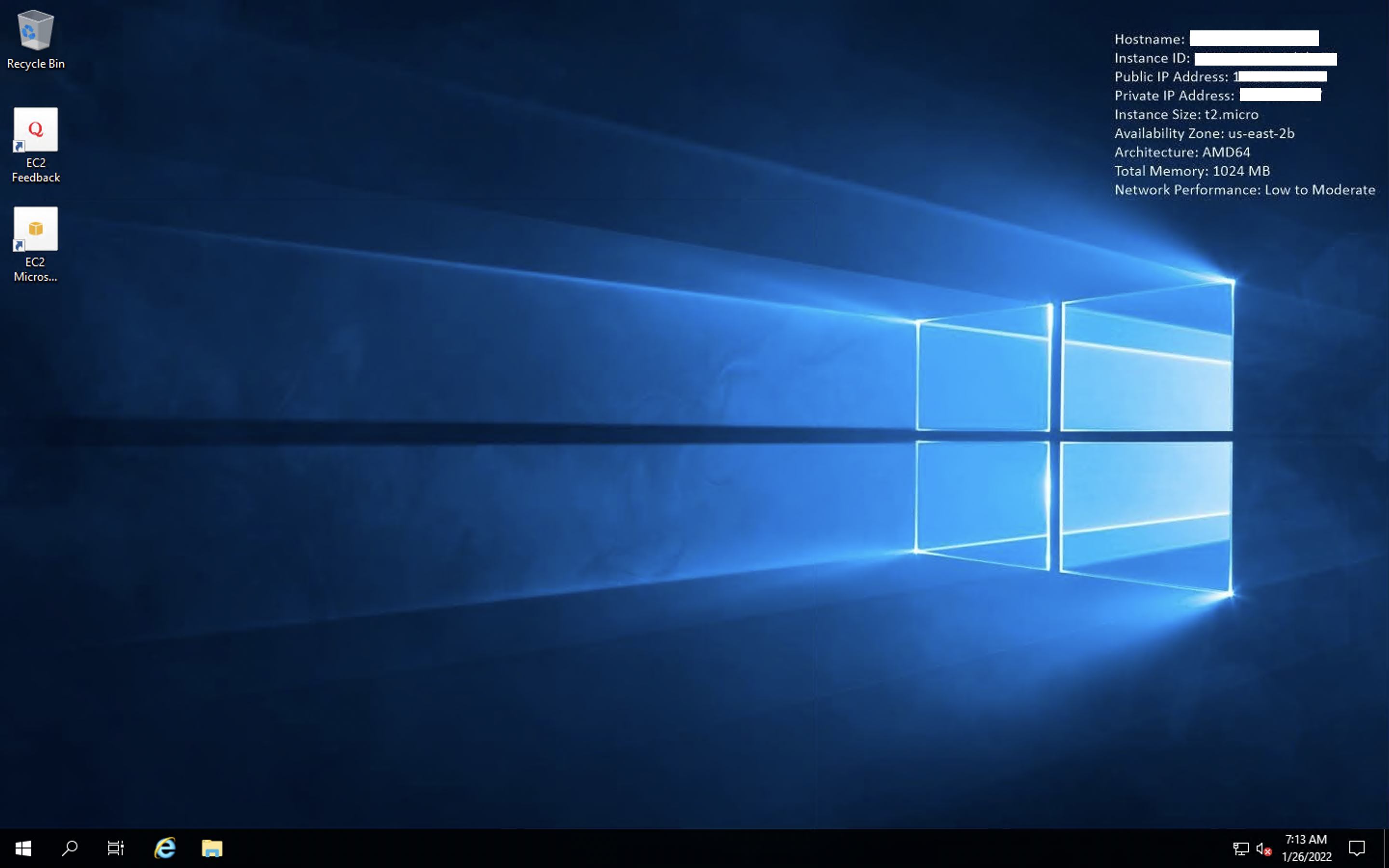
That's it! Next, you will log into your Windows Desktop, on the top right you should see details of your Device.
Hostname: EC2AMAZ-LXXXXX
Instance ID: i-010XXXXXXXXXXX
Public IP Address: xx-xxx-xxx-xx
Private IP Address: 172.31.16. 27
Instance Size: t2.micro
Availability Zone: us-east-2b
Architecture: AMD64
Total Memory: 1024 MB
Network Performance: Low to Moderate
Comments & Discussion
Facing issues? Have questions? Post them here! We're happy to help!
Provide Feedback For This Article
We take your feedback seriously and use it to improve our content. Thank you for helping us serve you better!
Thanks for your feedback! If you have time, please provide details by selecting options below.
😊 Thanks for your time, your feedback has been registered!

Comments & Discussion
Facing issues? Have questions? Post them here! We're happy to help!