
There are multiple ways in which you can format code in Visual Studio Code IDE (also known as VS Code),
Option 1: Using Keyboard Shortcut
For Windows:Keyboard Shortcut: Shift + Alt + F
For Mac (macOS):Keyboard Shortcut: ⌥ Shift + Option + F
For Linux:Keyboard Shortcut: ⌥ Shift + Option + I
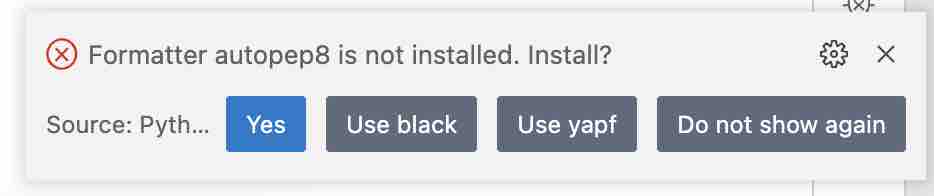
Note the first time you use the formatting shortcut you will get a VS Code Alert saying "Formatter autopep8 is not installed. Install?" do say YES or you can install it using pip command manually.
/opt/homebrew/bin/python3 -m pip install -U autopep8
Collecting autopep8
  Downloading autopep8-1.7.0-py2.py3-none-any.whl (45 kB)
     ━━━━━━━━━━━━━━━━━━━━━━━━━━━━━━━━━━━━━━━━ 45.6/45.6 kB 1.1 MB/s eta 0:00:00
Collecting pycodestyle>=2.9.1
  Downloading pycodestyle-2.9.1-py2.py3-none-any.whl (41 kB)
     ━━━━━━━━━━━━━━━━━━━━━━━━━━━━━━━━━━━━━━━━ 41.5/41.5 kB 2.3 MB/s eta 0:00:00
Collecting toml
  Downloading toml-0.10.2-py2.py3-none-any.whl (16 kB)
Installing collected packages: toml, pycodestyle, autopep8
Successfully installed autopep8-1.7.0 pycodestyle-2.9.1 toml-0.10.2
Option 2: Using Mouse:
Be on your Python code file and do a right-click and select: Format Document

You can also select a section of your code and format it by selecting "Format Section"
Option 3: Using Palette Command:
Another way is to use the Palette Command,
Open Palette,
For Windows: Control + Shift + P
For Mac: Command + Shift + P
Now search for Format Document and select to format.
Do share in the comments if you know of any other ways or tricks to format Python code in VS Code!
Provide Feedback For This Article
We take your feedback seriously and use it to improve our content. Thank you for helping us serve you better!
😊 Thanks for your time, your feedback has been registered!
Comments & Discussion
Facing issues? Have questions? Post them here! We're happy to help!