
You might have been working on Netbeans IDE for most of your life and must have lately moved to the relatively new Official IDE for Android Development i.e. IntelliJ Android Studio. The first thing you would notice is that the IDE has different sets of Keyboard shortcuts. If you want to make use of the good old Netbeans shortcuts here is a walkthrough to achieve it,
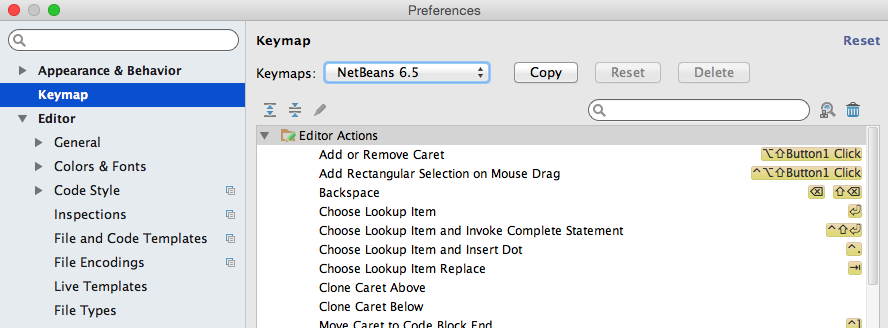
- Go to Menu: Android Studio ? Preferences (Should be Window ? Preferences on Windows OS)
- Now you should see Keymap on the left menu, just below Appearances and Behaviour.
- You will see a Keymaps dropdown menu, just select NetBeans 6.5.
- Click on Apply -> OK.
- Thanks it!
You can similarly make use of other IDE Keymaps like Eclipse, Eclipse for macOS, and so on.
Provide Feedback For This Article
We take your feedback seriously and use it to improve our content. Thank you for helping us serve you better!
😊 Thanks for your time, your feedback has been registered!
Comments & Discussion
Facing issues? Have questions? Post them here! We're happy to help!