Android Studio emulator/Device logCat logs not displayed

If the LogCat section in Android Studio does not display your application logs or any system logs, you can resolve this issue by following these updated steps:
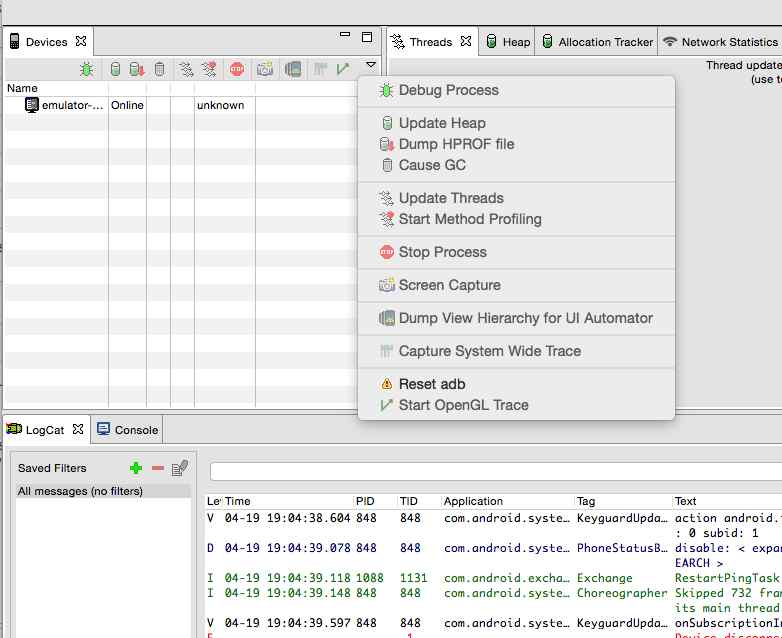

  • Navigate to Tools > Android > Android Device Monitor (DDMS).
  • In the Devices tab on the right side, locate the view menu icon (three vertical dots) and click on it, then select Reset adb.
  • After resetting, you should see the log messages appearing in the LogCat console.
  • If the issue persists, consider restarting Android Studio or your device, as this can sometimes resolve connectivity issues.
  • Additionally, ensure that your device is properly connected and recognized by Android Studio. You can check this in the Device File Explorer.
  • Enable-log-cat-messages-android-studio
    Enable-log-cat-messages-android-studio

    This is not an AI-generated article but is demonstrated by a human on an M1 Mac running macOS Sonoma 14.0.

    Please support independent contributors like Code2care by donating a coffee.

    Buy me a coffee!

    Buy Code2care a Coffee!

    Comments & Discussion

    Facing issues? Have questions? Post them here! We're happy to help!