
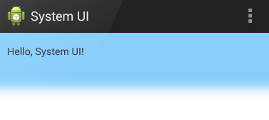
By default every Android Activity will have a Navigation Bar or so-called "The Status Bar" (Update 2018: This is not true anymore - you can select a completely blank template with no Navigation Bar while creating a new project using Android Studio) this bar displays the title of the Activity, you might be working on a scenario where you want to have a full-screen display for your app, this can be done in two ways - by using the XML property or programmatically using Java/Kotlin code.
Method 1: Using AndroidManifest.xml
To hide the title bar and the navigation bar from an Android Activity to make your App utilize full screen, all we need to do is add the following attribute to the Activity tag(in AndroidManifest.xml) which needs no title bar.
android:theme="@android:style/Theme.Black.NoTitleBar.Fullscreen"Below is how the activity code will look like,
<activity
       android:name="com.example.proj1.MainPage"
       android:label="@string/app_name"
       android:theme="@android:style/Theme.Black.NoTitleBar.Fullscreen" >
       <intent-filter>
          <action android:name="android.intent.action.MAIN" />
           <category android:name="android.intent.category.LAUNCHER" />
       </intent-filter>
</activity>
If you want to make your whole application full screen then use the below code snippet in the App Manifest file.
<application
    android:theme="@android:style/Theme.Holo.NoActionBar.Fullscreen" >
</application>
This is the most preferred way of setting your Activity full screen using Manifest XML file as it's easy to maintain.
This is an old post, as Android development has evolved maybe this may not hold true if you are on Android 4.0 or above (API 14), if you want to do the same thing using Java code this can be achieved as following,
Method 2: Using Java/Kotlin Code
Using the code you can archive this using the WindowManager flags. You may want to use this approach if you want to toggle between hiding and showing the status bar based on user interaction with the activity.
If the Android version is lower than Jellybean i.e. API 16 or lower,
//JAVA EXAMPLE
public class MyActivity extends Activity {

    @Override
    protected void onCreate(Bundle savedInstanceState) {
        super.onCreate(savedInstanceState);

        if (Build.VERSION.SDK_INT < 16) {
            getWindow().setFlags(WindowManager.LayoutParams.FLAG_FULLSCREEN,
            WindowManager.LayoutParams.FLAG_FULLSCREEN);
        }
        setContentView(R.layout.activity_main);
    }

}
//KOTLIN EXAMPLE
class MyActivity : Activity() {
override fun onCreate(savedInstanceState: Bundle?) {
super.onCreate(savedInstanceState)
if (Build.VERSION.SDK_INT < 16) {
window.setFlags(WindowManager.LayoutParams.FLAG_FULLSCREEN,
WindowManager.LayoutParams.FLAG_FULLSCREEN)
}
setContentView(R.layout.activity_main)
}
}If the Android version is 4.1 or higher,
View decorView = getWindow().getDecorView();
decorView.setSystemUiVisibility(View.SYSTEM_UI_FLAG_FULLSCREEN);
getActionBar().hide();
If you just want to hide the title bar, you can use: this.requestWindowFeature(Window.FEATURE_NO_TITLE);
Frequently Asked Questions (FAQ):
View decorView = getWindow().getDecorView();
decorView.setSystemUiVisibility(View.SYSTEM_UI_FLAG_HIDE_NAVIGATION);
In Android 11 and later, you should use the "gesture navigation" method to hide the navigation bar. Earlier versions may use different methods, such as immersive mode.
decorView.setSystemUiVisibility(View.SYSTEM_UI_FLAG_VISIBLE);View decorView = getWindow().getDecorView();
decorView.setSystemUiVisibility(View.SYSTEM_UI_FLAG_HIDE_NAVIGATION);
decorView.setSystemUiVisibility(View.SYSTEM_UI_FLAG_VISIBLE);
Comments:
Comments & Discussion
Facing issues? Have questions? Post them here! We're happy to help!
Provide Feedback For This Article
We take your feedback seriously and use it to improve our content. Thank you for helping us serve you better!
😊 Thanks for your time, your feedback has been registered!
> admin: Thanks, I have updated the text of this post with this note!