
If you have a file (be it XML, CSS, JSON, Java, TXT, or any other file type) in your project folder and you want to know the Absolute or Relative path of it, you can follow these simple steps in IntelliJ IDEA:
- Step 1: Expand your project structure in the Project tool window.
- Step 2: Locate and select the file you want to know the path for.
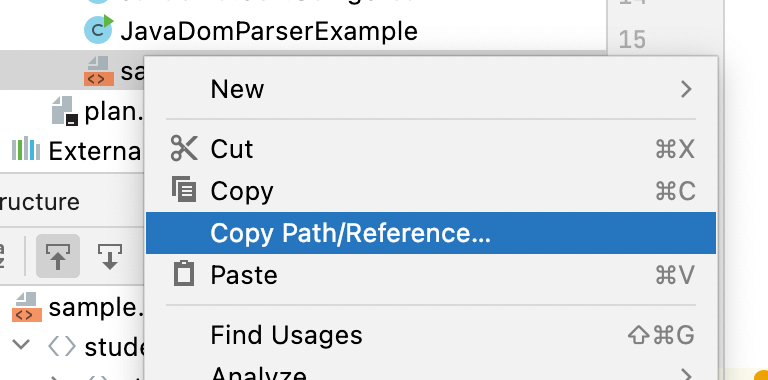
- Step 3: Right-click on the selected file to open the context menu.
- Step 4: In the context menu, click on Copy Path/Reference... This will open a submenu with various path options.
- Step 5: From the submenu, choose one of the following options based on your needs:
- Absolute Path: Copies the full path from the root directory of your system.
- Path from Content Root: Copies the path relative to the content root of your project.
- Path from Source Root: Copies the path relative to the source root of your module.
- File Name: Copies only the name of the file with its extension.
- Step 6: The selected path or file name will be automatically copied to your clipboard.
- Step 7: You can now paste the copied path or file name wherever you need it, such as in your code, documentation, or command line.

Frequently Asked Questions (FAQ) about Getting Absolute/Relative Path of File in IDEA IntelliJ
-
Q: What's the difference between Absolute Path and Relative Path in IntelliJ IDEA?
A: An Absolute Path provides the full path from the root directory of your system to the file. A Relative Path (like Path from Content Root or Path from Source Root) gives the path relative to a specific point in your project structure.
-
Q: Can I get the path of multiple files at once in IntelliJ IDEA?
A: Yes, you can select multiple files in the Project tool window, right-click, and choose Copy Path. However, you'll need to select the path type individually for each file.
-
Q: How can I use the copied path in my Java code?
A: You can use the copied path as a string in your Java code. For example, to create a File object: File file = new File("paste_your_copied_path_here");
-
Q: Is there a keyboard shortcut to copy the path in IntelliJ IDEA?
A: Yes, you can use Ctrl+Shift+C (Windows/Linux) or Cmd+Shift+C (Mac) to quickly copy the absolute path of a file.
-
Q: Can I customize the format of the copied path?
A: IntelliJ IDEA doesn't provide built-in customization for path formats. However, you can easily modify the copied path in a text editor if you need a specific format.
-
Q: How do I get the path of a file that's not in my project?
A: For files outside your project, you can use the system file explorer to locate the file, then right-click and choose to copy the file path. The exact method may vary depending on your operating system.
-
Q: What's the difference between Content Root and Source Root in IntelliJ IDEA?
A: The Content Root is the root directory of your entire project, including resource files. The Source Root is specifically the root directory of your source code files.
-
Q: Can I use the copied path in build scripts or configuration files?
A: Yes, you can use the copied paths in build scripts (like Gradle or Maven) or configuration files. Just make sure to use the appropriate path type (absolute or relative) based on your needs.
-
Q: How do I handle path separators for different operating systems?
A: In Java, you can use File.separator to get the correct path separator for the current operating system. Alternatively, you can use forward slashes ('/') which work on all systems when used in Java file operations.
-
Q: Can I get the URL of a file instead of its file system path in IntelliJ IDEA?
A: IntelliJ IDEA doesn't provide a direct option to copy a file's URL. However, you can convert a file path to a URL in Java using the File.toURI().toURL() method.
Provide Feedback For This Article
We take your feedback seriously and use it to improve our content. Thank you for helping us serve you better!
😊 Thanks for your time, your feedback has been registered!
Comments & Discussion
Facing issues? Have questions? Post them here! We're happy to help!