
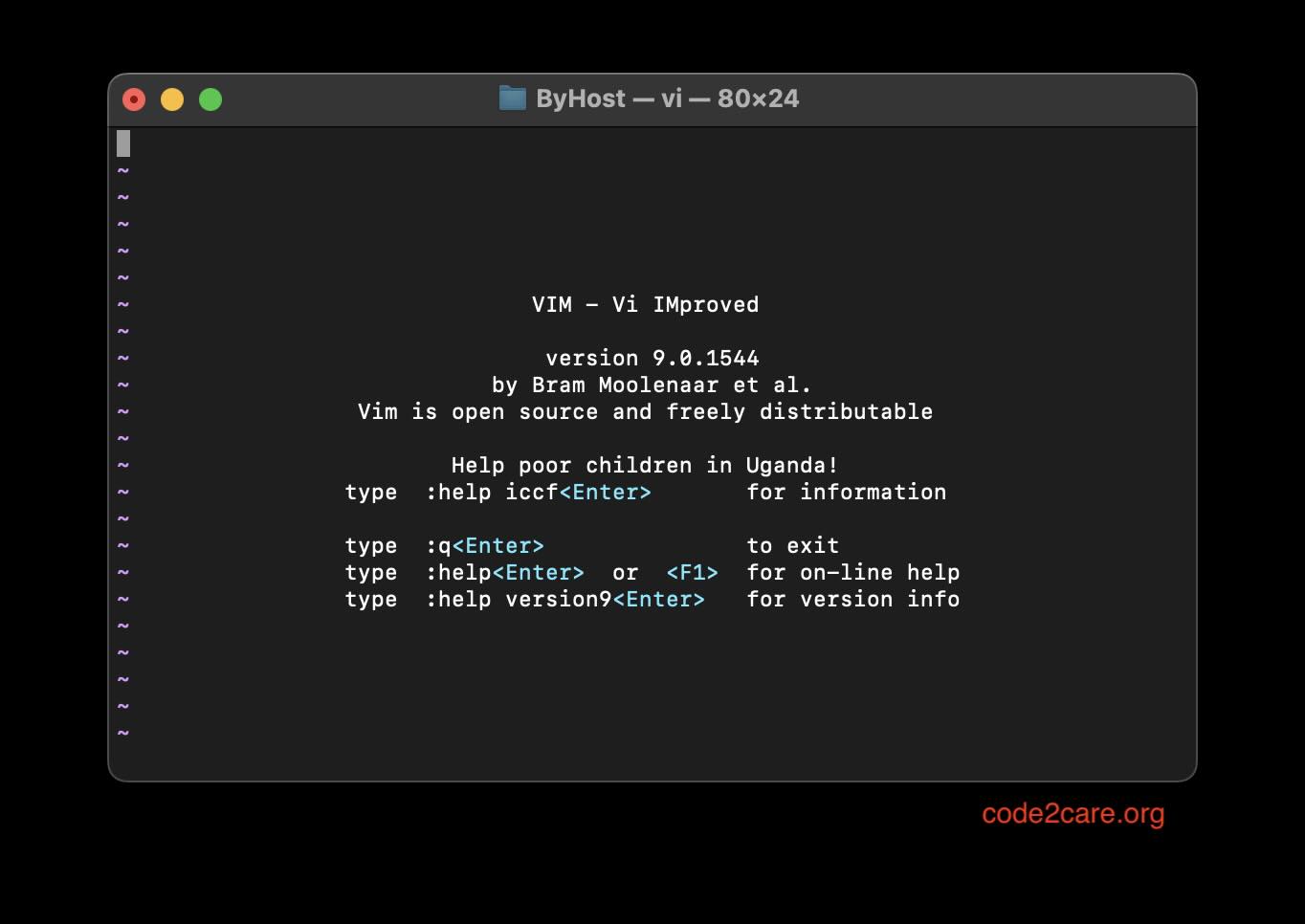
Vim is one of the most powerful and oldest text editors for Mac and other Unix-like/Linux operating systems.
It is included as "vi" with most UNIX systems and with Apple macOS (earlier known as OS X)
Let's try and answer some common frequently asked questions (faqs) related to Vim (vi):
1: What is the Vim configuration file on Mac?
The Vim configuration file on Mac is known as .vimrc, and it's used to customize Vim's behavior and appearance.
2: Where is the .vimrc file located on a Mac?
You can find the .vimrc file in your home directory: ~/.vimrc.
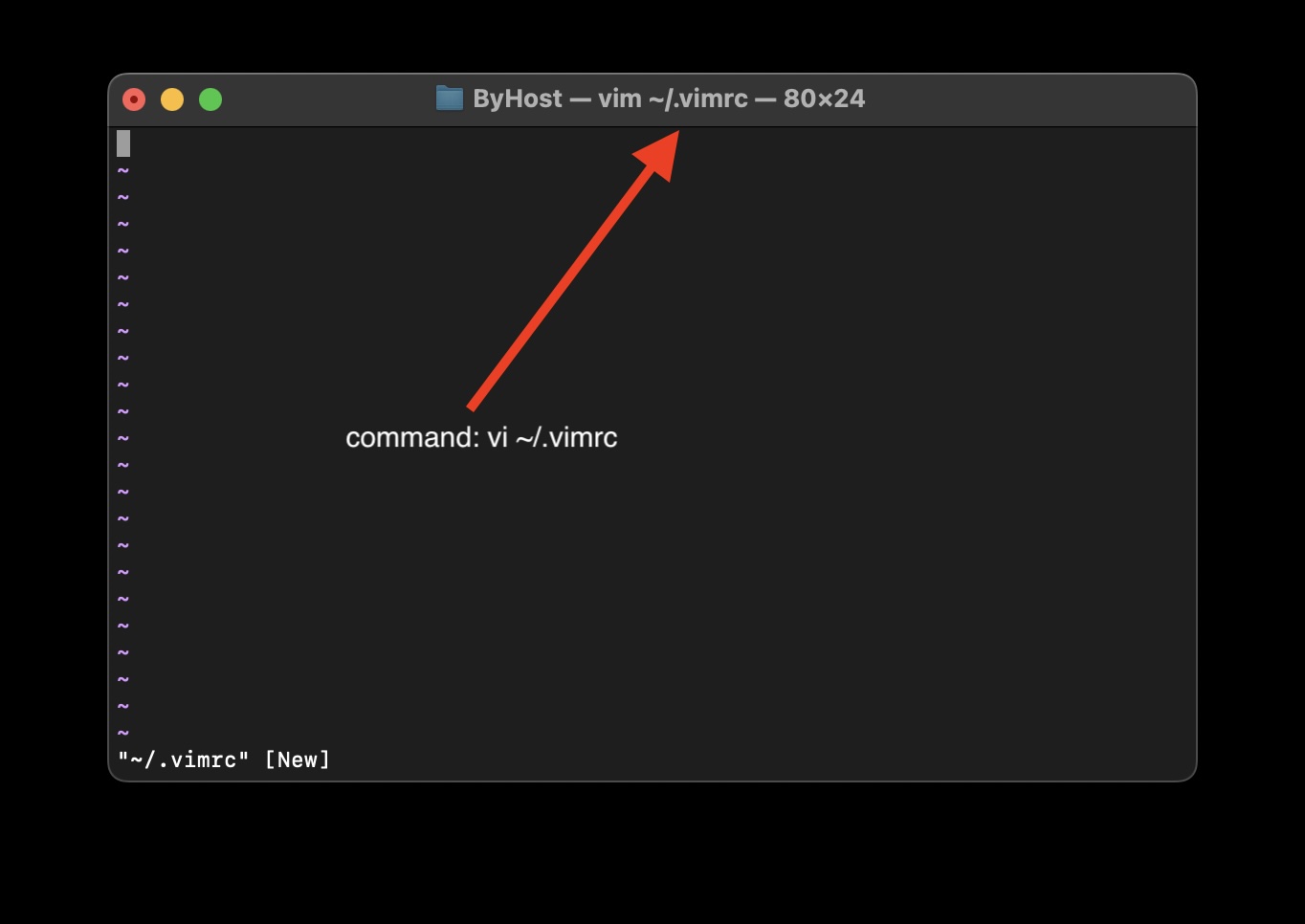
3: How can I create or edit the .vimrc file on a Mac?
You can create or edit the .vimrc file using a text editor. For instance, you can use the command vim ~/.vimrc to edit it within Vim.
4: What are some common configurations in .vimrc?
Common configurations include setting preferences for indentation, enabling line numbers, defining key mappings, and specifying color schemes.
5: How can I set the indentation preferences in .vimrc?
To set the indentation preferences, use commands like set tabstop=4 and set shiftwidth=4. These control tab stops and the number of spaces for each level of indentation.
6: Can I enable line numbers in Vim using .vimrc?
Yes, you can. Add set number to display line numbers in Vim.
7: How can I define custom key mappings in .vimrc?
You can define key mappings like this: nnoremap <leader>f :find .
8: What about changing the color scheme in .vimrc?
To change the color scheme, use a command like colorscheme desert.
9: Where can I find detailed documentation for .vimrc configurations?
The official Vim documentation is a valuable resource. You can access it by running :help within Vim or online at Vim Documentation.
Provide Feedback For This Article
We take your feedback seriously and use it to improve our content. Thank you for helping us serve you better!
😊 Thanks for your time, your feedback has been registered!
To change the color scheme, use a command like colorscheme desert.
.vimrc configurations?
The official Vim documentation is a valuable resource. You can access it by running :help within Vim or online at Vim Documentation.
Provide Feedback For This Article
We take your feedback seriously and use it to improve our content. Thank you for helping us serve you better!
😊 Thanks for your time, your feedback has been registered!
Comments & Discussion
Facing issues? Have questions? Post them here! We're happy to help!