
Many times developers end up installing multiple versions of Java JDK/JRE versions on their macOS, as Java comes in different implementations - Oracle, Amazon Corretto OpenJDK, Zulu, etc are installed at different locations.
In order to know that versions of Java have been installed on a Mac computer running macOS is to run the command: /usr/libexec/java_home -V
Steps to check installed Java versions:
- Open Terminal
- Go to /usr/libexec, by doing cd /usr/libexec
- Type: ./java_home -V
code2care@mac libexec % ./java_home -V
Matching Java Virtual Machines (3):
    11.0.9.1 (arm64) "Azul Systems, Inc." - "Zulu 11.43.1021" /Library/Java/JavaVirtualMachines/zulu-11.jdk/Contents/Home
    1.8.291.10 (x86_64) "Oracle Corporation" - "Java" /Library/Internet Plug-Ins/JavaAppletPlugin.plugin/Contents/Home
    1.8.0_292 (arm64) "Azul Systems, Inc." - "Zulu 8.54.0.21" /Library/Java/JavaVirtualMachines/zulu-8.jdk/Contents/Home
/Library/Java/JavaVirtualMachines/zulu-11.jdk/Contents/Home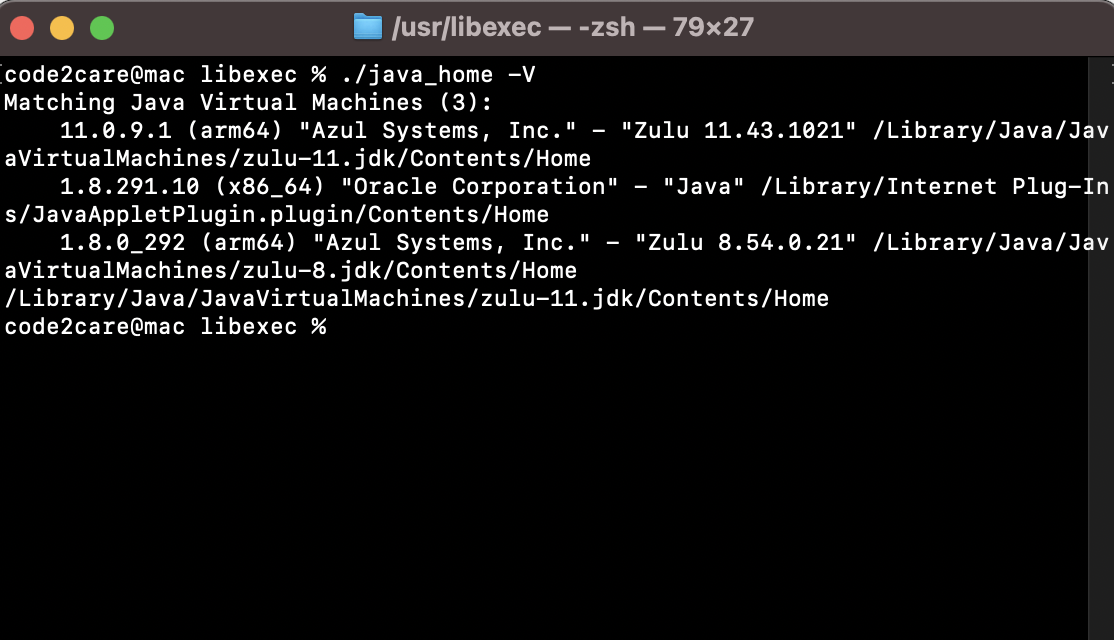
As you can see I have three versions of Java installed, 11 and 1.8 arm64 bit version Zulu Java for Native M1 Mac computer, and Oracle Java 1.8.
Have Questions? Post them here!
Provide Feedback For This Article
We take your feedback seriously and use it to improve our content. Thank you for helping us serve you better!
😊 Thanks for your time, your feedback has been registered!
Comments & Discussion
Facing issues? Have questions? Post them here! We're happy to help!