
When you create your first ever application or select a new project in Android Studio you must have seen that the default color theme of the Titlebar (Toolbar) is purple. If you want to change the color theme, follow the below steps,
- Go to res folder,
- Now go to values -> colors.xml
- Now add the new colors that you want, example,
<color name="grey">#888888 - Now go to themes folder,
- Open themes.xml file
- Change the colorPrimary value to @color/grey
<resources xmlns:tools="http://schemas.android.com/tools"> <style name="Theme.MyApplication" parent="Theme.MaterialComponents.DayNight.DarkActionBar"> <item name="colorPrimary">@color/grey</item> <item name="colorPrimaryVariant">@color/purple_700</item> <item name="colorOnPrimary">@color/white</item> <item name="colorSecondary">@color/teal_200</item> <item name="colorSecondaryVariant">@color/teal_700</item> <item name="colorOnSecondary">@color/black</item> <item name="android:statusBarColor" tools:targetApi="l">?attr/colorPrimaryVariant</item> </style> </resources> - Launch the app in emulator to see the changes.
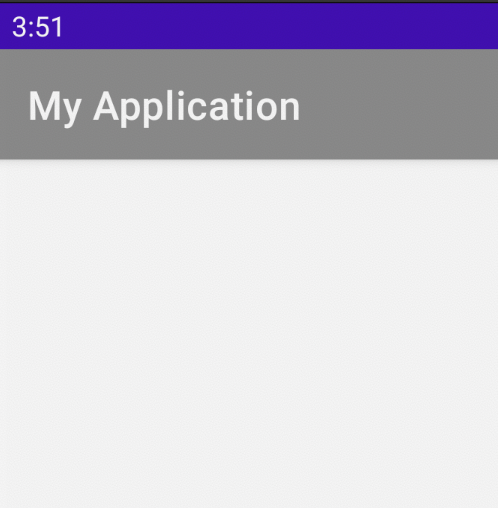
Note: You can change the other theme colors here such as statusBarColor, colorSecondary, colorSecondaryVariant and so on in the same way!
Happy Coding!!
Have Questions? Post them here!
Provide Feedback For This Article
We take your feedback seriously and use it to improve our content. Thank you for helping us serve you better!
😊 Thanks for your time, your feedback has been registered!
Comments & Discussion
Facing issues? Have questions? Post them here! We're happy to help!