
Follow these steps to integrate Git with Notepad++:
-
Configure Git in Notepad++
Set Notepad++ as your default editor for Git by running the following command in Git Bash:
git config --global core.editor "C:/Program Files/Notepad++/notepad++.exe" -
Use Notepad++ for Git Commit Messages
When you commit changes in Git, Notepad++ will open for you to write your commit message, providing a user-friendly editing experience.
-
Install Git SCM Plugin for Notepad++
The Git SCM plugin enhances your Git experience in Notepad++ with the following features:
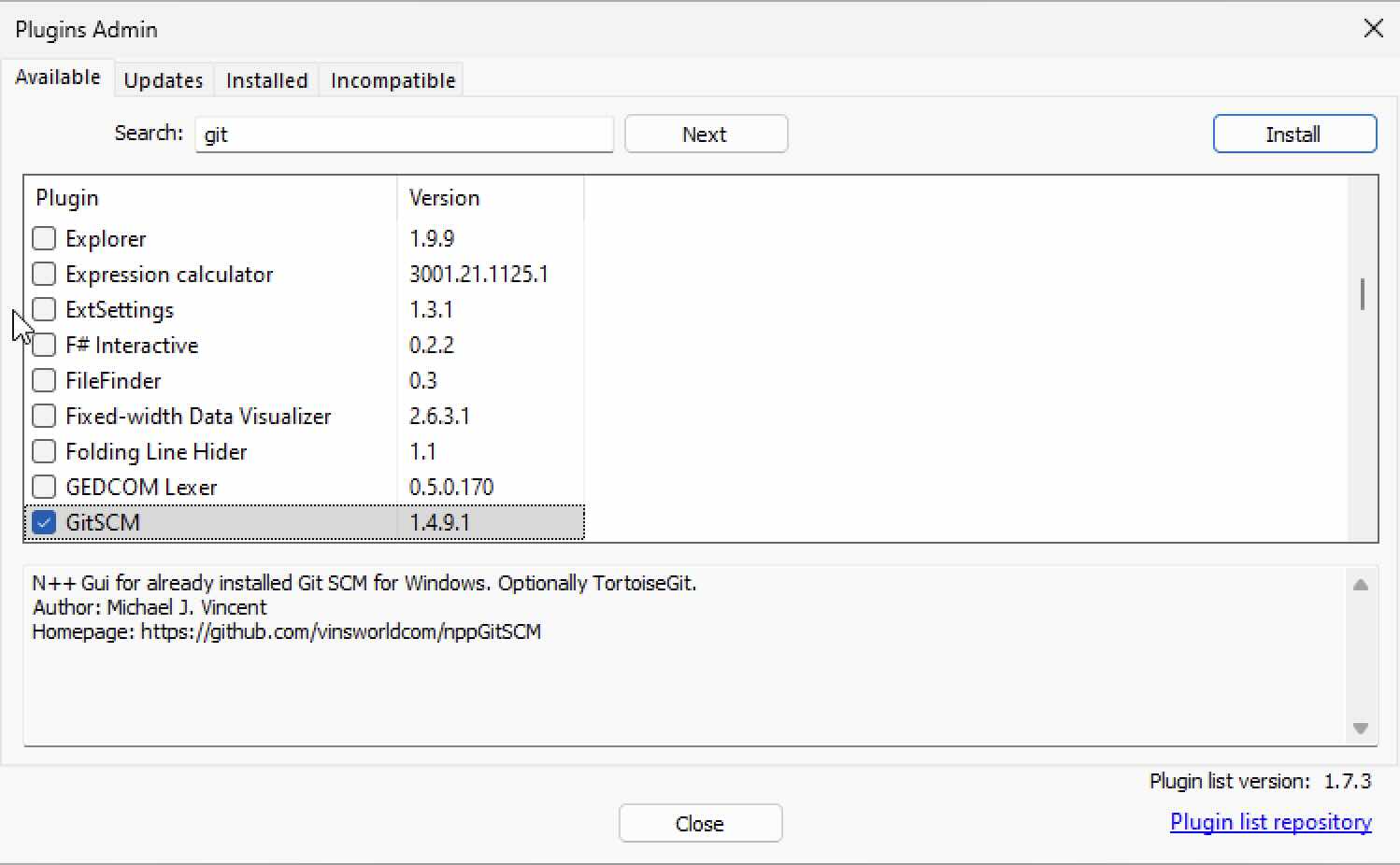
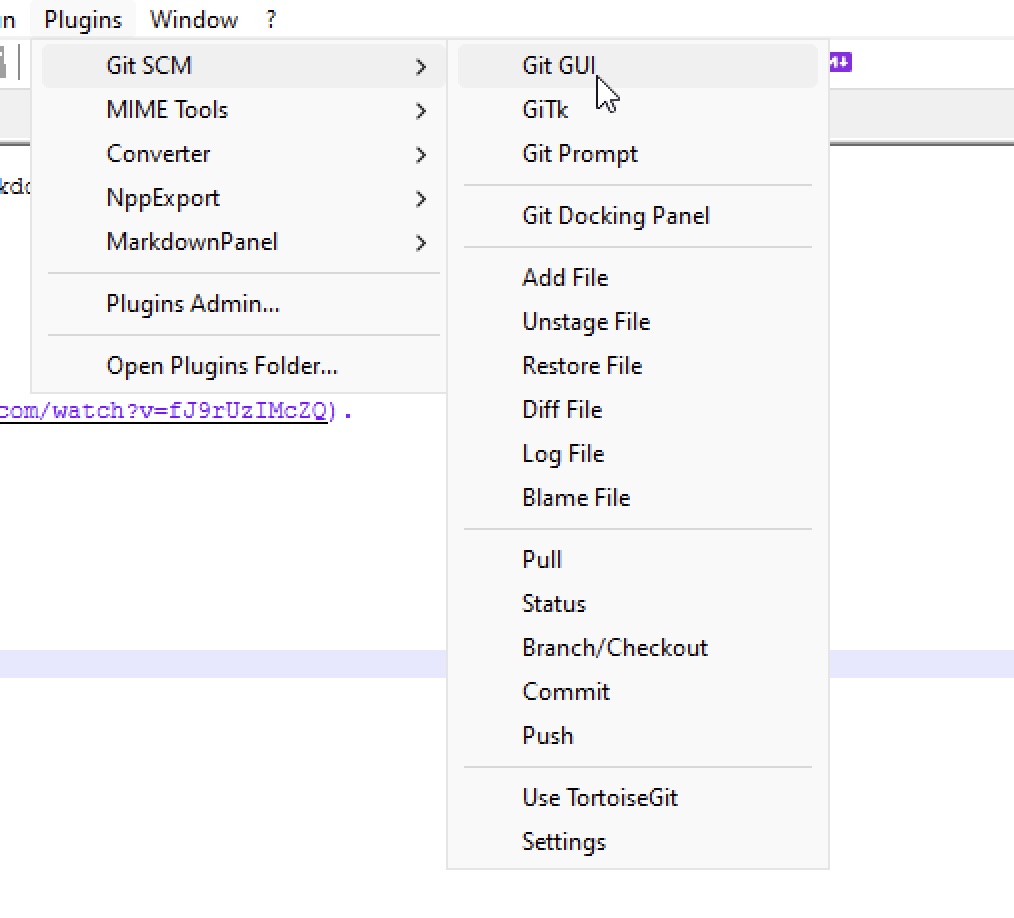
- Git GUI: A graphical interface for managing your Git repositories.
- GiTk: A toolkit for integrating Git functionalities directly into Notepad++.
- Git Prompt: Displays the current Git branch and status in the status bar.
- Git Docking Panel: A panel that provides quick access to Git commands and status.
- Add File: Easily stage files for commit.
- Unstage File: Remove files from the staging area.
- Restore File: Revert changes made to a file.
- Diff File: Compare changes between the working directory and the last commit.
- Log File: View the commit history of the repository.
- Blame File: Identify who last modified each line of a file.
- Pull: Fetch and integrate changes from a remote repository.
- Status: Check the status of your working directory and staging area.
- Branch/Checkout: Manage branches and switch between them.
- Commit: Commit your staged changes to the repository.
- Push: Upload your local commits to a remote repository.
- Use TortoiseGit: Integrate TortoiseGit functionalities for a more comprehensive Git experience.
- Settings: Configure the plugin settings to suit your workflow.
-
Save Your Changes
After editing your commit message or any other file, save your changes in Notepad++ and return to Git Bash to continue your workflow.
Provide Feedback For This Article
We take your feedback seriously and use it to improve our content. Thank you for helping us serve you better!
😊 Thanks for your time, your feedback has been registered!
Comments & Discussion
Facing issues? Have questions? Post them here! We're happy to help!