
If after using the keyboard shortcuts - Command ⌘ + Shift ⇧ + 3 or Command ⌘ + Shift ⇧ + 4 to take screenshots on your Mac device if you either get the "Welcome to Mail Screen" or you get the screenshot image gets attached inside a mail draft as below,

Steps to Fix Screenshot opening in Mail App issue
- Open Spotlight Search and type Screenshot and open the app.
- Now click on the Options and click Save to as Desktop or Documents.
- Press escape to close the Screenshot App.
- Now when you take screenshots they should get saved on Desktop/Documents
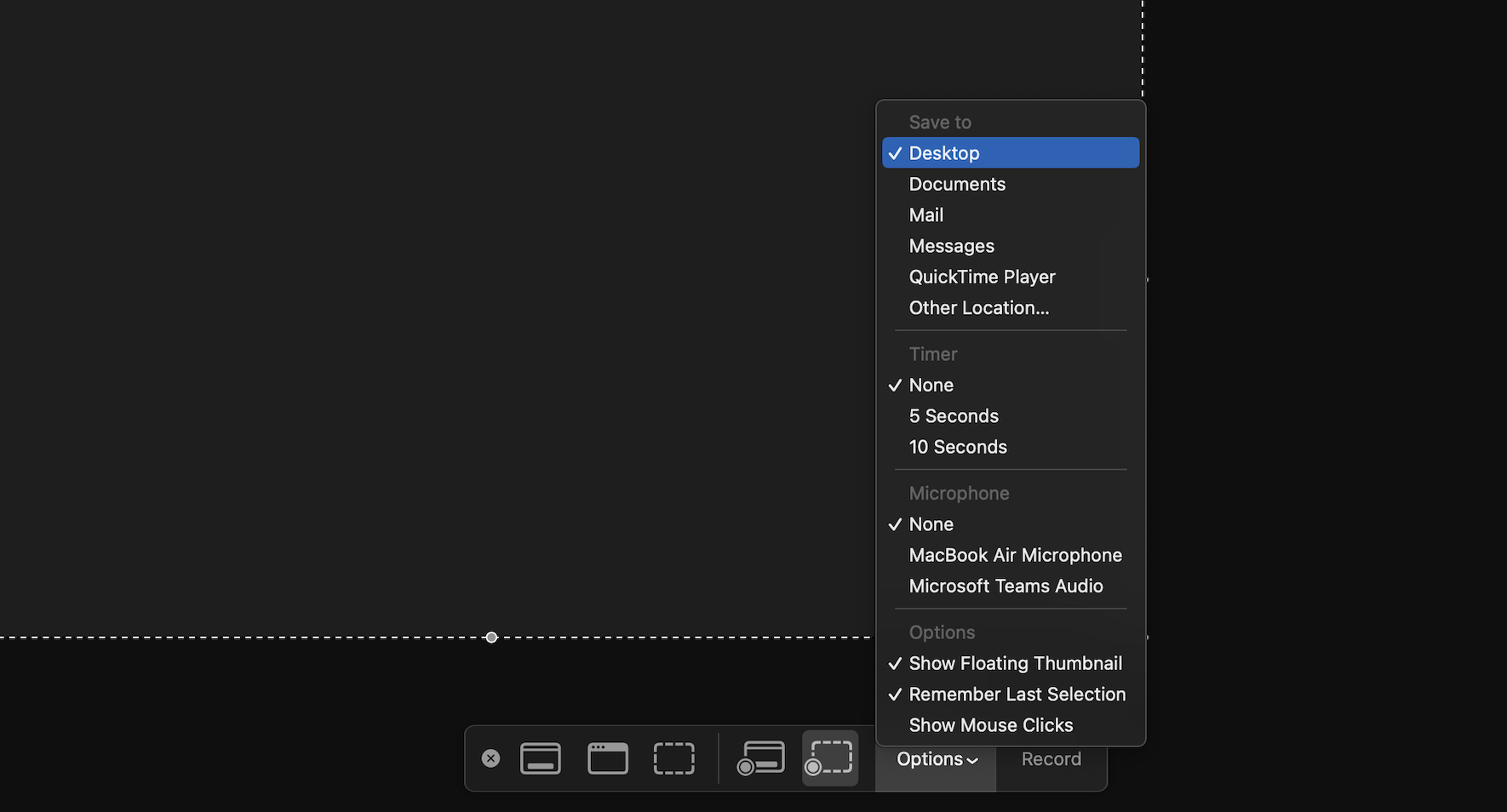
Note: You can reach the options even by using the keyboard shortcut: Command ⌘ + Shift ⇧ + 5
Provide Feedback For This Article
We take your feedback seriously and use it to improve our content. Thank you for helping us serve you better!
😊 Thanks for your time, your feedback has been registered!
Comments & Discussion
Facing issues? Have questions? Post them here! We're happy to help!