
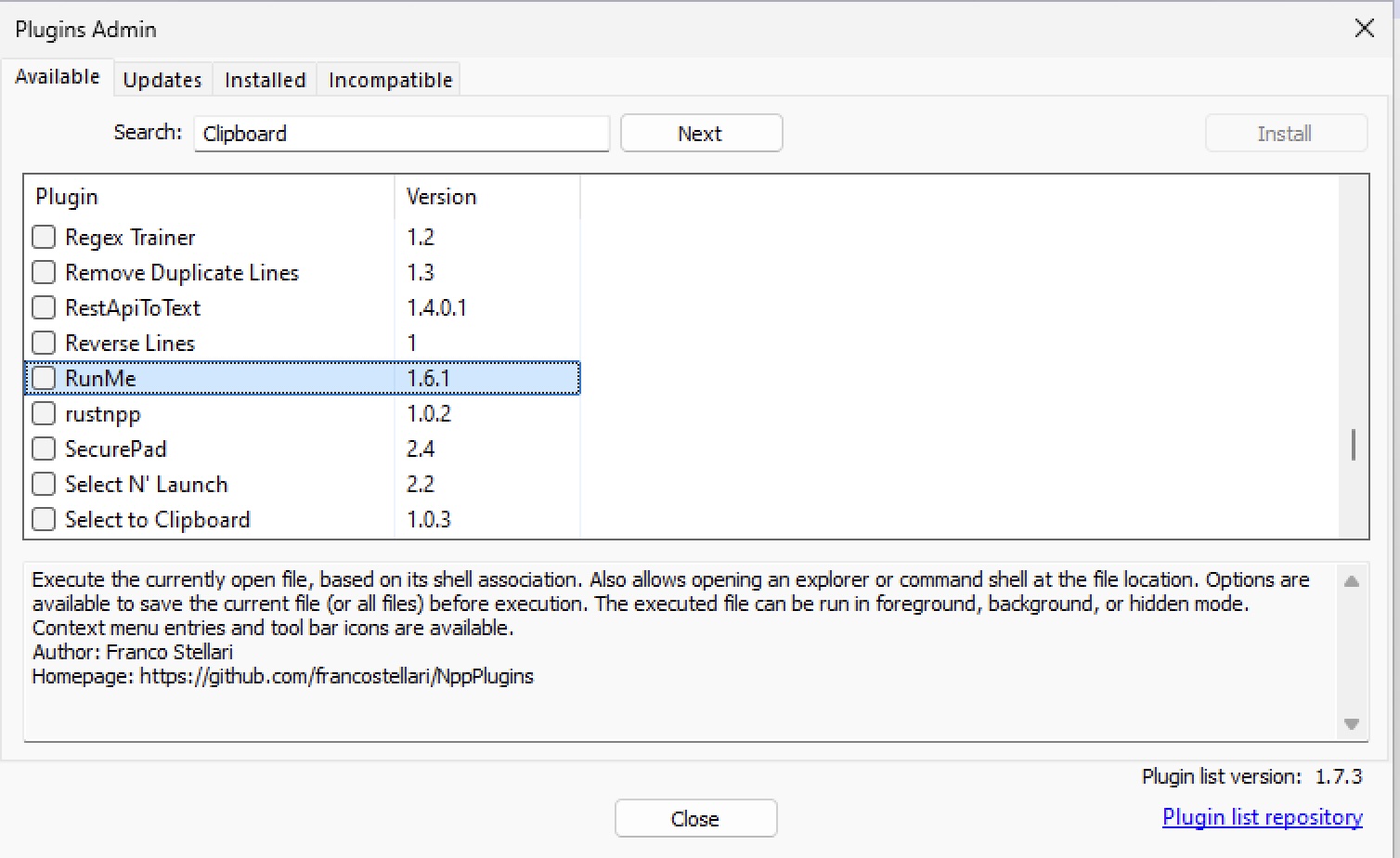
Execute the currently open file, based on its shell association.
Also allows opening an explorer or command shell at the file location.
Options are available to save the current file (or all files) before execution.
The executed file can be run in foreground, background, or hidden mode.
Context menu entries and toolbar icons are available.

Author: Franco Stellari

Homepage: https://github.com/francostellari/NppPlugins
Follow these steps to utilize the RunMe Plugin in Notepad++:
-
Install the RunMe Plugin
To install the RunMe Plugin, open Notepad++, go to Plugins > Plugins Admin, search for RunMe, and click Install.
-
Access RunMe Plugin
Once installed, you can access the RunMe Plugin by navigating to Plugins > RunMe. This will allow you to execute the current open file based on its shell association, such as .py for Python scripts, .js for JavaScript files, or .sh for shell scripts.
-
Using RunMe Plugin
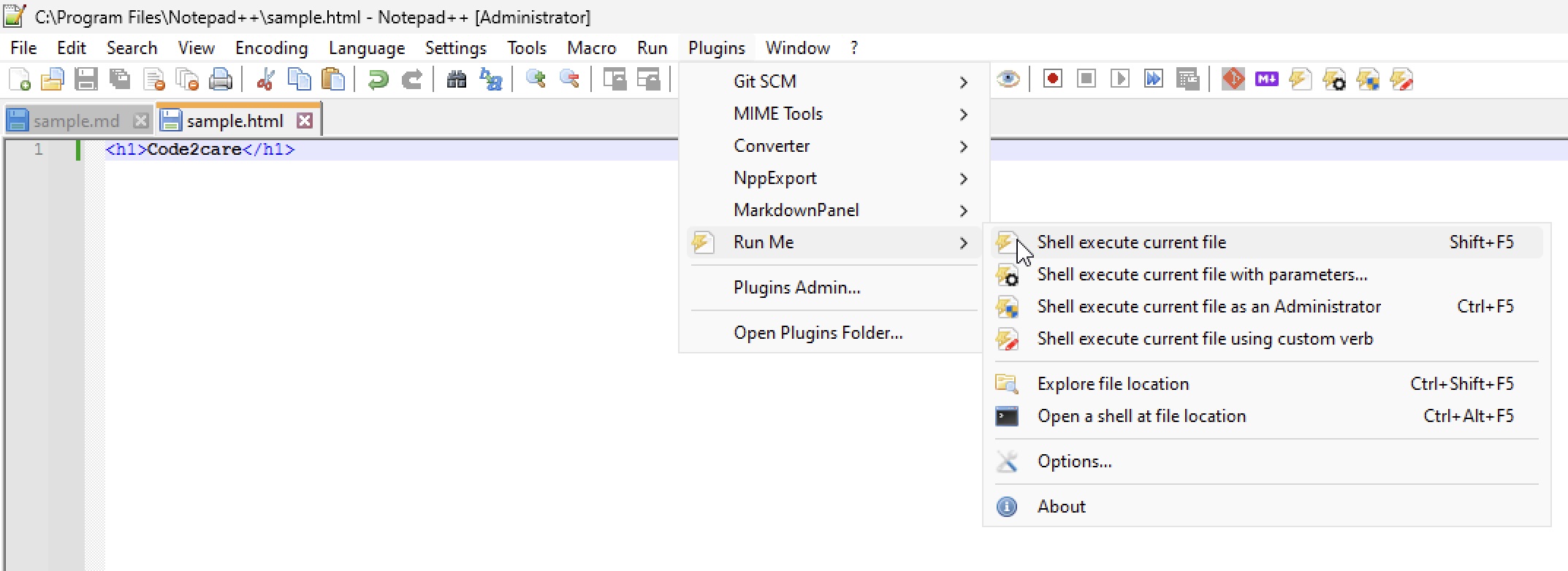
To run a script or file, simply select Run from the RunMe menu. You can also open an explorer or command shell at the file location, providing options to save the current file or run it in the background. For example, if you have a .html file open, it will open in the default web browser (Chrome/Edge), while a .exe file will execute in the command shell.
-
Manage RunMe Settings
You can configure the RunMe settings by accessing the plugin options. This allows you to customize how files are executed and manage associated commands, such as specifying which interpreter to use for .py files or which application to open .html files.
-
Save Your Changes
After executing a file or making changes, remember to save your work in Notepad++ to ensure all modifications are retained.
Provide Feedback For This Article
We take your feedback seriously and use it to improve our content. Thank you for helping us serve you better!
😊 Thanks for your time, your feedback has been registered!
Comments & Discussion
Facing issues? Have questions? Post them here! We're happy to help!