
Notepad++ is a powerful text editor that can be used for editing and previewing Markdown files.
Step 1: Install Notepad++
Make sure Notepad is installed on your PC, or download and install from the official website. Make sure to choose the version that suits your operating system.
Step 2: Open a Markdown File
Launch Notepad++ and open an existing Markdown file or create a new one by selecting File > New.
Step 3: Enable Markdown Syntax Highlighting
To enable Markdown syntax highlighting, go to Language > Markdown in the menu. This will help you see the formatting as you type.
Step 4: Write Your Markdown Content
- Headers: Use # for headers (e.g., # Header 1, ## Header 2).
- Bold Text: Wrap text in **double asterisks**.
- Italic Text: Wrap text in *single asterisks*.
- Links: Use [link text](URL) format.
Use Markdown syntax to format your text. For example:
Example:
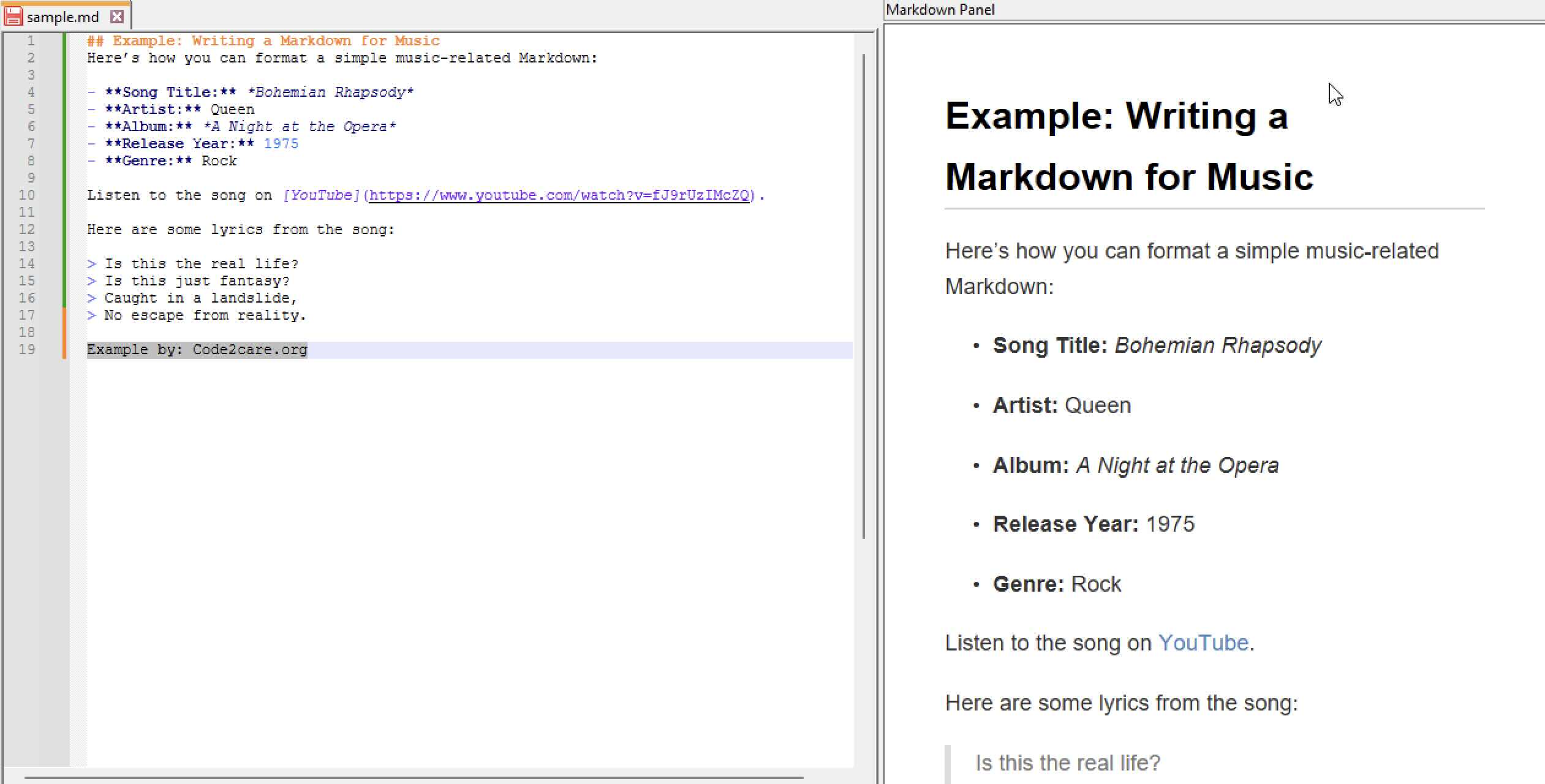
## Example: Writing a Markdown for Music

    Here’s how you can format a simple music-related Markdown:
    - **Song Title:** *Bohemian Rhapsody*
    - **Artist:** Queen
    - **Album:** *A Night at the Opera*
    - **Release Year:** 1975
    - **Genre:** Rock

    Listen to the song on [YouTube](https://www.youtube.com/watch?v=fJ9rUzIMcZQ).

    Here are some lyrics from the song:
    > Is this the real life?
    > Is this just fantasy?
    > Caught in a landslide,
    > No escape from reality.
Step 5: Download & Preview Your Markdown in "Markdown Panel" Plugin
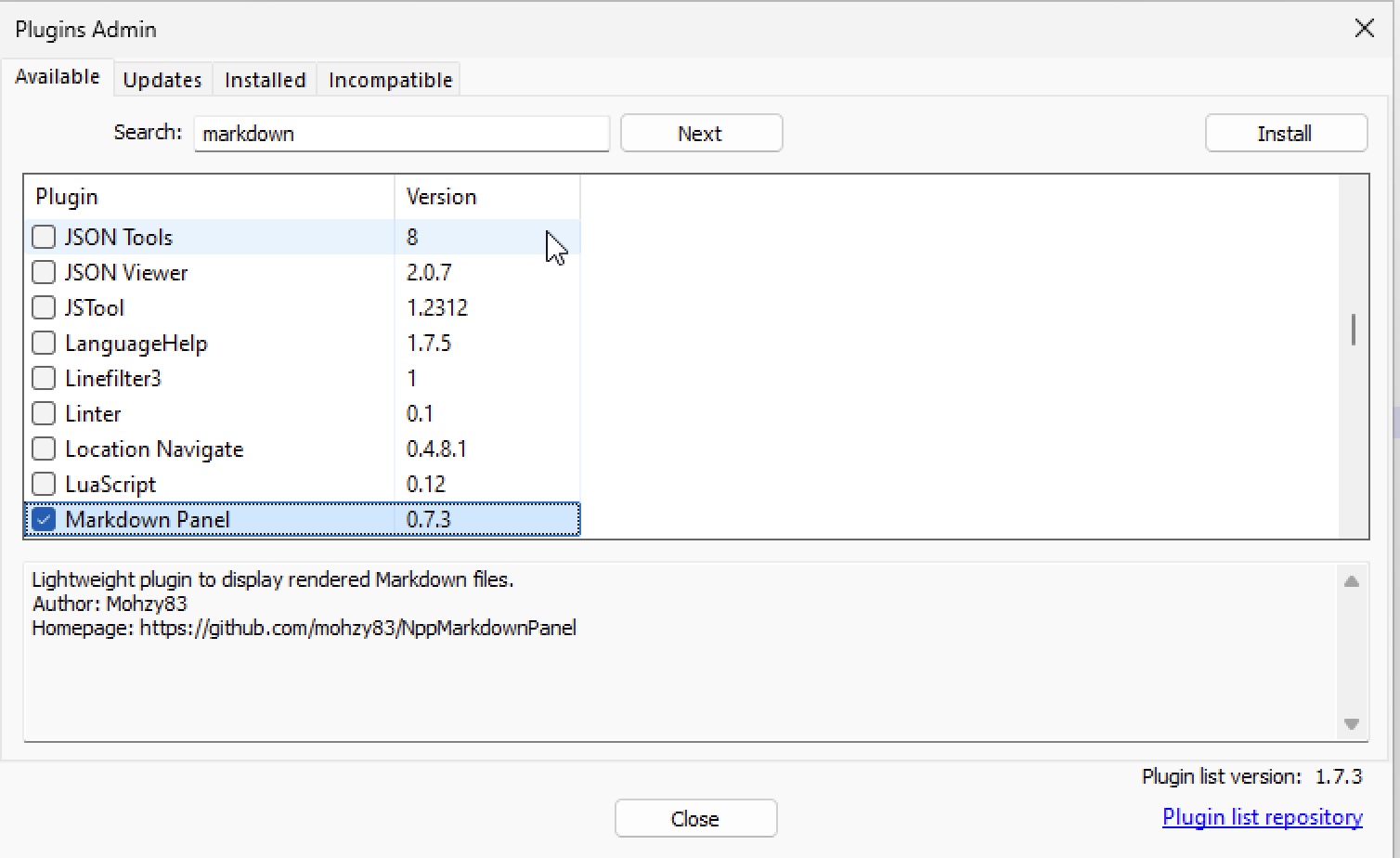
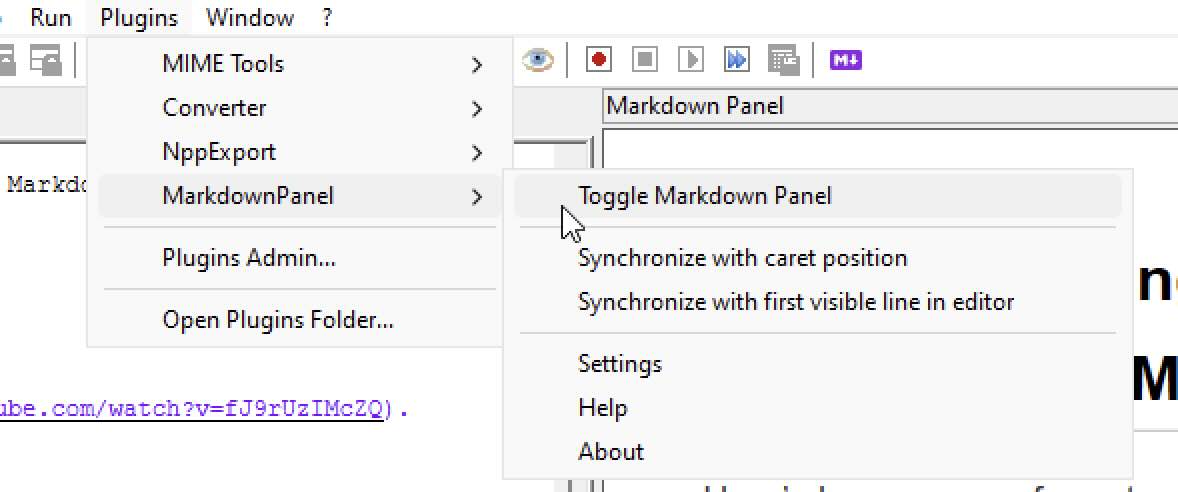
To see how your Markdown will look, you can use a Markdown preview plugin. Install a "Markdown Panel" plugin from the Notepad++ Plugin Manager.
Step 6: Save Your File
Once you are done editing, save your file by selecting File > Save or pressing Ctrl + S and giving it a .md extension.
Conclusion
Notepad++ is a versatile tool for editing Markdown files. With syntax highlighting and plugins, you can enhance your writing experience.
Provide Feedback For This Article
We take your feedback seriously and use it to improve our content. Thank you for helping us serve you better!
😊 Thanks for your time, your feedback has been registered!
Comments & Discussion
Facing issues? Have questions? Post them here! We're happy to help!