
Below are detailed instructions for setting VM arguments in Eclipse on both macOS and Windows.
Setting VM Arguments in Eclipse
- Open your project in Eclipse.
- Right-click on the project in the Package Explorer.
- Select Run As and then Run Configurations from the context menu.
- In the Run Configurations dialog, select your Java application from the list on the left.
- Navigate to the Arguments tab.
- In the VM arguments section, enter the desired VM arguments (e.g.,
-Xmx512mto set the maximum heap size). - Click Apply to save your changes.
- Click Run to start your application with the specified VM arguments.
Example VM Arguments
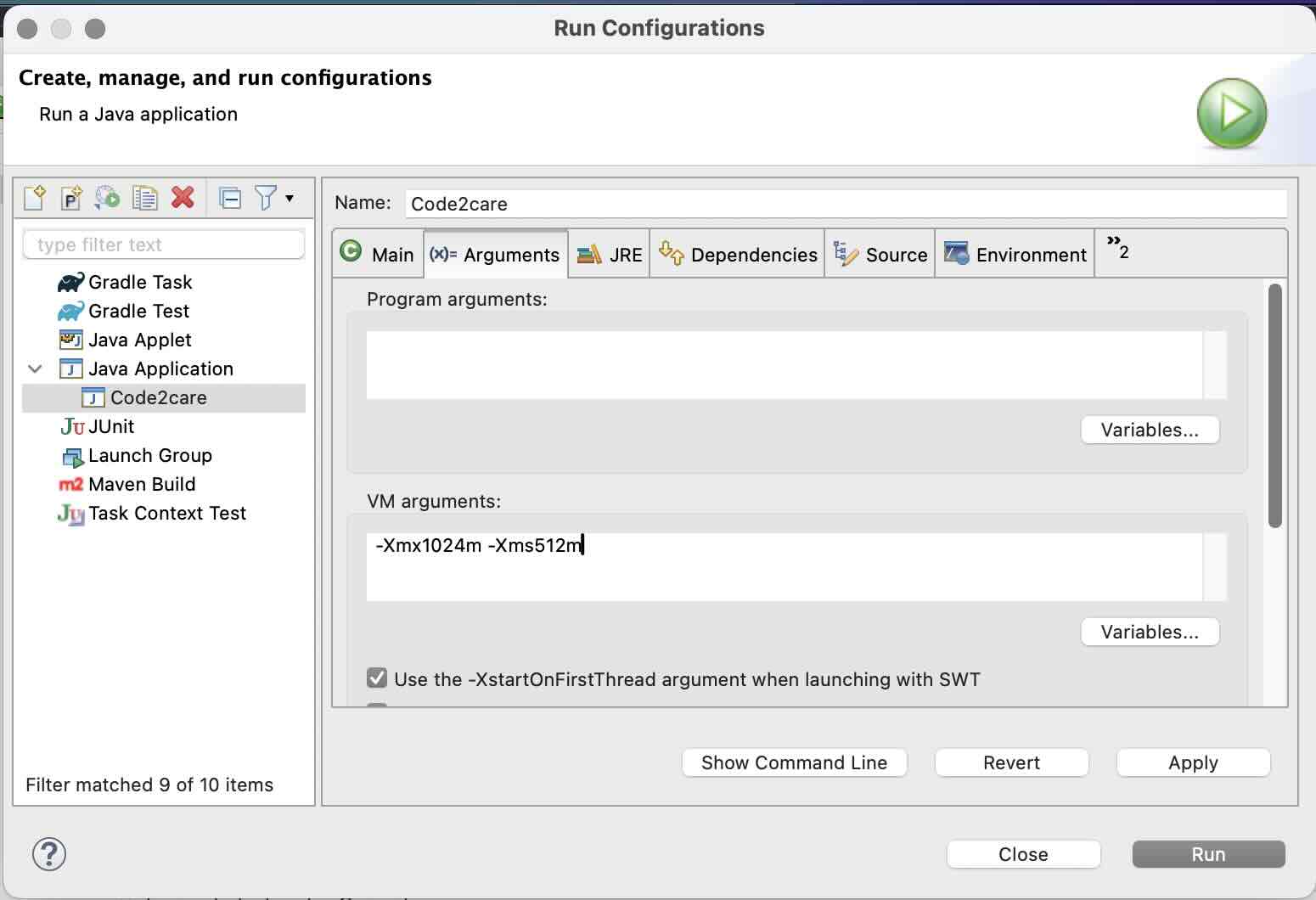
To configure VM arguments for your project, consider the following example settings:
- Maximum Heap Size:
-Xmx1024m(sets the maximum heap size to 1024 MB). - Initial Heap Size:
-Xms512m(sets the initial heap size to 512 MB).
Make sure to adjust the VM arguments according to your project's requirements.
After setting the VM arguments, you can run your application with the new settings, which can help optimize performance and debugging capabilities.
Provide Feedback For This Article
We take your feedback seriously and use it to improve our content. Thank you for helping us serve you better!
😊 Thanks for your time, your feedback has been registered!
Comments & Discussion
Facing issues? Have questions? Post them here! We're happy to help!