
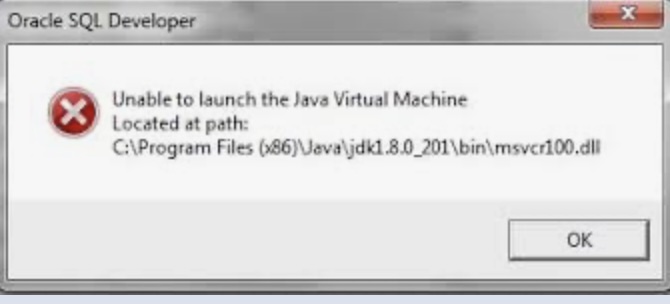
If you are facing the error message "Unable to find a Java Virtual Machine" while trying to launch SQL Developer, the issue is that the application cannot locate the Java Runtime Environment (JRE) required to run.
Below are some steps to resolve this issue.
1. Check Java Installation
Ensure that you have a compatible version of the Java Development Kit (JDK) or Java Runtime Environment (JRE) installed on your system. SQL Developer requires JDK 8 or later.
2. Set the JAVA_HOME Environment Variable
After installing Java, you need to set the JAVA_HOME environment variable to point to the JDK installation directory. Here’s how to do it:
- On Windows:
- Right-click on 'This PC' or 'My Computer' and select 'Properties'.
- Click on 'Advanced system settings'.
- In the System Properties window, click on the 'Environment Variables' button.
- Under 'System variables', click 'New' and enter JAVA_HOME as the variable name and the path to your JDK installation as the variable value.
- On macOS/Linux:
export JAVA_HOME=/Library/Java/JavaVirtualMachines/jdk1.8.0_xx.jdk/Contents/Home
3. Modify the SQL Developer Configuration File
Locate the sqldeveloper.conf file, which is usually found in the sqldeveloper/bin directory. Open the file and add the following line at the end:
SetJavaHome /path/to/your/jdk
Replace /path/to/your/jdk with the actual path to your JDK installation.
4. Restart SQL Developer
After making the above changes, restart SQL Developer. The application should now be able to find the Java Virtual Machine and launch successfully.
Provide Feedback For This Article
We take your feedback seriously and use it to improve our content. Thank you for helping us serve you better!
😊 Thanks for your time, your feedback has been registered!
Comments & Discussion
Facing issues? Have questions? Post them here! We're happy to help!