
The best and the easiest way to check if Java is being installed on your system is by using the Command Prompt on Windows or Terminal if you're on Mac OS X or any other Linux/Unix flavor.
macOS / Linux / Unix :Open Terminal and type the following command :
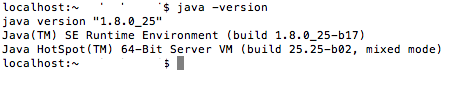
$ java -versionIf java is being installed on the system you will get a response with the version details,
$ java -version

java version "1.8.0_25"
Java(TM) SE Runtime Environment (build 1.8.0_25-b17)
Java HotSpot(TM) 64-Bit Server VM (build 25.25-b02, mixed mode)

$
Open Command Prompt and type the following command,
c:\> java -versionIf it is installed you should get the ver details as the response of the command,
java version "1.7.0_25"
Java(TM) SE Runtime Environment (build 1.7.0_25-b15)
Java HotSpot(TM) Client VM (build 23.25-b01, mixed mode, sharing)
The other ways to check if Java is installed :
For Windows XP- Click on Start.
- Now Select Control Panel
- Under Control Panel ? Add/Remove Programs
- Check in Add/Remove control panel list of softwares installed contains Java with version.


- Click on Start
- Now Select Control Panel
- Now Click on Programs and Features
- Check if there is a Java version included.
- Goto Control Panel
- Under Control Panel select Programs
- Now Click Programs and Features
- Check if the installed Java version is listed.
- Goto System Preferences (you can do a spotlight search to get there)
- Check if you can see Java Icon
- Click on the Java icon
- Click on the About button to get the version details
Provide Feedback For This Article
We take your feedback seriously and use it to improve our content. Thank you for helping us serve you better!
😊 Thanks for your time, your feedback has been registered!
Comments & Discussion
Facing issues? Have questions? Post them here! We're happy to help!