
Table of Contents
Code Templates
main+ + : Generate main methodsysout+ + : System.out.println()for+ + : Generate for loopwhile+ + : Generate while looptry+ + : Generate try-catch block
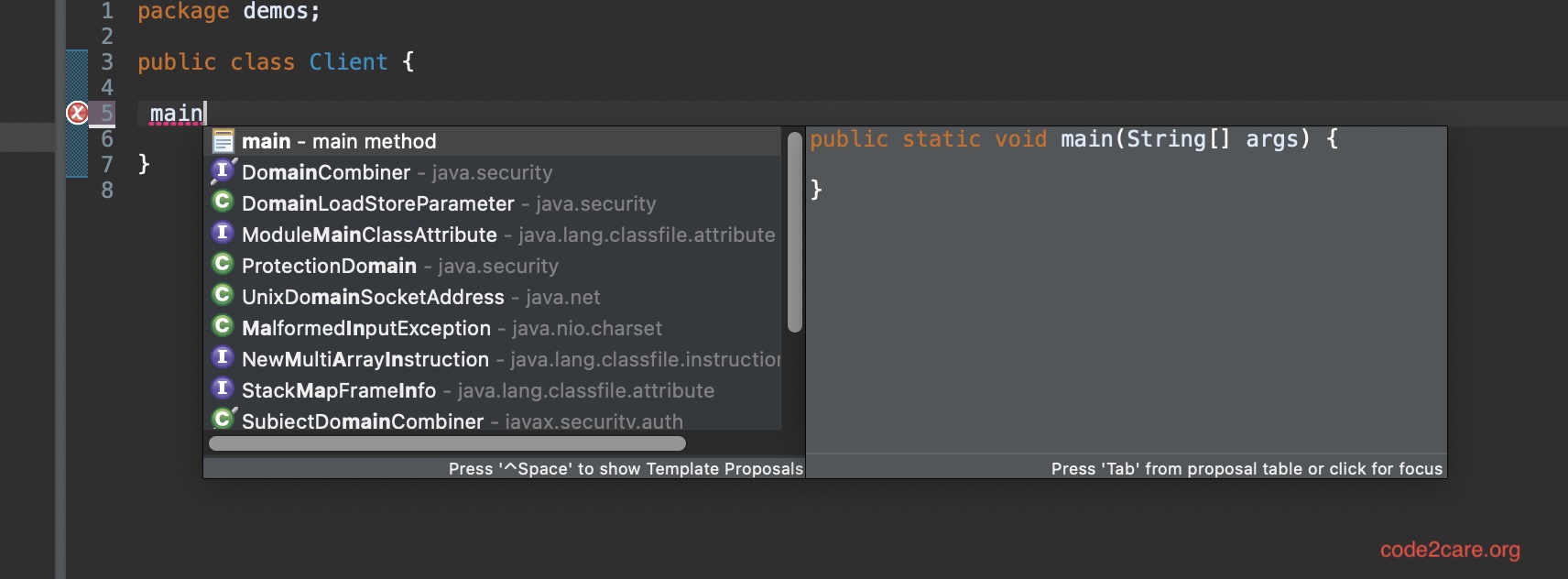
public static void main(String[] args) {

}System.out.println();for (int i = 0; i < array.length; i++) {
}while (condition) {
}try {
} catch (Exception e) {
e.printStackTrace();
}Code Editing
- + : Toggle line comment
- + : Delete current line
- + /: Move current line up/down
- + + : Format code
- + : Quick fix / code assist
// This is a commented line
// Uncomment by pressing Ctrl + / againRefactoring
- + + : Rename
- + + : Extract method
- + + : Extract local variable
- + + : Inline
- + + : Move
private void extractedMethod() {
    // Selected code will be moved here
}String extractedVariable = "value";Eclipse on Mac
For Mac users, most shortcuts are similar but use the Command (⌘) key instead of Ctrl. Here are some Mac-specific shortcuts:
- + : Content assist (equivalent to Ctrl + Space on Windows)
- + : Find and replace
- + + : Format code
- + + : Rename refactoring
- + + : Extract method
Note: On Mac, use (Command) instead of , and instead of for most shortcuts.
Conclusion
Mastering these keyboard shortcuts will significantly improve your productivity as a Java developer using Eclipse. Practice using these shortcuts regularly, and you'll find yourself coding more efficiently in no time.
Frequently Asked Questions
How can I customize keyboard shortcuts in Eclipse?
You can customize keyboard shortcuts in Eclipse by going to Window > Preferences > General > Keys. Here, you can search for commands and assign or modify their keyboard shortcuts.
Are there any plugins to enhance Eclipse's functionality?
Yes, there are many plugins available for Eclipse. Some popular ones include EclEmma for code coverage, FindBugs for static code analysis, and Spring Tools for Spring development. You can install plugins from the Eclipse Marketplace (Help > Eclipse Marketplace).
How can I improve my overall productivity in Eclipse?
To improve productivity in Eclipse, focus on learning keyboard shortcuts, use code templates, customize your workspace layout, utilize quick fix suggestions, and explore advanced features like refactoring tools and debugging capabilities.
Provide Feedback For This Article
We take your feedback seriously and use it to improve our content. Thank you for helping us serve you better!
😊 Thanks for your time, your feedback has been registered!
Comments & Discussion
Facing issues? Have questions? Post them here! We're happy to help!