
Below are the steps with screenshots on how to delete Microsoft Teams on Mac.
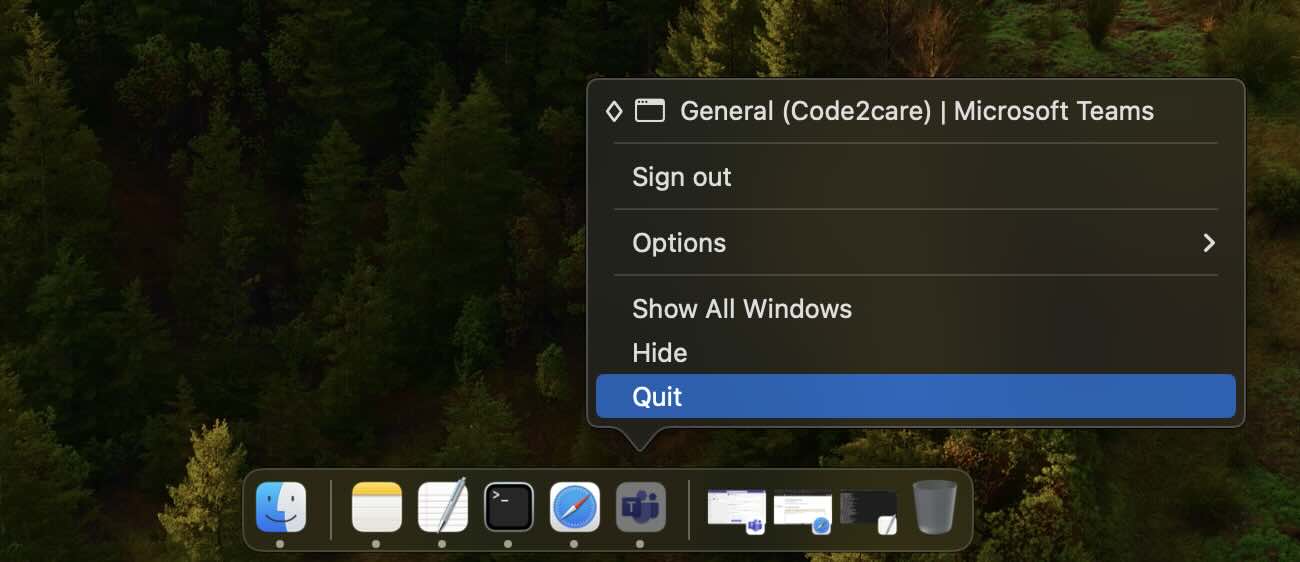
Step 1: Quit Microsoft Teams App
First you need to make sure the Teams app is not running. If you see it on your Mac Dock, control-click (right-click) on it and select "Quit"
Step 2: Move Teams App to Trash
Next, open Finder and go to the Applications folder. Locate "Microsoft Teams" control-click (right-click) and select "Move to Trash". This will delete the Teams app from your Mac.

Step 3: Delete Teams from Trash (Optional)
If you wish to remove the Teams app without a trace, then go to Trash on your dock control-click (right-click) on the Teams app, and select "Delete Immediately..."
Provide Feedback For This Article
We take your feedback seriously and use it to improve our content. Thank you for helping us serve you better!
😊 Thanks for your time, your feedback has been registered!
Comments & Discussion
Facing issues? Have questions? Post them here! We're happy to help!