If you want to schedule a PowerShell script and run it as a scheduled task, you can do that very easily by following the below steps with screenshots.
- Step 1: Press the Windows button on your Windows 10/11/Server and open Windows Administrative Tools (you can also get it there by going to Control Panel -> System and Security -> Administrative Tools)
- Step 2: Now open Task Scheduler

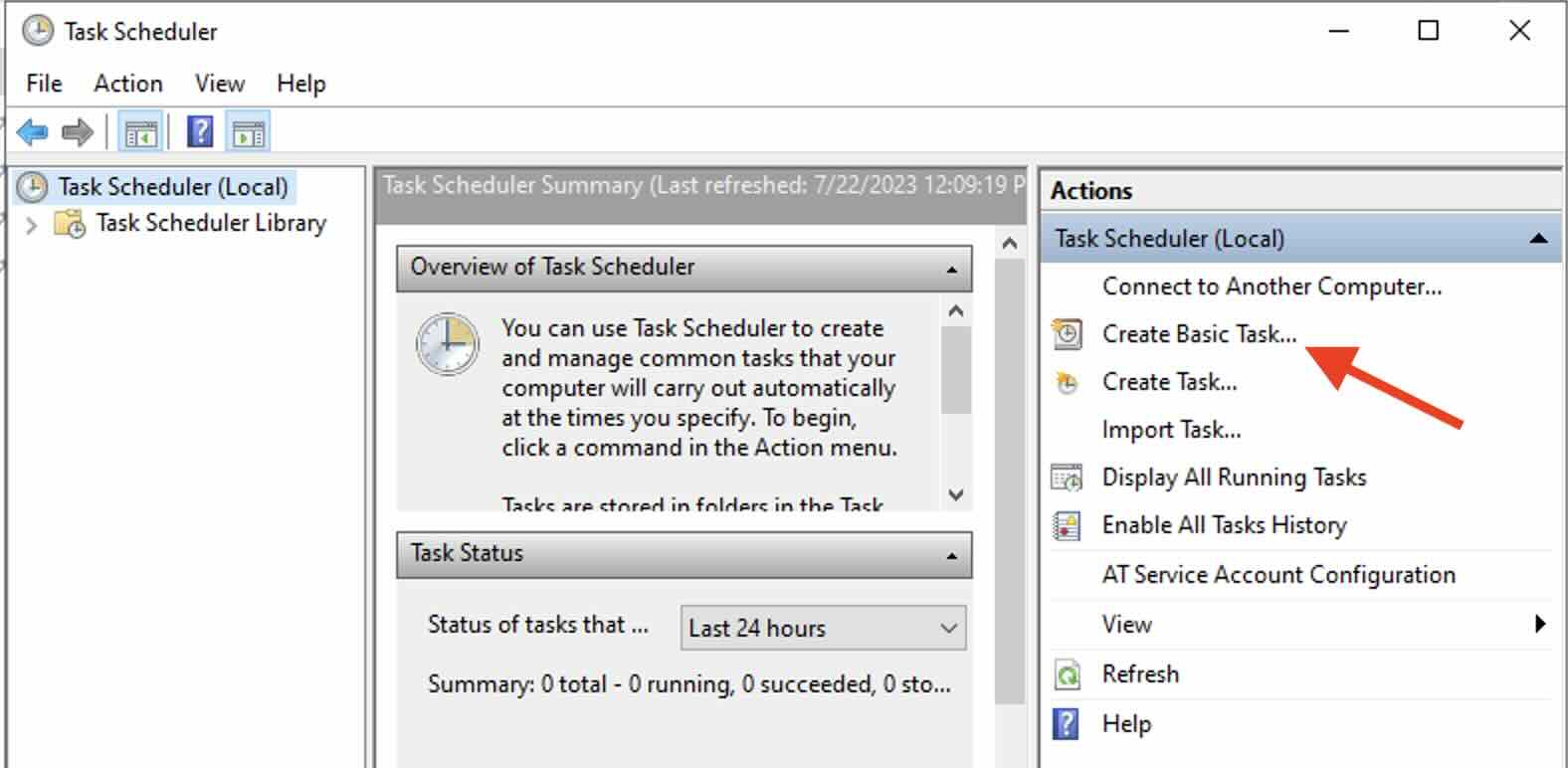
- Step 3: Under Actions select Create Basic Task...
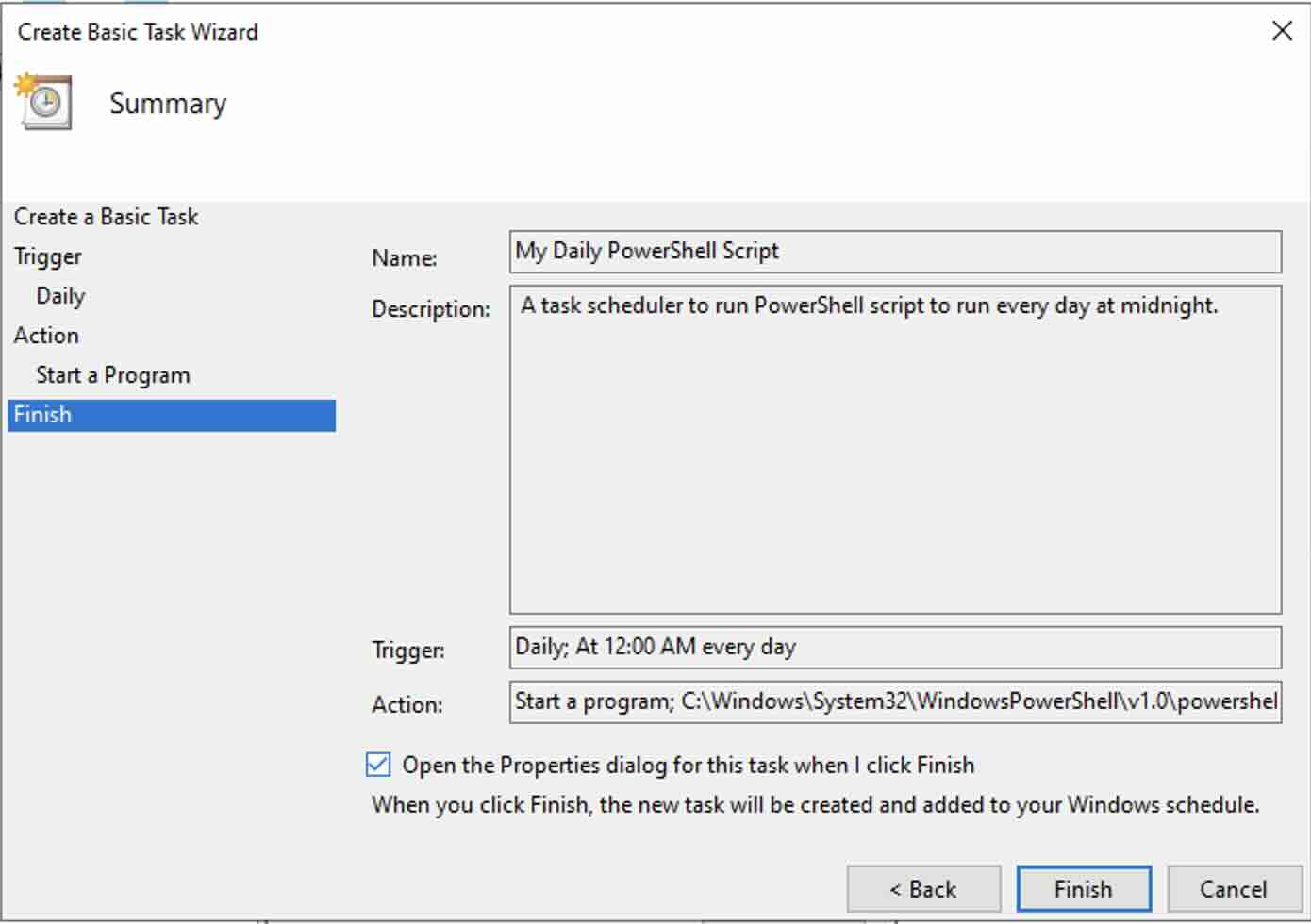
- Step 4: Now in the Wizard provide details.
Name: My Daily PowerShell Script Description: A task scheduler to run PowerShell script to run every day at midnight. - Step 5: Say we want to trigger the Script Daily.

- Step 6: Next, let's add the Start date and time details, have selected to recur every 1 day.

- Step 7: For the Action - we want to start a Program which is PowerShell.

- Step 8: Now, fill in the details,
Program/Script: It should be the path to PowerShell.exe Example: C:\Windows\System32\WindowsPowerShell\v1.0\powershell.exe Add Arguments: We add the Path to our PowerShell .ps1 script C:\Users\Administrator\Desktop\powershell-script.ps1 Start In: Where the Script is located again. C:\Users\Administrator\Desktop\ 
- Step 9: Verify all the details, and check "Open the Properties dialog for this task when I click Finish" and hit Finish.
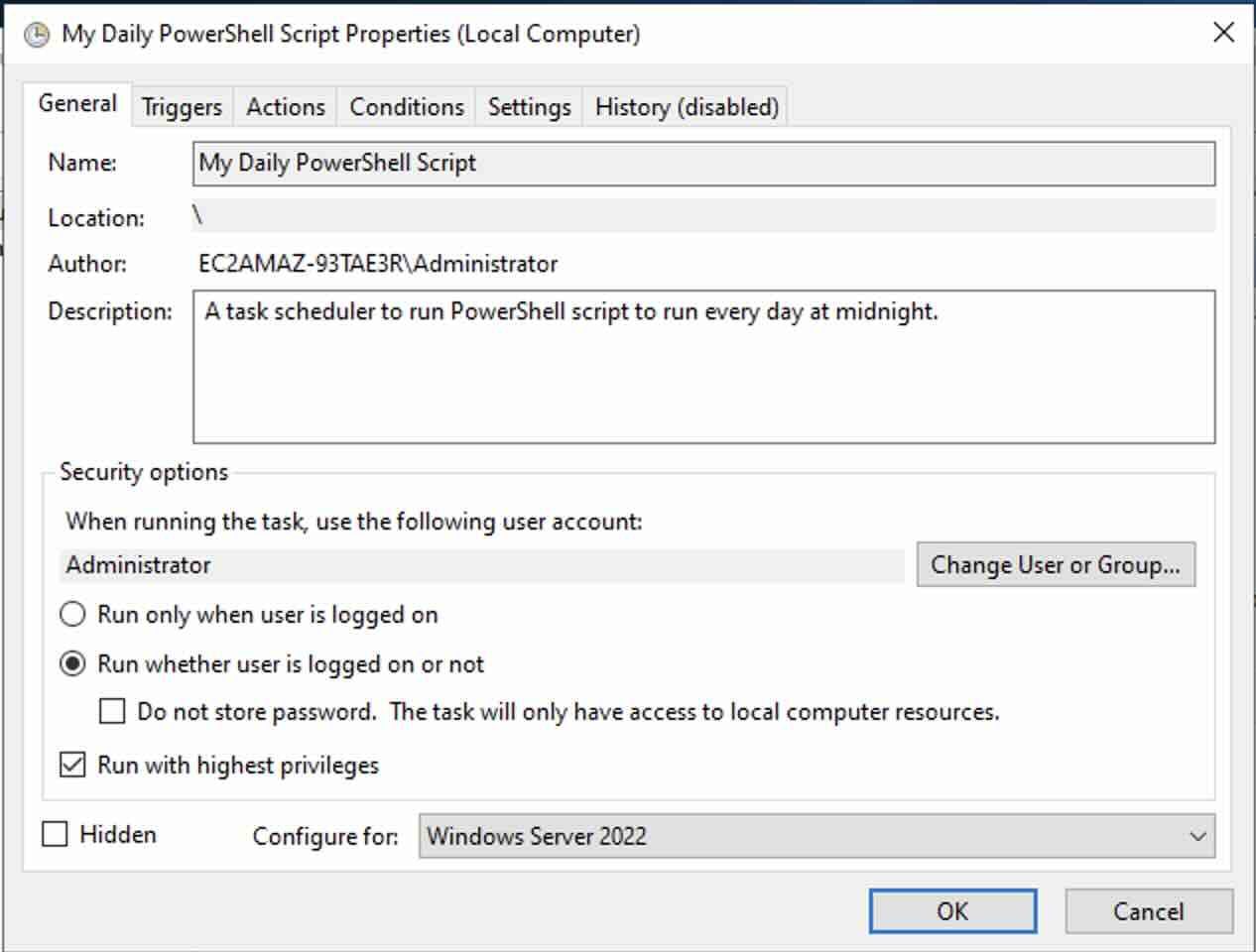
- Step 10: You will next see the Properties of the task you just created, note a few things that you can change here is,
- Can change the script to run whenever user is logged in or not
- Enable: Run with highest privileges.
- Configure the Server for.
- Can even make the script hidden.
- Step 11: That it! We have configured a PowerShell script to run from Task Scheduler!
Note: Once you make changes you will be asked for the Admin password.


Under the "Task Scheduler, you can Run the PowerShell Script on demand, and even disable, export, or even delete it.

This example and the screenshots are based on Windows Server 2022
Comments & Discussion
Facing issues? Have questions? Post them here! We're happy to help!