
How to add Profile Picture on Teams
If you have not yet set a profile picture on Microsoft Teams App simply click on your user icon on the top right of the Teams Application, and you would see the initials of your name on it.
Example:

If your name is John - you would see J
If your name is Adam Bill - you would see AB
You would now see a pop-up and a link that says "Upload picture", click on it and choose a picture from your device and click save.

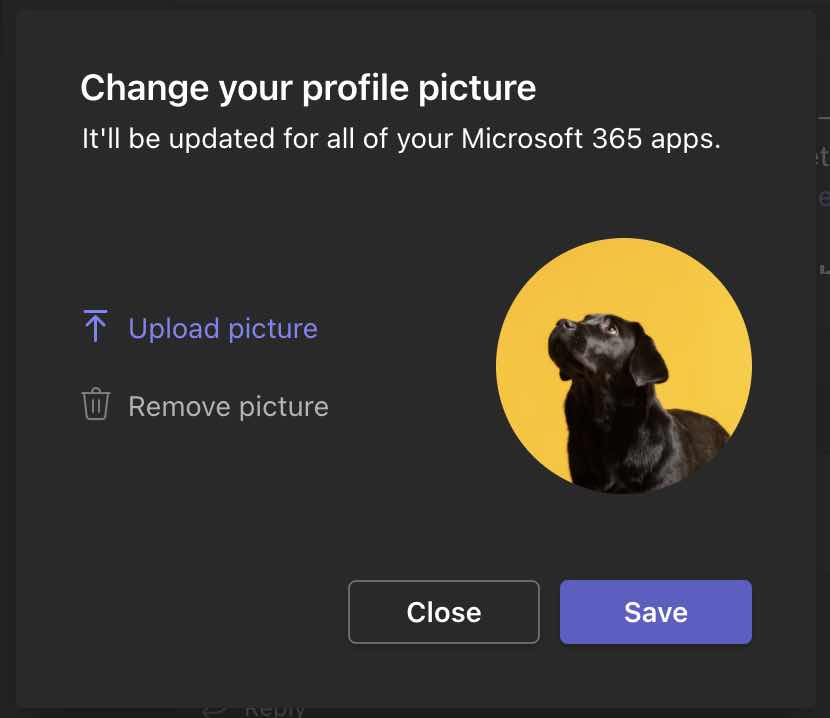

Now your new image will be displayed to you and all your contacts (or teammates in your organization)
How to change an existing picture on Teams
- Click on your image icon on Teams (top right),
- Click on Upload Picture.
- Upload a picture from your computer.
- Hit Save and Close.
- Your new image is now set.
How to remove a set profile picture on Teams
- Click on your image icon on Teams (top right),
- Click on Remove Picture (see picture above)
- You should now see the initials of your name instead of a picture.
- Hit Save and Close.
Provide Feedback For This Article
We take your feedback seriously and use it to improve our content. Thank you for helping us serve you better!
😊 Thanks for your time, your feedback has been registered!
Comments & Discussion
Facing issues? Have questions? Post them here! We're happy to help!