The macOS System Preferences... got renamed to System Settings... since the macOS Ventura 13 and got a complete overhaul to it. The design now is more similar to what you see on iOS and iPadOS.
If you wish to change the size of sidebar icons and text for System Settings in macOS Sonoma 14, you can do that by following the below steps.
- Step 1: Click on the Apple icon on the macOS Sonoma Menubar.
- Step 2: Now select System Settings...
- Step 3: From the Sidebar select Appearance
- Step 4: Change the "Sidebar icon size" from options small, medium or large.
- Step 5: Close the System Setting window.
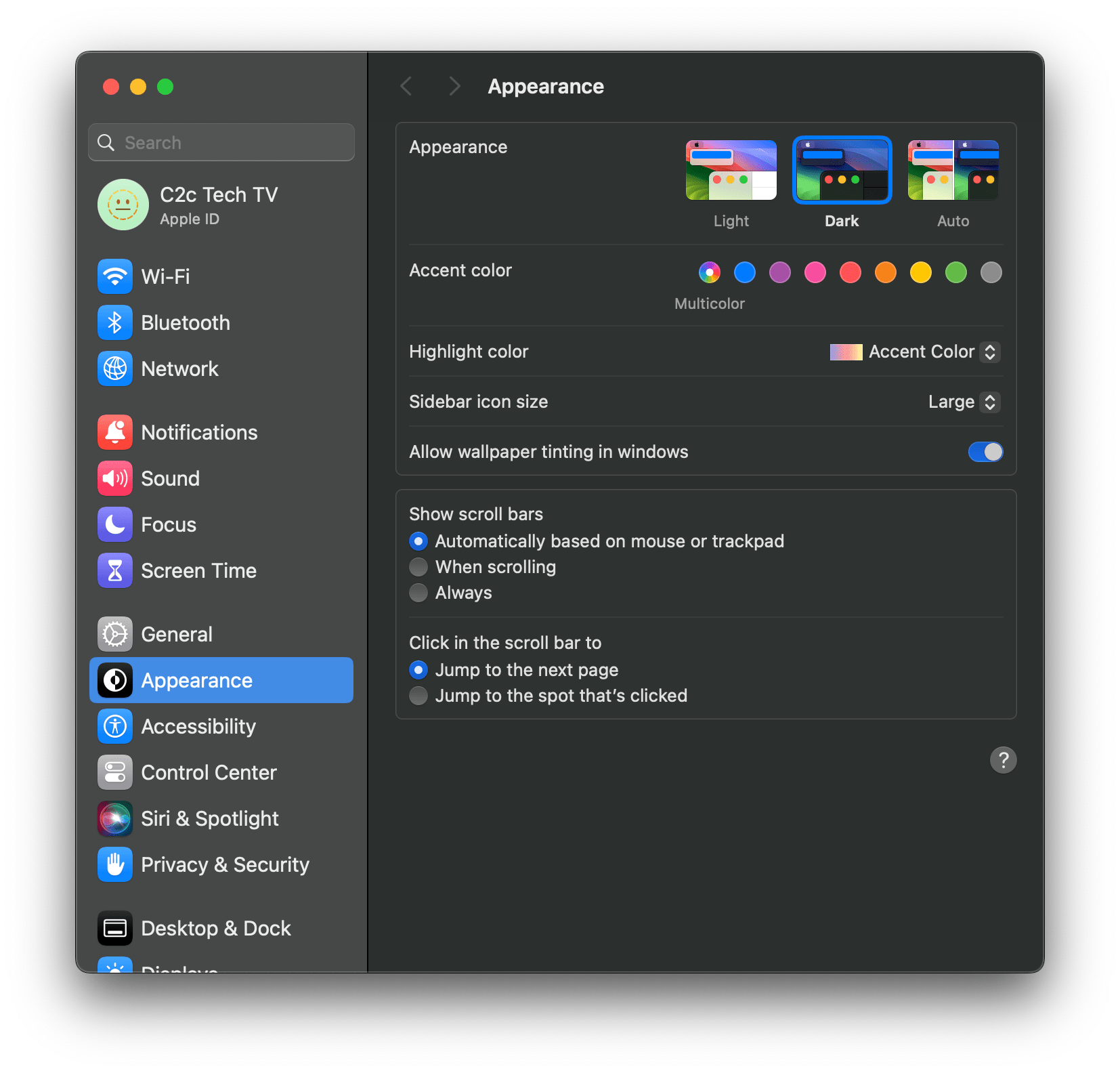
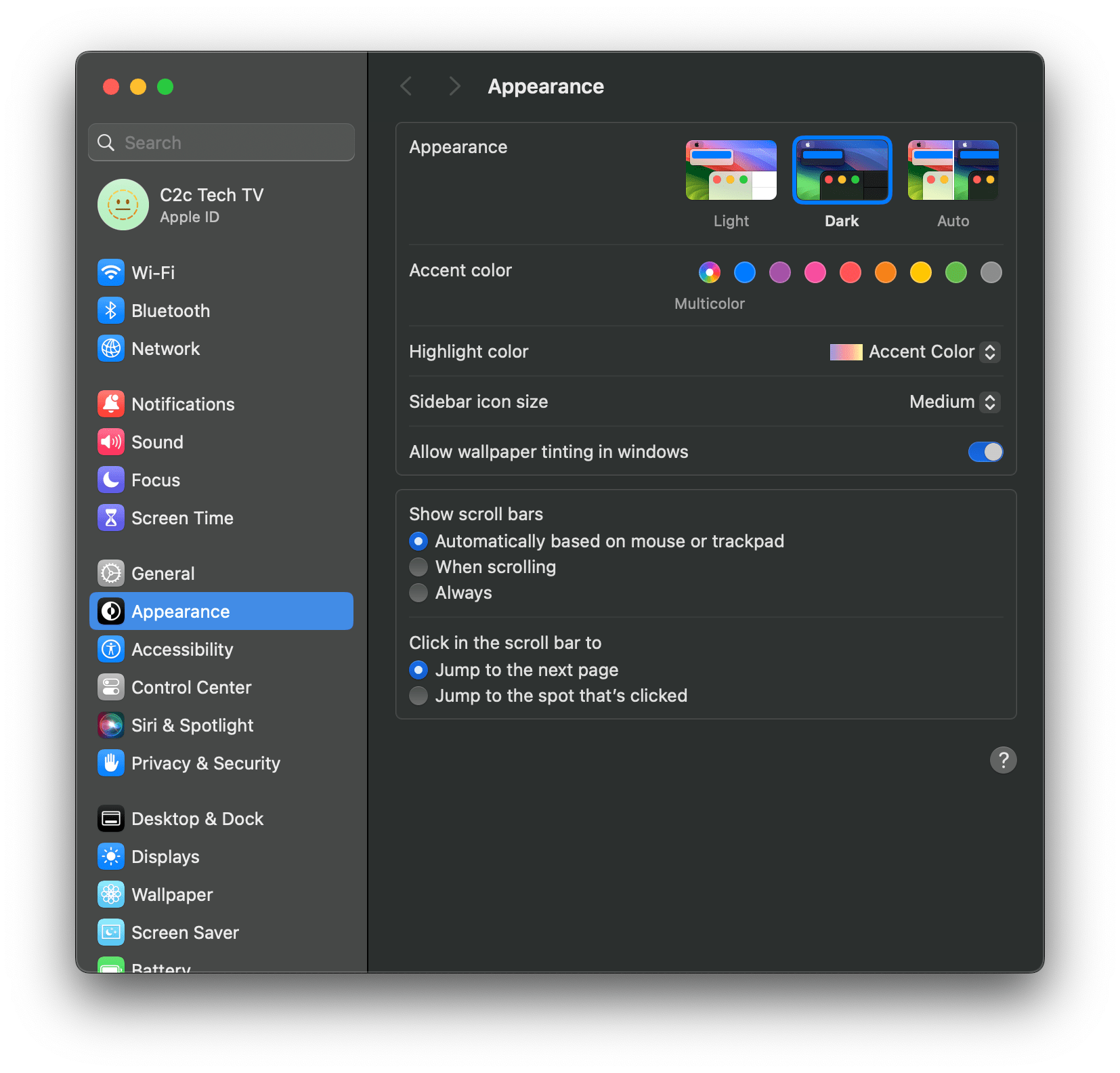
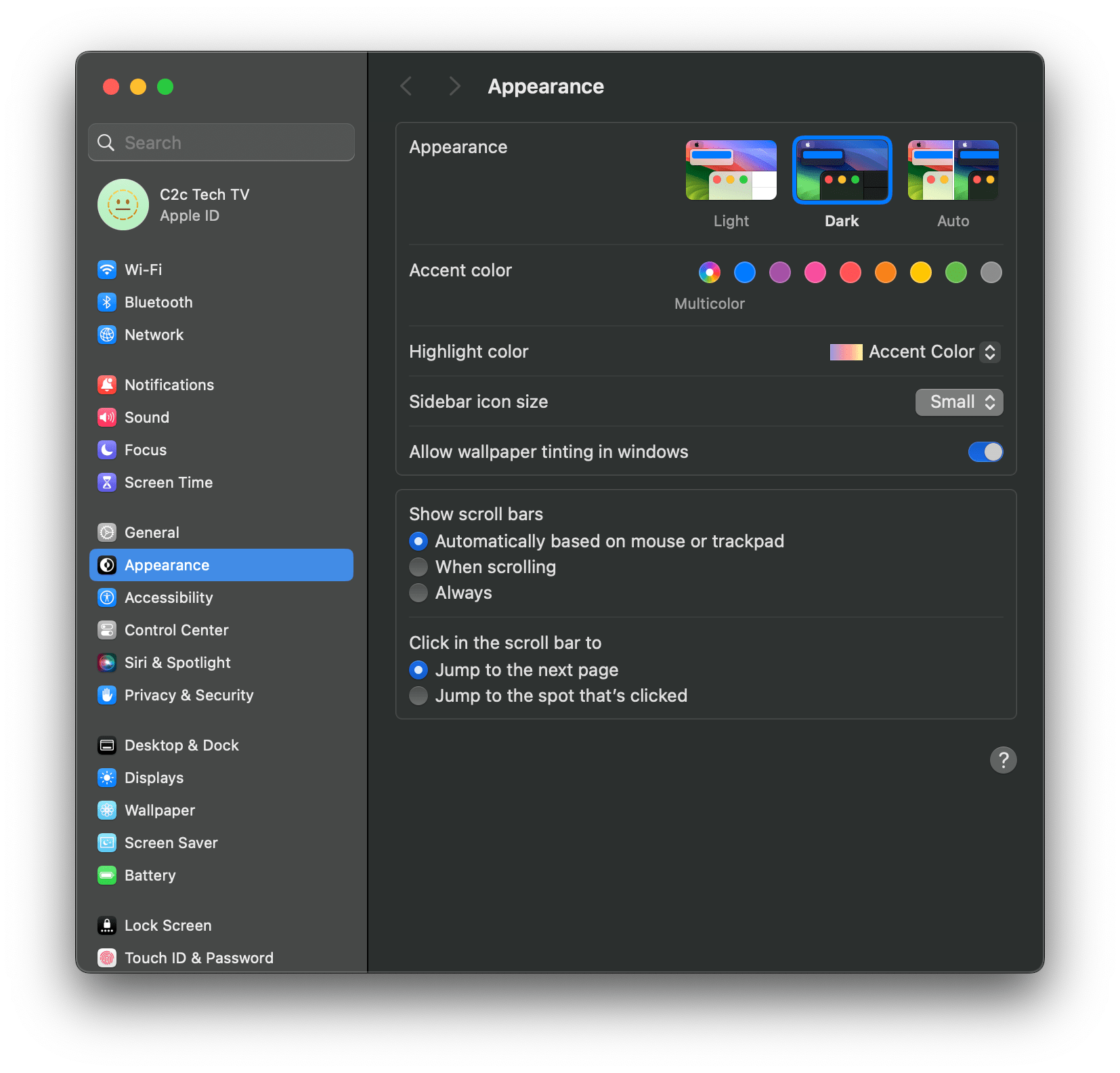
This will change the sidebar text and icon sizes for System Settings as well as the Finder app.

This is not an AI-generated article but is demonstrated by a human on an M1 Mac running macOS Sonoma 14.0.
Please support independent contributors like Code2care by donating a coffee.
Buy me a coffee!
Comments & Discussion
Facing issues? Have questions? Post them here! We're happy to help!