
This is for advanced users. You can even take Screen Shots using terminal command screencapture. There are loads of options available to capture a screen, You can create your own custom scripts to take screen captures.
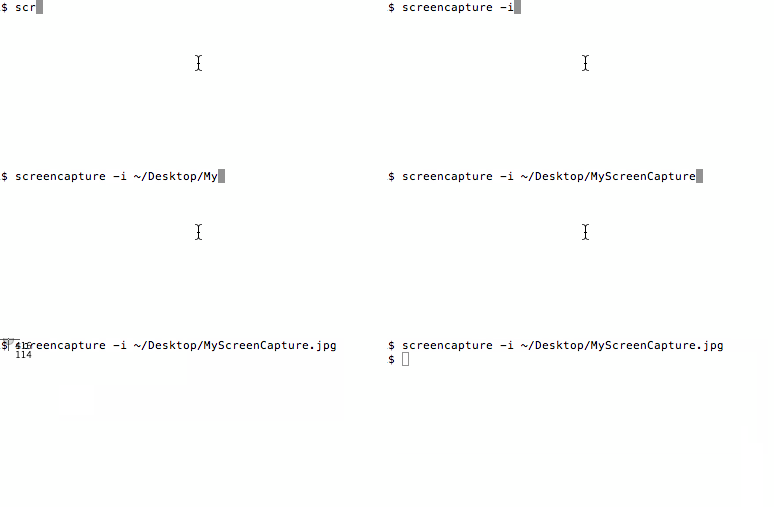
Some Terminal Screen Capture Examples :
screencapture -i ~/Desktop/myScreenCapture1.jpg
When you fire this command, the mouse pointer will turn into a cross-wire (interactive mode) and you can select an area on the screen and this file will be saved as myScreenCapture1 with jpg image format extension on the desktop.
screencapture -ix ~/Desktop/myScreenCapture2.tiff
Now we have added the -x option, so no sound will be played when the image is captured.
screencapture -ixC ~/Desktop/myScreenCapture3.png
Now we have added -C option too, so no sound will be played when the image is captured and even the Cursor will be captured in the image.
List of options available:
-c: It will force screen capture as a clipboard instead of a file.

-C : If you want to capture the cursor as well as the screen you can use this option

-i: It will capture the screen interactively, a cross-wire will appear and you can select a selection of the window.

-m: This will only capture the main monitor.

-M: It opens the taken picture in a new Mail message.

-o: This will not capture the shadow of the window.

-P: This will open the taken picture in a Preview window.

-s: Allow mouse selection mode only.

-S : capture the screen instead of the window.

-t: Save image format to create, default is png (other options include pdf, jpg, tiff, and other formats).

-T: Take the picture after a delay of seconds, the default delay is 5 seconds.

-w: This only allows window selection mode.

-W: This starts interaction in window selection mode.

-x: This will not play sound when screenshot is taken.

-a This option will not capture the attached windows.

-r This option will not add screen dpi metadata to a captured file.

files: where to save the screen capture, 1 file per screen.
Have Questions? Post them here!
Provide Feedback For This Article
We take your feedback seriously and use it to improve our content. Thank you for helping us serve you better!
😊 Thanks for your time, your feedback has been registered!
Comments & Discussion
Facing issues? Have questions? Post them here! We're happy to help!