
If you have Docker Desktop installed on your Mac device and want to check for update and install it, you can follow the below steps,
- Open Docker Desktop Application using Spotlight Search,
- Now, Click on the Gear (Setting) icon on Dashboard, you might see a alert on it if you have a Software Update pending,
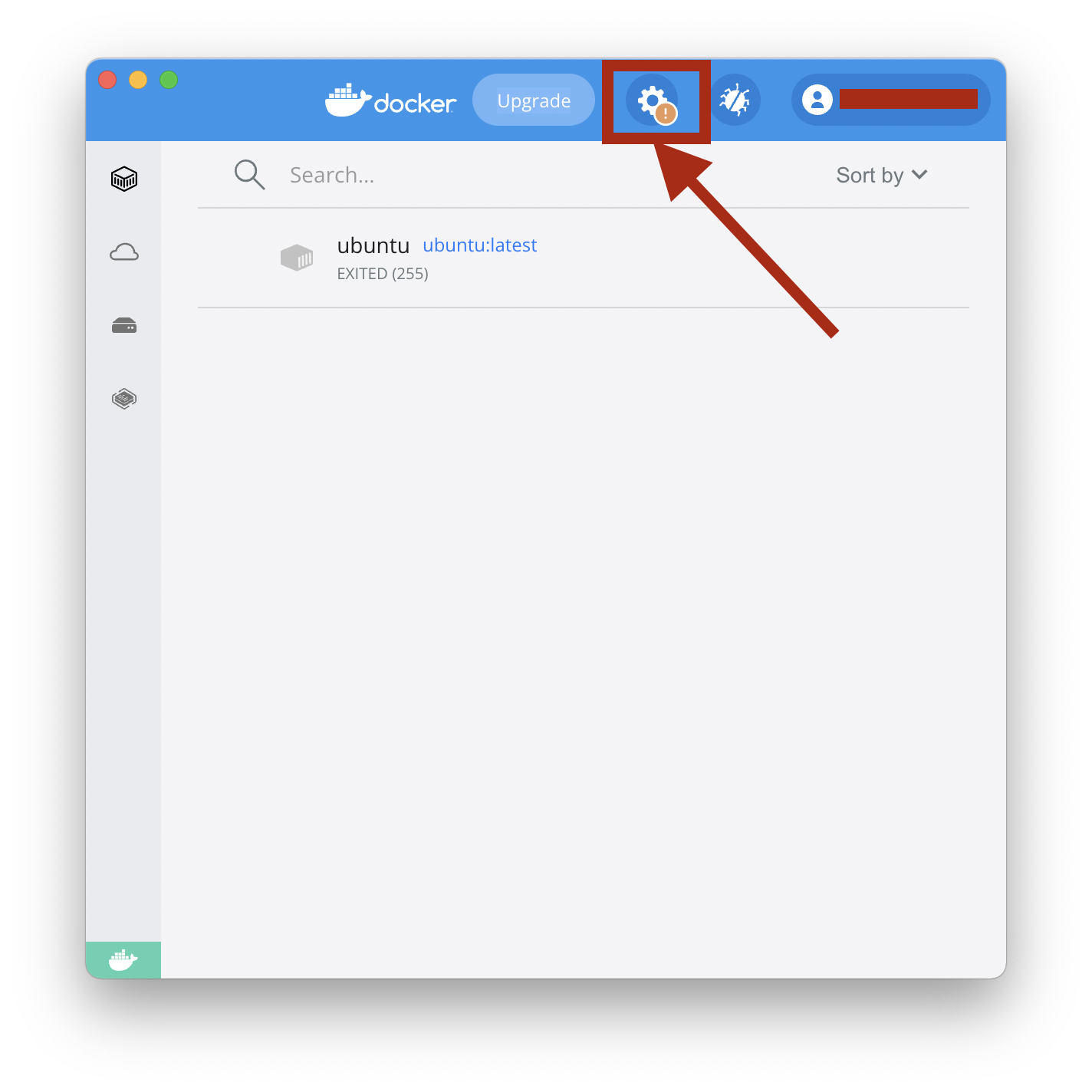
- Now click on Software Updates,
- Click on Download Update, you would see that the Docker icon on the menu bar shows a update animation while the update Is getting downloaded,
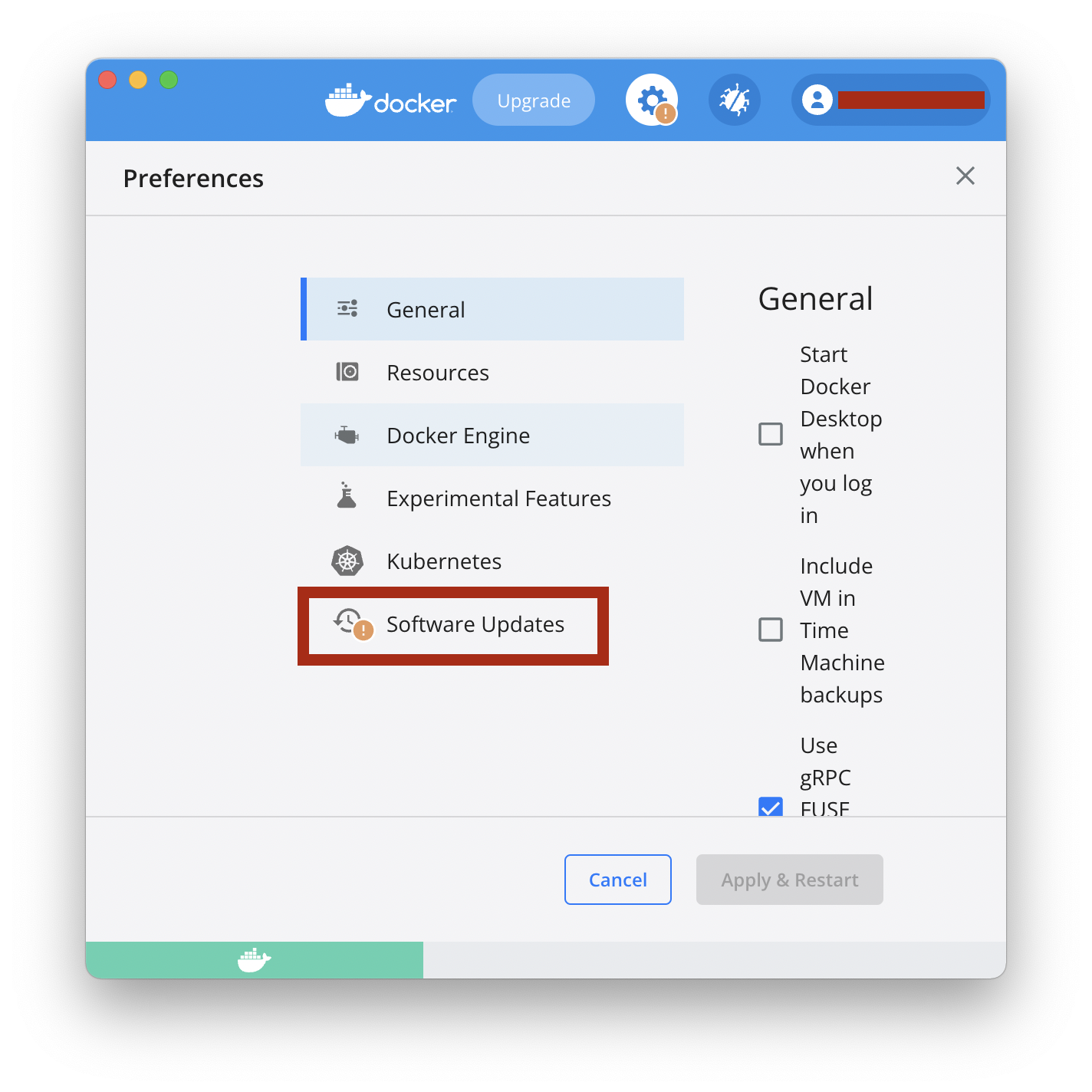
Software Updates A new Update is ready to download You’re currently on version 4.3.2. The latest version is 4.4.2 > Automatically check for updates > Always download updates (Automatically download new updates in background) - Once the download is complete you can click on Update and Restart, once Docker restarts you will be asked to enter your Mac Password,
Docker Desktop needs privileged access.

Docker Desktop needs privileged access to install its networking components and links to the Docker apps.

You will be asked for your password.
You can read about the updates for Mac on: https://docs.docker.com/desktop/mac/release-notes/
If you go to Settings and see "You're upto date" that means you are on the latest version,
Software Updates
You're up to date

Docker Desktop 4.12.0 (85629) is currently the newest version available.
In the latest versions you will also see a Update to latest on the Docker Desktop Dashboard

Provide Feedback For This Article
We take your feedback seriously and use it to improve our content. Thank you for helping us serve you better!
😊 Thanks for your time, your feedback has been registered!
Comments & Discussion
Facing issues? Have questions? Post them here! We're happy to help!