
If you own a new M1 Chip-based Mac device, you must always try and install all the applications that run natively - doing so you will make the app run more efficiently and energy-efficient.
Google Chome is one of those App that eats up a lot of CPU and Memory resources, so better get the Native Chrome installed on your M1 Mac.
How to install Google Chrome Browser that runs natively on M1 Mac?
- Go to Chrome's website: https://www.google.com/chrome/
- When you click on Download Chrome link, you will get a pop-up with two options: Mac with Intel Chip or Mac with Apple chip, selected the Apple Chip option,
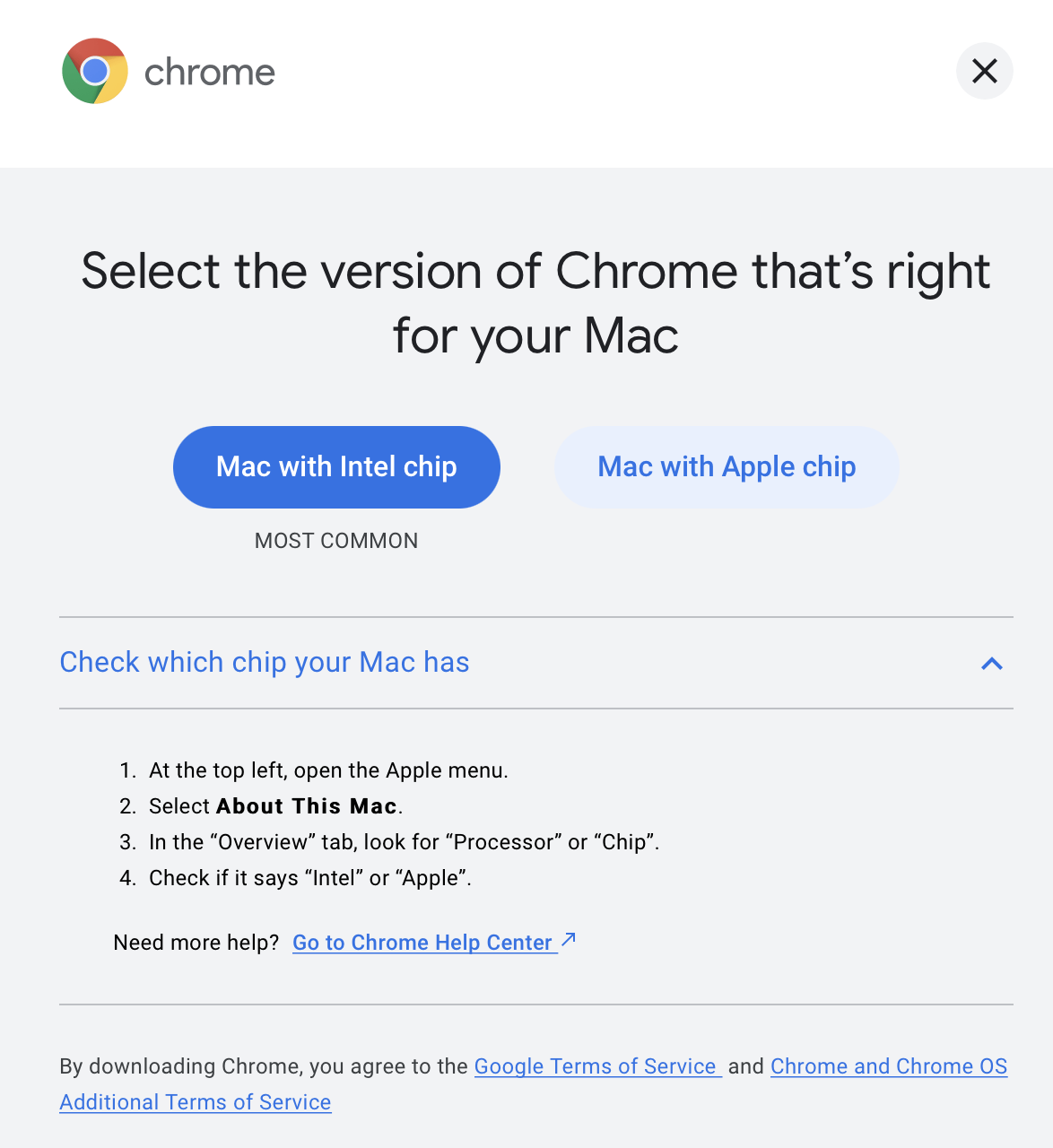
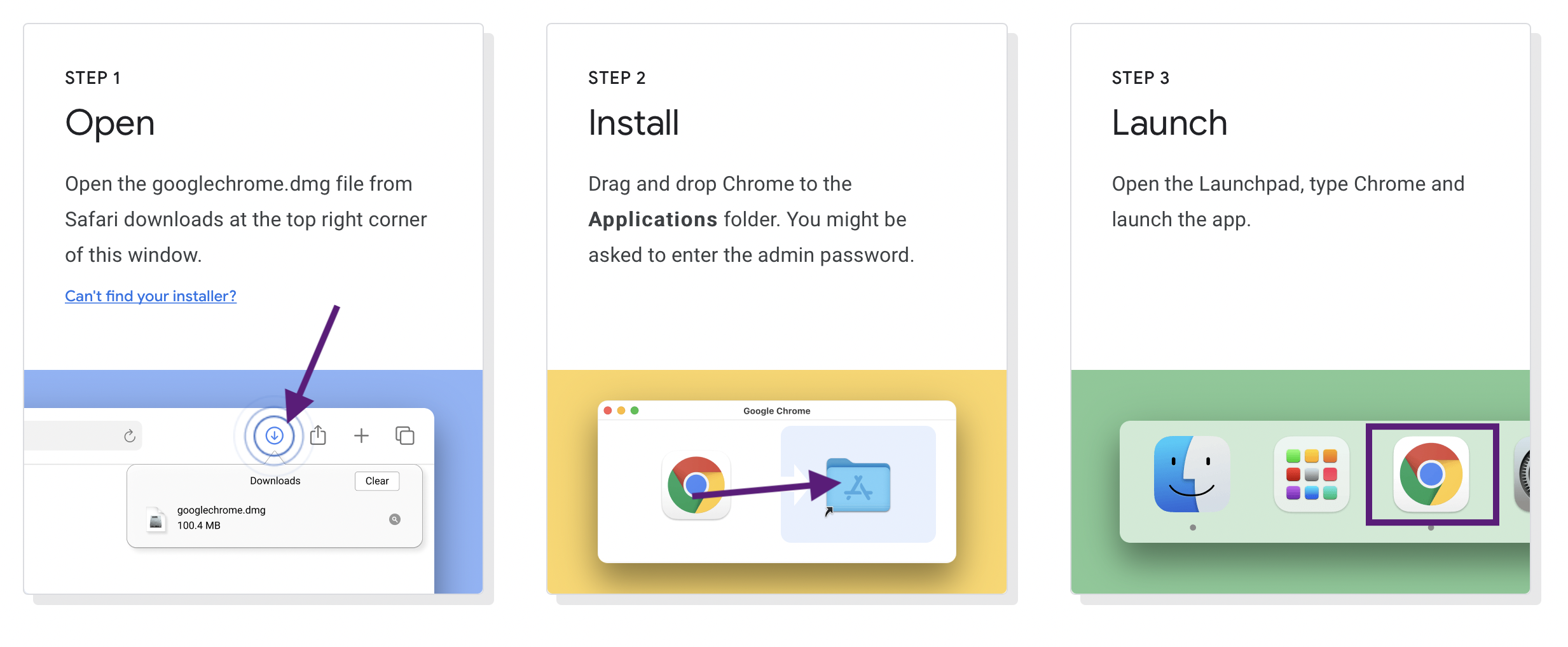
Chrome App for Mac with Apple Chip - You will be re-directed to a page where you can download the Chrome .dmg file by clicking "Download Chrome" on the top right side of the page.
Have Questions? Post them here!
Provide Feedback For This Article
We take your feedback seriously and use it to improve our content. Thank you for helping us serve you better!
😊 Thanks for your time, your feedback has been registered!
Comments & Discussion
Facing issues? Have questions? Post them here! We're happy to help!