
New to the Apple line of Mac Computers? Want to know how to make use of the macOS Terminal application? Let's cover some basics for the macOS Terminal and learn 10 Beginners Commands.
What is a Terminal?
The Terminal is an application that is built into all Apple computers (iMac, Mac Mini's) and laptops (MacBook Air's and Pros), it is an application that provides test-based access to the operating system. Just the way you access your computer using the User Interface, you can make use of the Terminal to fire some commands and perform certain actions.
The default shell in macOS is Zsh shell, you can also choose/switch to other shells like Bash, tsch, or bash.
How to open the Terminal?
There are various ways in which you can open the Terminal application,
- Spotlight Search:Click Spotlight search icon next to your menu time - type Terminal, open the app.
- Using Finder: Open Finder, Go to Application -> Utilites and look for Terminal
- Keybroad Shortcut: Press Command + Space and type Terminal, open the app.
10 Beginners Commands for macOS Terminal
- pwd command: To know the present working directory.
code2care@mac ~ % pwd
/Users/code2care
code2care@mac ~ %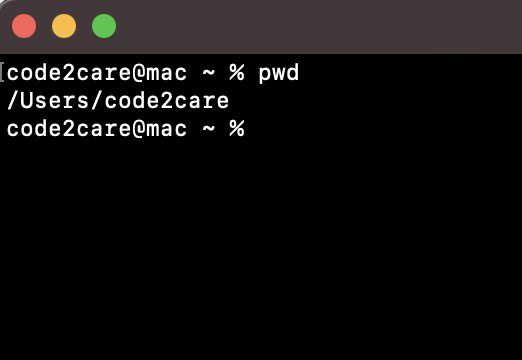
1. macOS Terminal pwd command - cd command: To change the current directory. Example if you want to move from the correct location to the Documents directory type cd /Users/your-user/Documents
Examples:

code2care@mac Documents % cd /Users/code2care/Documents
code2care@mac Documents % pwd
/Users/code2care/Documents
code2care@mac Documents %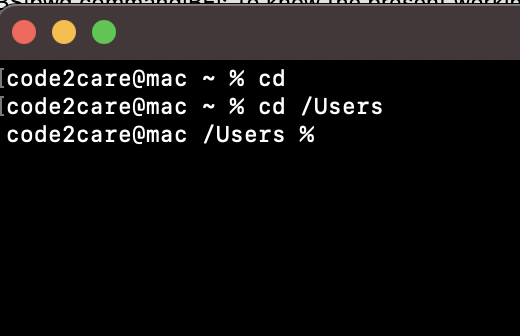
2. macOS Terminal cd command - ls command: Displays the list of files and directory in current location you are in,
Example:

code2care@mac Documents % ls
ErrorLogs	JVM.key		books		myApp
Gradle.key	VPC.key		c2c notes

code2care@mac Documents % ls -ltrh
total 17528
drwxr-xr-x   2 code2care  staff    64B Feb 13 12:57 c2c notes
-rwx------@  1 code2care  staff   3.0M Feb 19 22:30 VPC.key
-rw-r--r--   1 code2care  staff   130K Feb 28 00:18 ErrorLogs
-rwx------@  1 code2care  staff   3.4M Mar  6 00:03 JVM.key
-rwx------@  1 code2care  staff   1.9M Apr 10 00:57 Gradle.key
drwxr-xr-x@ 11 code2care  staff   352B Apr 11 14:00 myApp
drwxr-xr-x   7 code2care  staff   224B Apr 11 14:01 books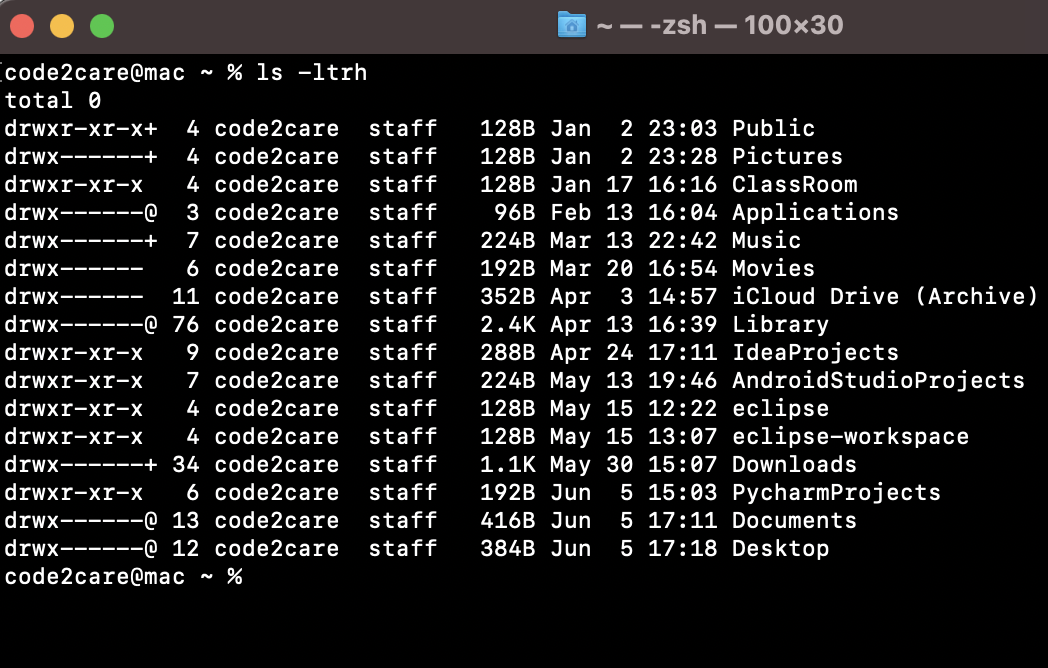
3. macOS Terminal ls command - clear command: this command will clear the screen.
code2care@mac Documents % clear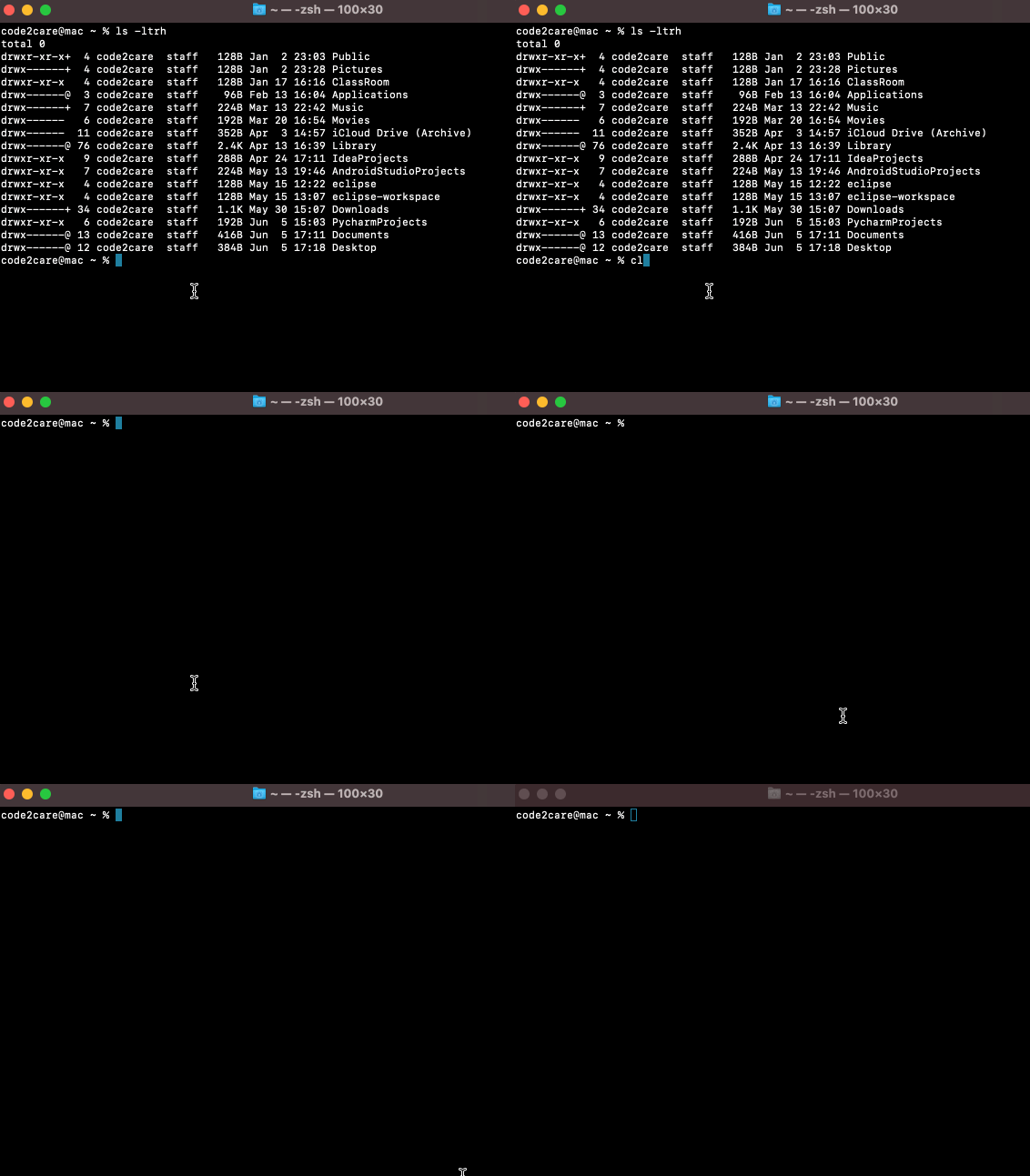
4. macos ls command - touch command: to create a file.
code2care@mac Documents % touch sample.txt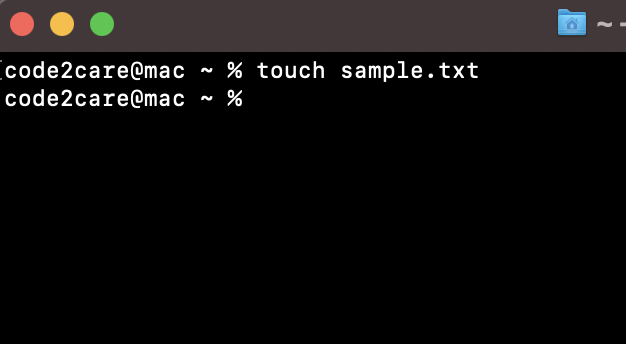
5. macOS Terminal touch command - cal command: to display the calendar,
Example:

code2care@mac Documents % cal
     June 2021
Su Mo Tu We Th Fr Sa
       1  2  3  4  5
 6  7  8  9 10 11 12
13 14 15 16 17 18 19
20 21 22 23 24 25 26
27 28 29 30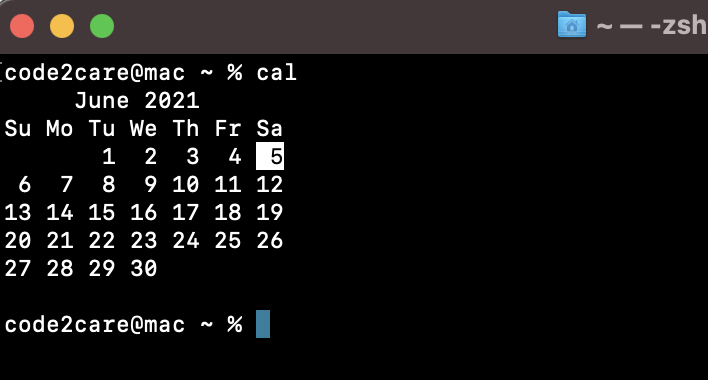
6. macOS Terminal cal command - cat command: to display the contents of a file,
Example:

code2care@mac Documents % cat sample.txt
Hello
this
is my
file with
some text in
it on my MacBook Pro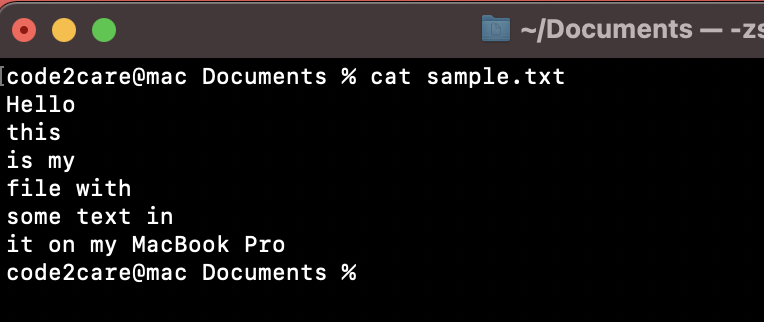
7. macOS Terminal cat command - uptime command: This command will tell you how long your Mac has been running before the last shutdown.
Example:
code2care@mac Documents % uptime
17:09  up 4 days, 19:35, 2 users, load averages: 1.52 1.50 1.45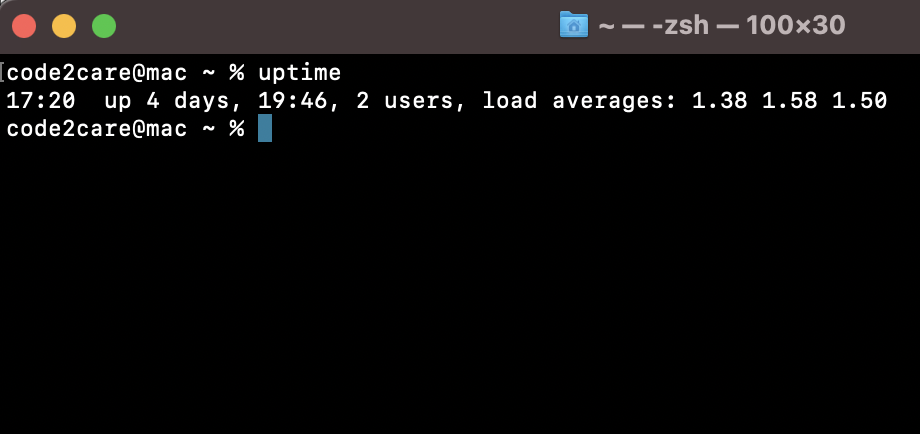
8. macOS Terminal uptime command - mkdir command: To create a new directory,
code2care@mac Documents % mkdir myDir
code2care@mac Documents % cd myDir
code2care@mac myDir % pwd
/Users/code2care/Documents/myDir
code2care@mac myDir %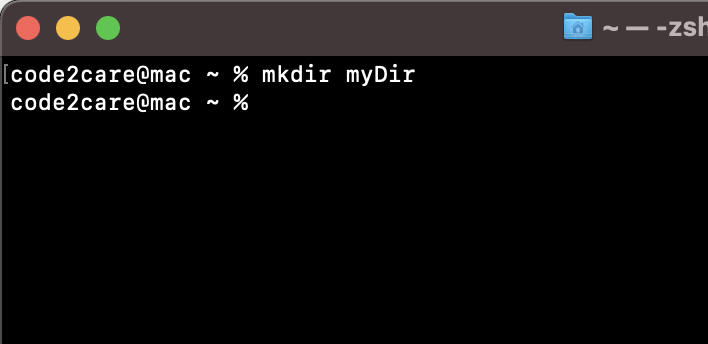
9. macOS Terminal mkdir command - history command: to display the list of last ran commands on terminal,
Example:

code2care@mac myDir % history
 1029  clear
 1030  touch sample.csv
 1031  who
 1032  pwd
 1033  clear
 1034  cal
 1035  clear
 1036 ls -ltrh
 1037  nano sample.txt
 1038  cat sample.txt
 1039  clear
 1040  uptime
 1041  clear
 1042  mkdir myDir
 1043  cd myDir
 1044  pwd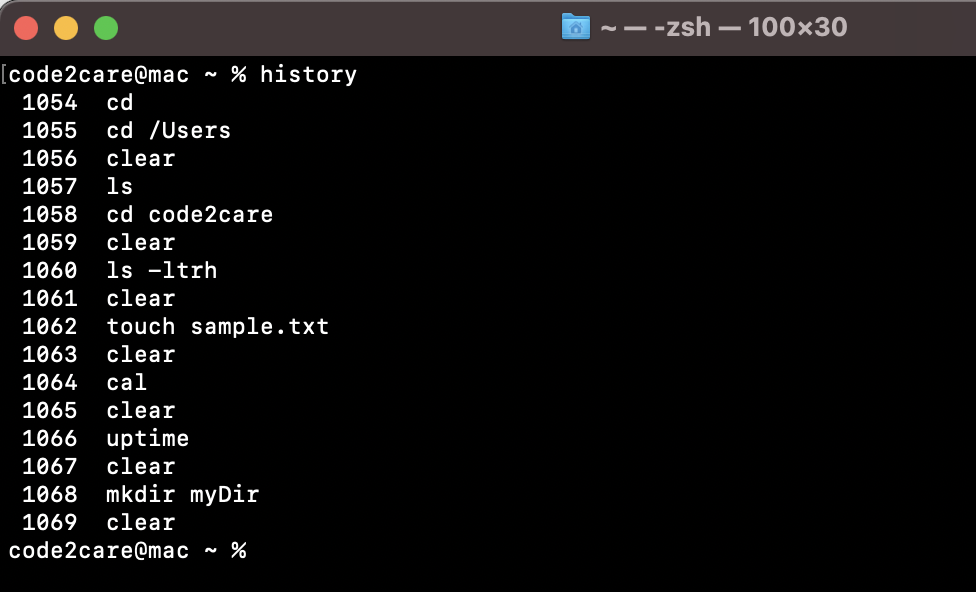
10. macOS Terminal history command
Have Questions? Post them here!
Provide Feedback For This Article
We take your feedback seriously and use it to improve our content. Thank you for helping us serve you better!
😊 Thanks for your time, your feedback has been registered!
Comments & Discussion
Facing issues? Have questions? Post them here! We're happy to help!