Spring Boot has made developing Java projects very easy, as it does take care of the configurations and boilerplate code, if you are new to Spring Boot and what to just see how to run a Hello World! with Spring Boot Web project with Gradle, you are at the right place.
Prerequisite:
Must have Java 8 or + installed,
IDEA IntelliJ IDE installed,
Basic understanding of Java and related frameworks like Spring,
Basic understanding of Gradle.
Steps to run Hello World! Program using String Web
Open IntelliJ,
Click on New Project,
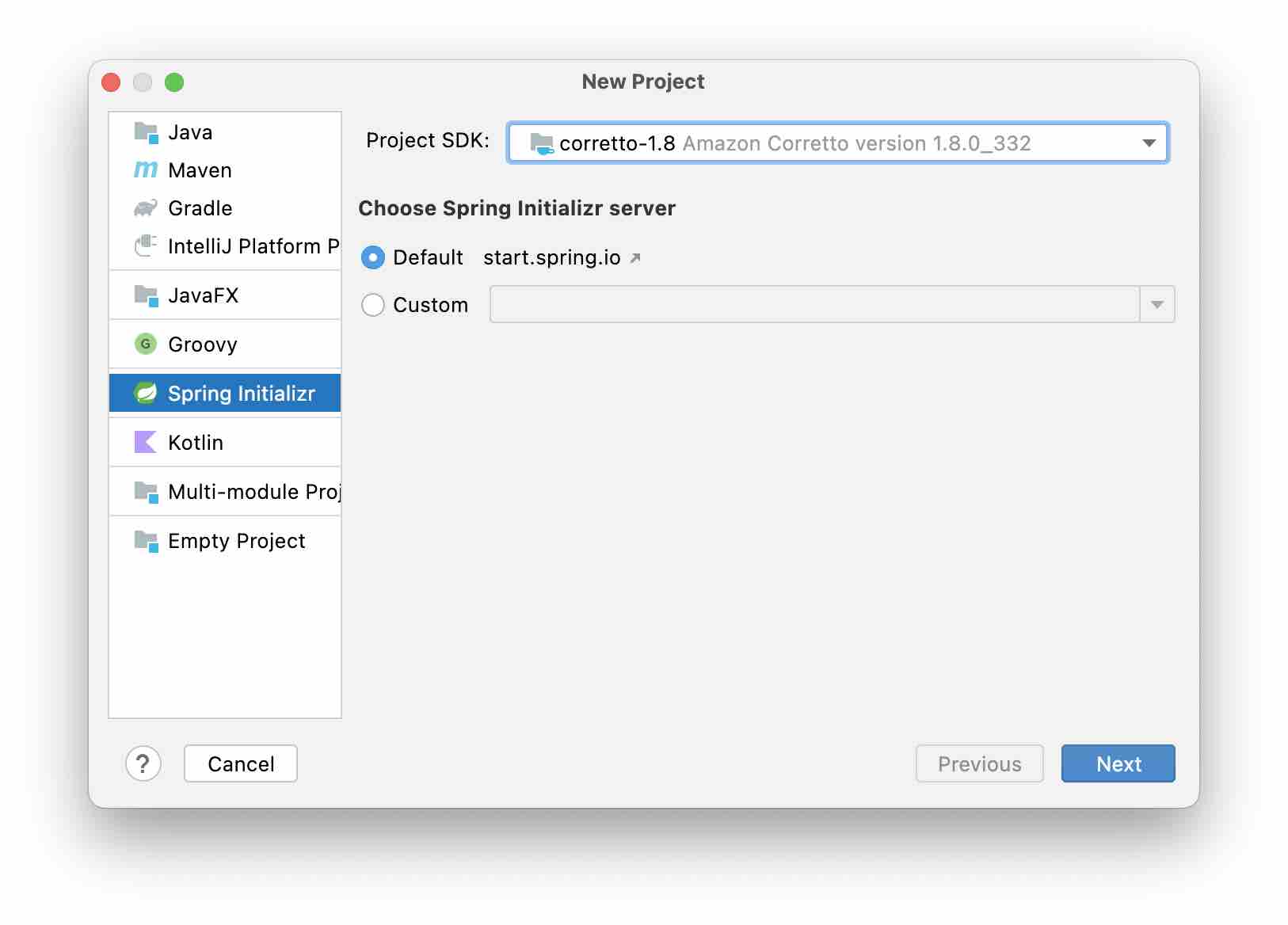
Now Select Spring Initializr, choose your Java 8 or above SDK, and keep rest as it and hit next,
Now Select Project Type: Gradle Project and Select the Java Version (same that you selected in the previous step), keep the rest of the configurations as it is,
Project properties
Group Id: com.example
Artifact Id: demo
Version: 0.0.1-SNAPSHOT
Project type: Gradle Project
Language: Java
Packaging: Jar
Java version: 8
Project name: demo
Project description: Demo project for Spring Boot
Package name: com.example.demo
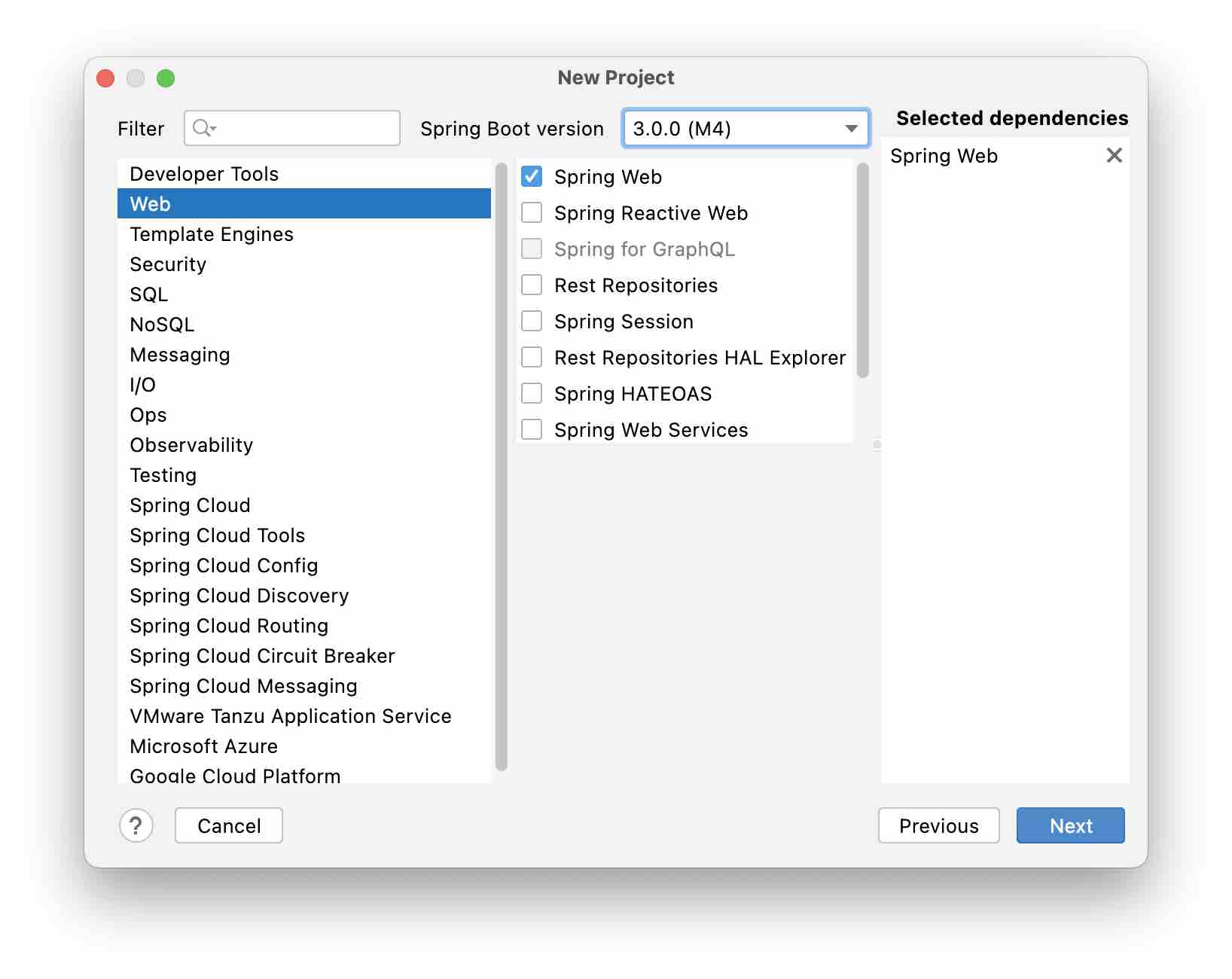
Now, Select Web -> Spring Web, Note as 3.0.0 (M4) is the latest version we will select that, click Next
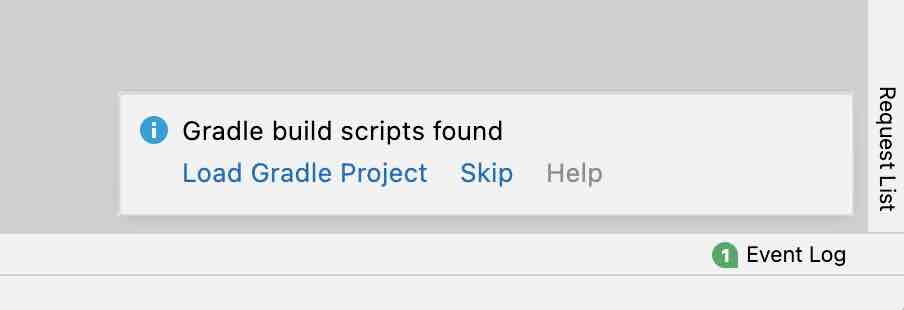
Now you should see Gradle build scripts found, just click on Load Gradle Project,
, wait for it to complete,
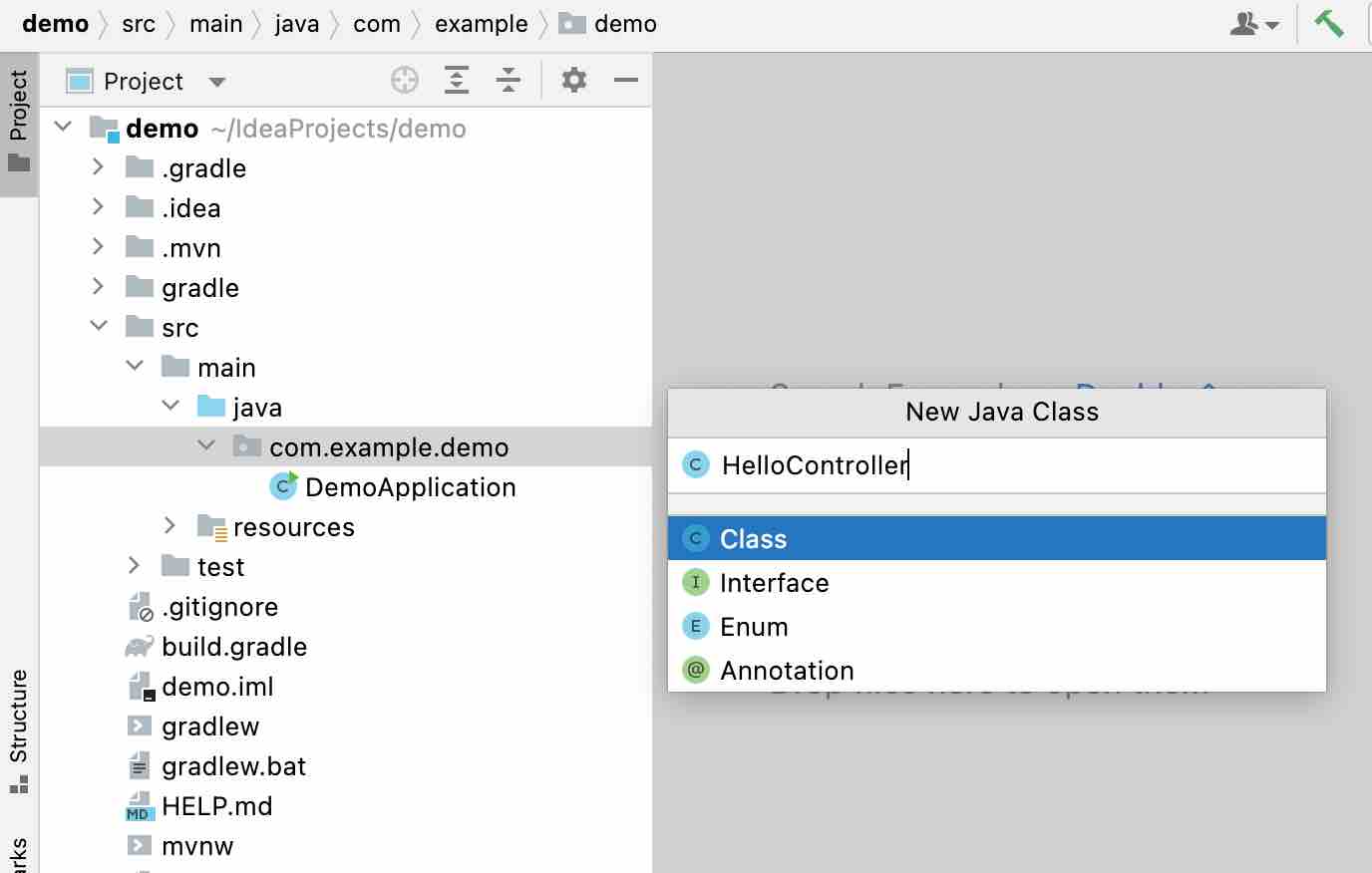
Now under the Project: src -> main -> java -> com -> example -> demo -> Create a new Java Class: HelloController,
HelloController.java
package com.example.demo;

import org.springframework.web.bind.annotation.RequestMapping;
import org.springframework.web.bind.annotation.RestController;

@RestController
public class HelloController {

    @RequestMapping("/")
    public String hello()
    {
        return "Hello from Spring Web!";
    }
}
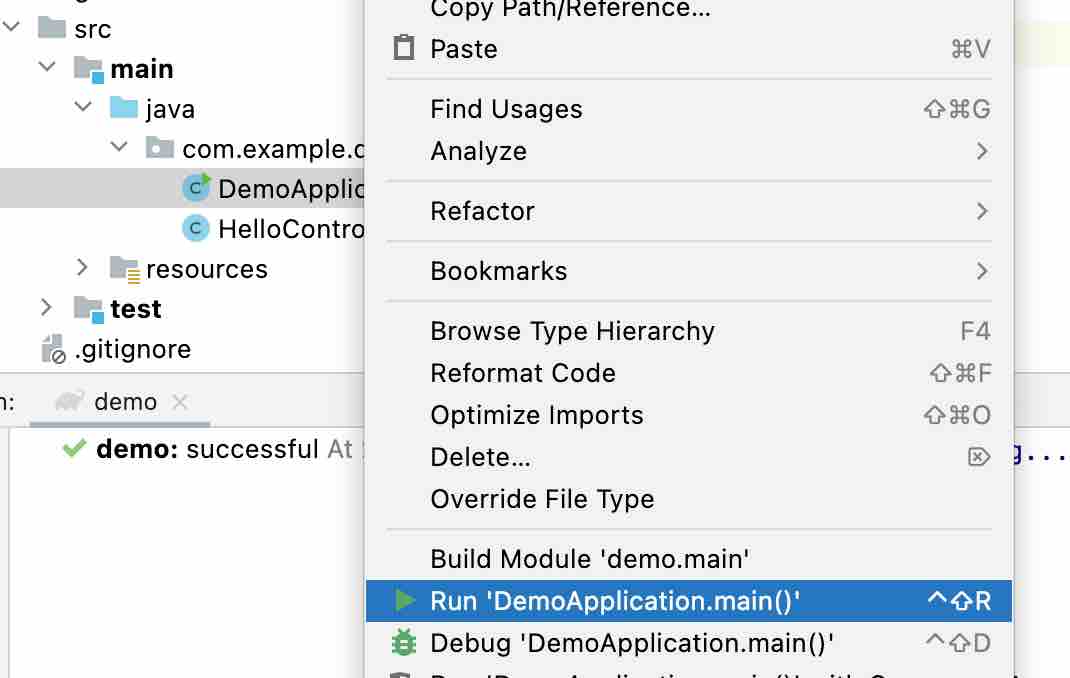
Now run the DemoApplication class which contains the main method,
Console logs:
12:05:27 PM: Executing ':DemoApplication.main()'...

> Task :compileJava
> Task :processResources UP-TO-DATE
> Task :classes

> Task :DemoApplication.main()

  .   ____          _            __ _ _
 /\\ / ___'_ __ _ _(_)_ __  __ _ \ \ \ \
( ( )\___ | '_ | '_| | '_ \/ _` | \ \ \ \
 \\/  ___)| |_)| | | | | || (_| |  ) ) ) )
  '  |____| .__|_| |_|_| |_\__, | / / / /
 =========|_|==============|___/=/_/_/_/
 :: Spring Boot ::                (v3.0.0)

2022-08-26 12:06:29.116  INFO 9488 --- [           main] com.example.demo.DemoApplication         : Starting DemoApplication using Java 1.8.0_332 on Code2cares-MacBook-Air.local with PID 9488 (/Users/code2care/IdeaProjects/demo/build/classes/java/main started by code2care in /Users/code2care/IdeaProjects/demo)
2022-08-26 12:06:29.121  INFO 9488 --- [           main] com.example.demo.DemoApplication         : No active profile set, falling back to 1 default profile: "default"
2022-08-26 12:06:31.521  INFO 9488 --- [           main] o.s.b.w.embedded.tomcat.TomcatWebServer  : Tomcat initialized with port(s): 8080 (http)
2022-08-26 12:06:31.540  INFO 9488 --- [           main] o.apache.catalina.core.StandardService   : Starting service [Tomcat]
2022-08-26 12:06:31.540  INFO 9488 --- [           main] org.apache.catalina.core.StandardEngine  : Starting Servlet engine: [Apache Tomcat/9.0.64]
2022-08-26 12:06:31.687  INFO 9488 --- [           main] o.a.c.c.C.[Tomcat].[localhost].[/]       : Initializing Spring embedded WebApplicationContext
2022-08-26 12:06:31.687  INFO 9488 --- [           main] w.s.c.ServletWebServerApplicationContext : Root WebApplicationContext: initialization completed in 2365 ms
2022-08-26 12:06:32.918  INFO 9488 --- [           main] o.s.b.w.embedded.tomcat.TomcatWebServer  : Tomcat started on port(s): 8080 (http) with context path ''
2022-08-26 12:06:32.949  INFO 9488 --- [           main] com.example.demo.DemoApplication         : Started DemoApplication in 4.663 seconds (JVM running for 5.386)
You must see in the logs: Tomcat started on port(s): 8080 (http)
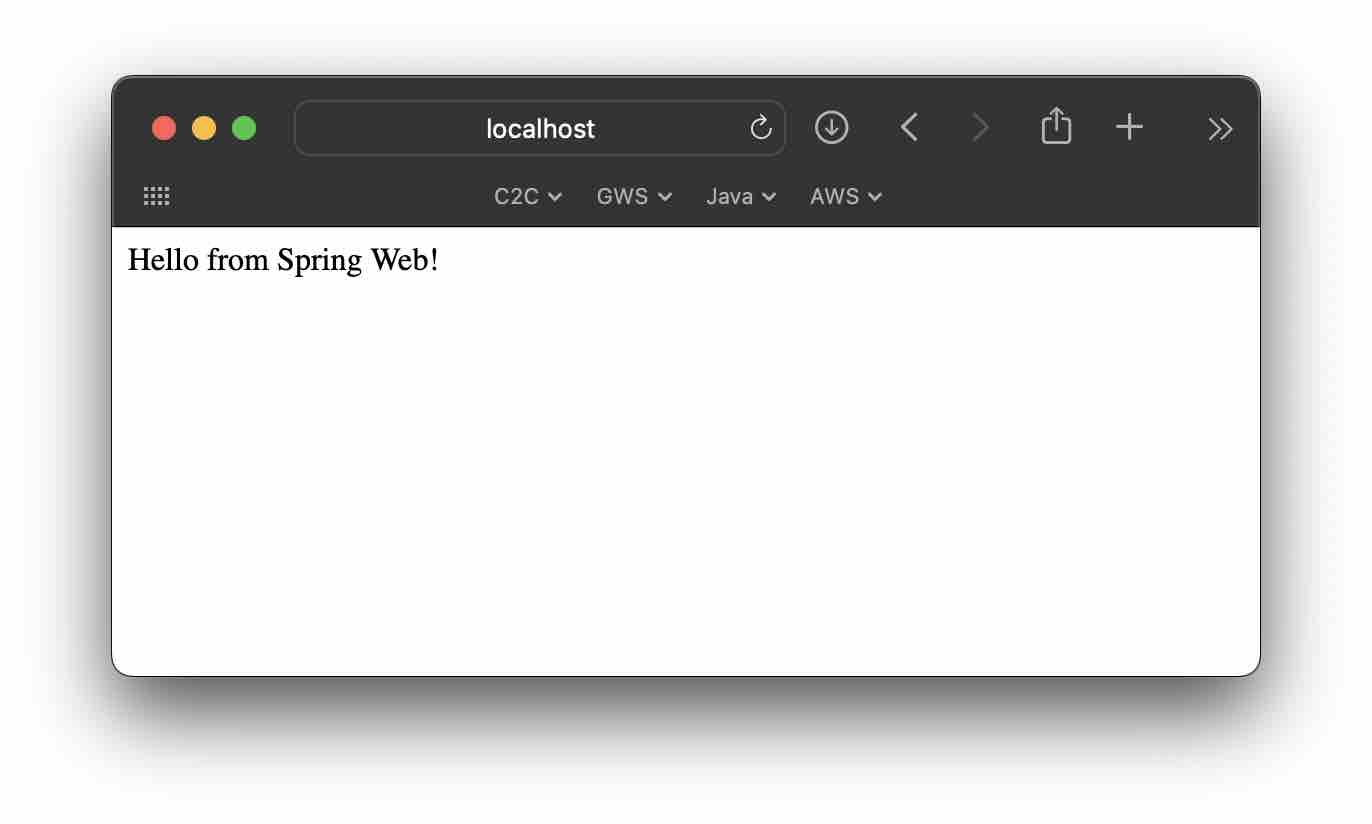
Now, open your web-browser (Safari/Chrome/Firefox) and type in the address: http://localhost:8080
You should see the message: Hello from Spring Boot! displayed.
Comments & Discussion
Facing issues? Have questions? Post them here! We're happy to help!
Provide Feedback For This Article
We take your feedback seriously and use it to improve our content. Thank you for helping us serve you better!
Thanks for your feedback! If you have time, please provide details by selecting options below.
😊 Thanks for your time, your feedback has been registered!



 HelloController.java
Comments & Discussion
Facing issues? Have questions? Post them here! We're happy to help!